Today’s an exciting day because I’ve finished releasing PowerGUI Pro 3.0 and PowerGUI 3.0 to the web! This release is something we’ve been working on for a long time, and it has a ton of new goodies for you to play with. You can learn more about the individual features in this release in the highlights below. When reviewing these features, anything that is only available in PowerGUI Pro will be marked as a Pro feature.
Mobile Systems Management (Pro feature)
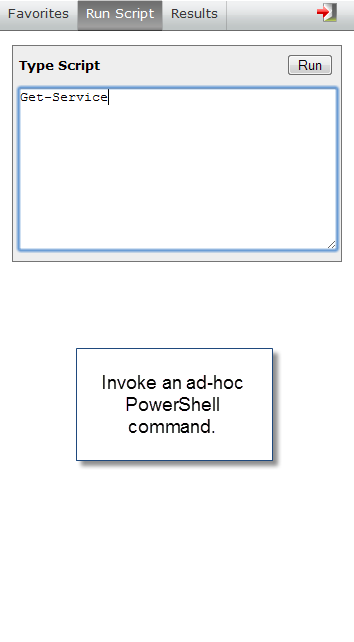
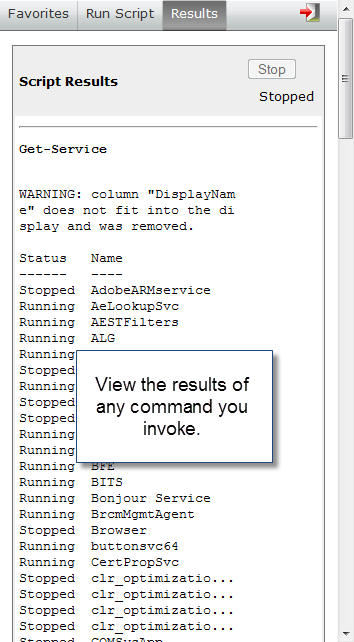
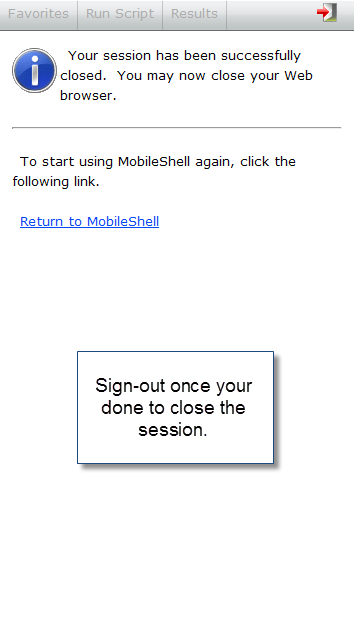
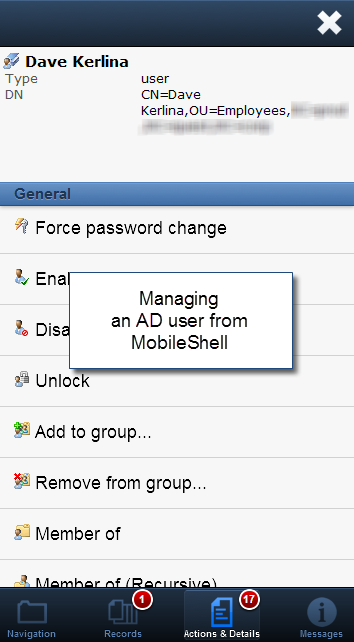
Ever wish you could immediately respond to hot issues from wherever you are without having to run to the office or to your home computer? Now you can! PowerGUI Pro 3.0 now provides you with a mobile systems management console on your handheld device! Better yet, the systems management console you use is fully customizable using PowerShell scripts! You can also configure different management experiences for different users and groups in your organization by using role-based access control (RBAC) to define which PowerPacks are assigned to various AD users and groups. Since this leverages the PowerPack model, that’s a whole lot of mobile systems management possibilities for you to pick and choose from.
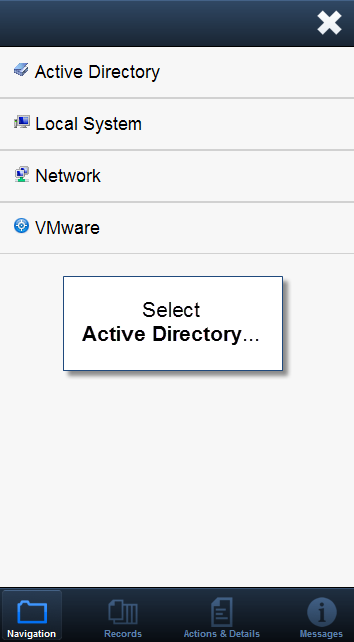
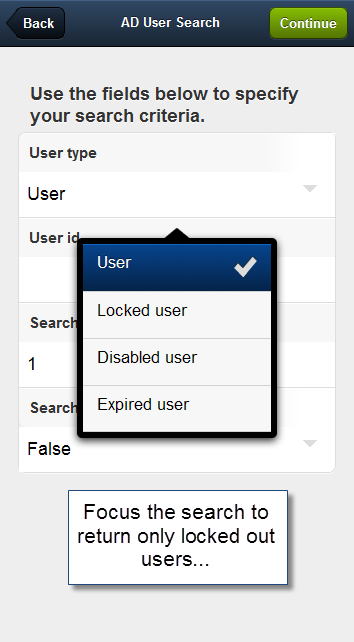
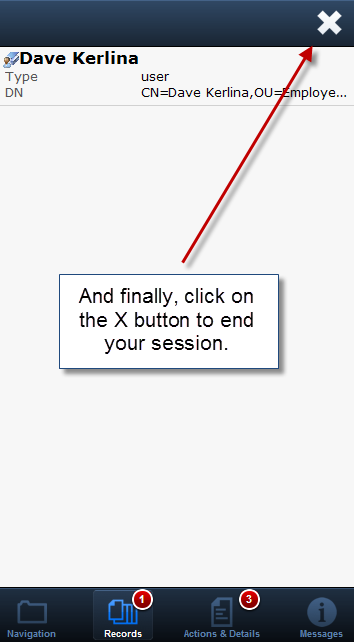
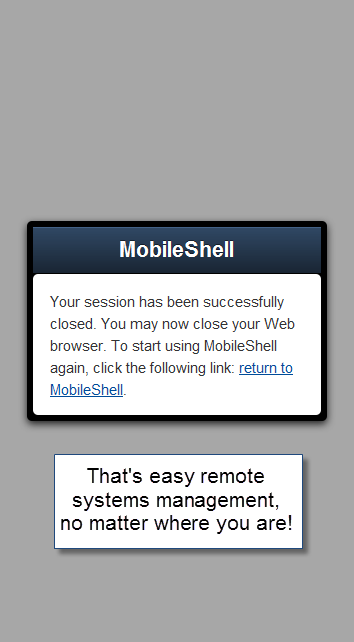
Here’s a screenshot showing what this looks like as you browse through the Active Directory PowerPack using MobileShell and retrieve an AD user you want to modify:

Currently the list of mobile devices that support this new management interface include:
- iOS devices
- BlackBerry devices (BlackBerry OS 6.0 and higher)
- Android devices (Android OS 2.2 and higher)
You can also use this from a desktop or laptop by connecting with the Chrome 11 and higher or Safari 5 and higher web browsers.
Customizable Start Page (some Pro-only functionality)
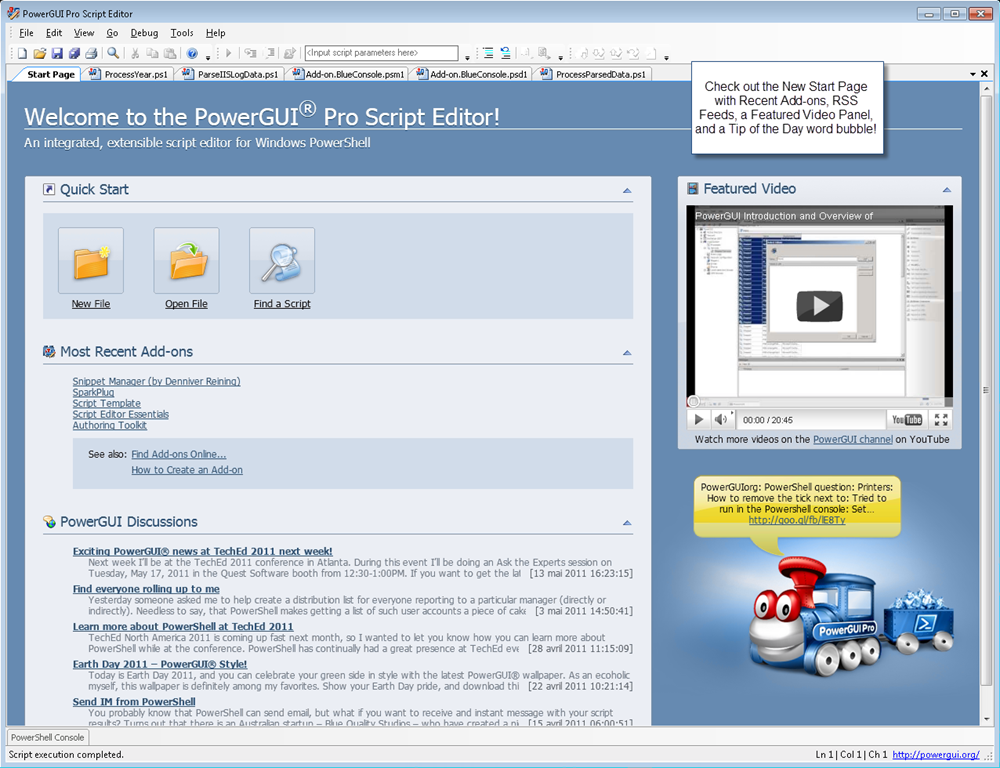
Completely new to this release, we have created a customizable Start Page that appears when you launch the Script Editor or the Admin Console. The Start Page is designed to allow you to keep aware of what’s going on in the PowerShell community, provide you with a tip of the day, featured videos, and the most recent additions to the library of Add-ons and PowerPacks on PowerGUI.org. This feature is available in both the free and the Pro versions, however Pro users get an extra bonus here: with PowerGUI Pro you can customize the RSS feeds that are shown on this page to get even more of your favorite PowerShell news or, if you don’t want to use it that often and you’re a PowerGUI Pro customer you can simply indicate that PowerGUI should not show it on start-up. Personally I’m a Pro user and I use the new Start Page every day to keep up to date on news.

Create Executable from Script (aka Compile Script; Pro-only)
Another new feature in PowerGUI Pro in this release is the ability to create executables from script. This feature greatly simplifies having someone else in your organization run some functionality that you’ve built in a PowerShell script. Instead of sending them a script, worrying about execution policy, providing them with instructions about how to run the script, and wondering if they’ll modify (and break) the script or not, you can simply provide them with an executable program that does whatever your script was designed to do. You can also be comfortable with the contents of these programs, either encrypting them with a password or leaving them decrypted, in which case the scripts that are packaged in the executable program are obfuscated to keep their contents hidden from prying eyes.

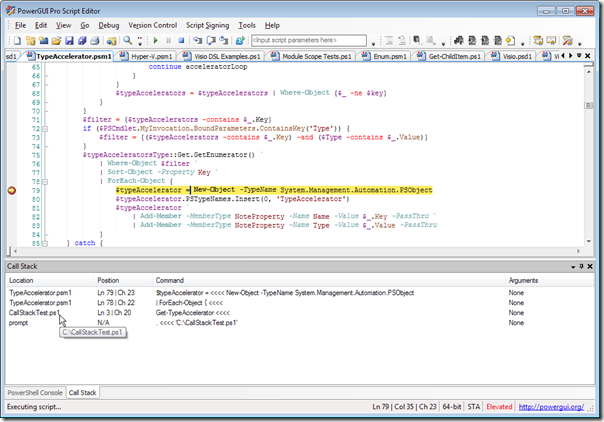
Go to Function Definition (Pro-only)
Yet another new feature in PowerGUI Pro 3.0 is support for going to the definition of any function from the name of that function in a script file. This feature is very useful, both when you’re building your own function libraries or modules, and when you are using other function libraries or modules. With this feature you can right-click on the name of any function in a script file that you’re looking at and select Go to Definition from the menu that appears. If it’s not a function, nothing happens, but if it’s a function, you’ll be taken to the location where that function is defined, even if you have changed the file, so it’s great when you’re editing scripts. If it cannot find the function definition in a file, such as when you right-click on a function that is defined by PowerShell itself, you can show the definitions of those functions in a new file, making it easy to override behaviour this way. This is great functionality whether you are working by yourself or with a team of users (where you may not know the location of functions you are working with).
Improved Version Control Support (Pro-only)
We spent some time in this release sprucing up our version control support. PowerGUI Pro has always supported integrated version control. Now that support is better, allowing you to retrieve files from version control that you have never checked in or out without having to go to a separate client. It also supports version control providers that have their own check-in dialog, allowing you to make sure you only get prompted for comments during check-in once.
Reset Runspace on Demand
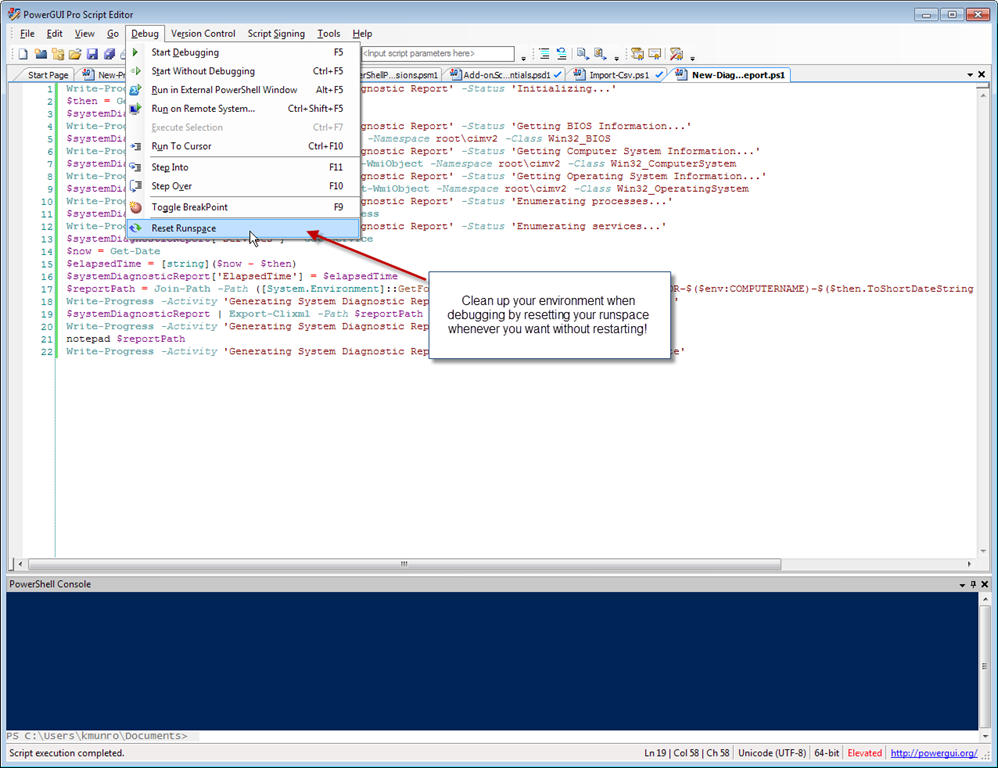
Here’s a really useful new feature that’s available in both freeware and Pro. As you work with PowerShell, you create variables, add functions, and change the state quite a bit. A best practice worth following is before you publish any scripts, make sure that they pass your tests in a clean environment. In previous versions of PowerGUI this would require resetting your runspace with each debug (something I don’t recommend anymore), or restarting PowerGUI. Now you can simply select Debug | Reset Runspace, and your environment will be reset without having to close and re-open the product.

Improved Snippets Support
Snippet support in PowerGUI has always been best-in-class, but in this release they get even better! We now have a brand new snippets hierarchy that reorganizes our existing snippets and adds a bunch of new ones. Snippets are a huge timesaver when it comes to writing PowerShell scripts, and we’ve just made it easier to find the snippets you’re looking for by organizing them better into appropriate folders and adding additional snippets where some were missing. Personally I’m a huge fan of snippets, and would love to know what other snippets you would like to see going forward.

Also, I’m going to call out a specific feature in our snippet support that you may be interested in knowing about. If you create a module with commands and you want those commands to be easy to use, one very natural way to help your users learn your commands is to provide snippets. In PowerGUI, when you load any module that has a snippets subfolder as a child of the module base folder, those snippets will immediately become available in the PowerGUI Script Editor. That means as a module author, all you need to do is ship your module with snippets in a snippets subfolder and any PowerGUI user will automatically get access to them when they load the module. This is a very cool feature, and one that I encourage you to try out and support.
Performance Improvements
During our beta cycle for this release we spent a lot of time looking at performance and were able to make some changes now and plan some changes for later. With this release, we have dramatically improved our parser performance, which means that files will parse more quickly in the PowerGUI Script Editor. This in turn means files will open more quickly, which means the Script Editor itself will open more quickly when you’re loading a lot of files. There are more performance improvements coming, but we’ve already made great progress and I’m sure you’ll be happy with the improvements in this area!
Multi-line Support in the Embedded Console
Rich Beckett, this bud’s for you! Rich and a bunch of other PowerGUI users pointed out that they didn’t like how our Script Editor would return an error if you pressed enter when it was obvious that the line was not finished yet (for example, when you finish a line with a round curly brace, or a pipeline symbol, or a line continuance character like the backtick). We’ve fixed this now, so you can enter multi-line commands without having to worry about getting errors and without having to think about pressing Shift+Enter to get a newline in the command pane.
One-click Install for PowerPacks
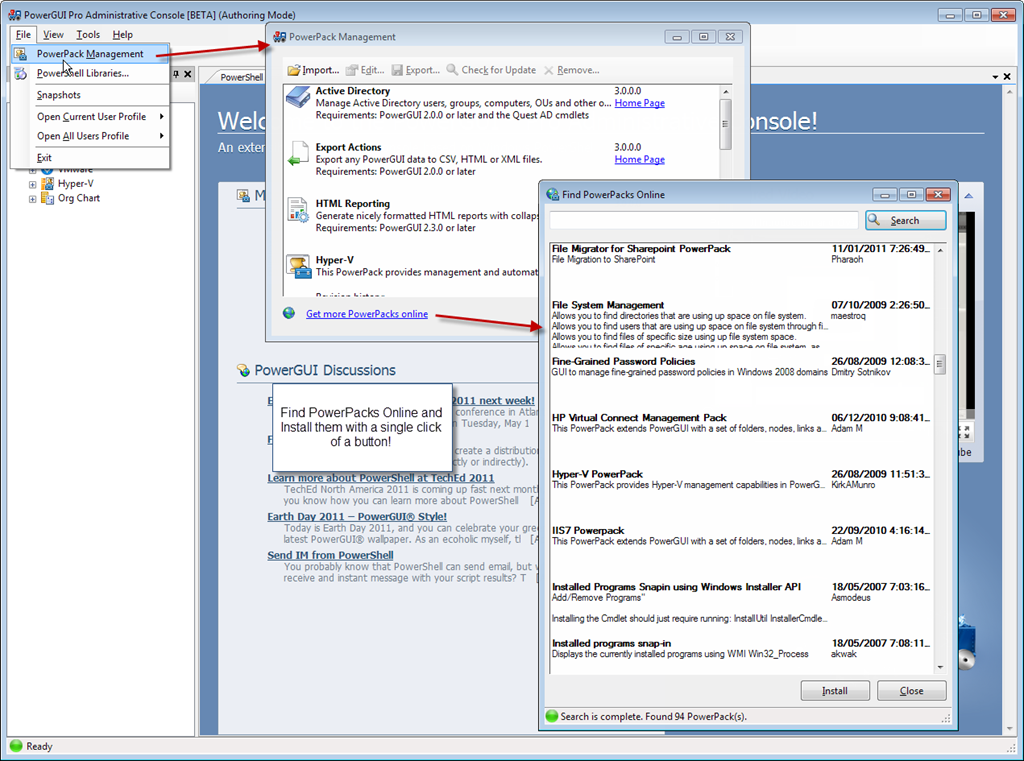
In our previous release we added support for one-click install for Add-ons in the Script Editor, allowing users to search for Add-ons on PowerGUI.org and install them with a single button click (there are some highly recommended Add-ons available by the way, so check them out if you haven’t already). Now we’re providing the same support for PowerPacks, so you can search online for PowerPacks, select the ones you like from the list of results, and click on a button to download, unblock, install and load those PowerPacks in the Admin Console. We have a large library of PowerPacks available, which you can see by clicking on the Show All button in the Find PowerPacks Online dialog. I strongly recommend you give them a look, because there is a ton of useful PowerShell functionality in those PowerPacks.

Admin Console Authoring Mode
If you’re like me, from time to time in the Admin Console you accidentally move something, or delete the wrong thing, or make some change you didn’t intend to make. Being able to change any PowerPack is great because it allows for rich customization, but when you’re just using the PowerPacks day to day, you may not want to make any changes. It’s also possible that you’re providing the PowerGUI Admin Console to some staff members who need the features but not the customizability. In those cases, you can now launch the Administrative Console in default (non-authoring) mode, and be assured that you can’t accidentally break one of the PowerPacks. When you need to make changes though, you can open the Administrative Console in Authoring mode and create and customize whatever you like!
Improved Action Support
The handling of Admin Console actions was improved a lot in this release. Now when you select one or more rows in the grid in the Admin Console, only the actions appropriate for those rows will be displayed. If you select mutliple objects of different types (files and folders, for example), you will only be presented with actions that apply to both types of objects. Also, only the relevant actions that don’t require any selection will be displayed when you click on a node or action and no data is returned. All of these changes make using the Admin Console much easier than before.
Improved Shared Script Support
Shared Scripts in the PowerGUI Admin Console allow you to define functions that you want to have access to in more than one location in a shared script file. These script files would only previously be loaded once you clicked on a script node or script action in a module, meaning that you could not create a simple node or simple action from a function in a shared script file. That’s changed now, such that shared scripts are invoked when you click on any node or action in a PowerPack.
VMware PowerCLI 4.1+ Support
We’ve had a beta version of the VMware PowerPack available for a while that provides support for PowerCLI 4.1. This release of PowerGUI includes that PowerPack in release form, officially catching PowerGUI support up to the latest VMware PowerCLI releases.
Of course there’s more!
There are a ton of other minor changes in this release as well, ranging from usability improvements to bug fixes to changes that make it a little easier to create PowerGUI Add-ons. We have new automatic variables ($PGHome, $PGUICulture, $PGVersionTable and $PGSE). We automatically load PowerPack requirements now when a PowerPack is loaded. I’m sure there are other changes in this release that I’m forgetting, but suffice it to say, we put a ton of energy into this release and it shows (I’m exhausted!  ).
).
Great! How can I get it?
PowerGUI Pro is a fantastic PowerShell-based product with a ton of value for the $199 US price tag, even more with this 3.0 release. If you like the features in PowerGUI Pro or if you like what we’re doing with PowerGUI in general and feel it’s time you put your money where your mouth is, simply point your browser to http://www.quest.com/GetPowerGUIProNow to go to our eStore and buy yourself a copy (or two or three  ).
).
If you’re not ready to commit to the Pro version just yet, please give our new PowerGUI Pro 3.0 release a try by browsing to http://www.powerguipro.com and clicking on the Try button on that page to download a trial version. A license key will be sent to you to allow you to try it out for 30 days. If all you’ve been using so far is the freeware version, we have put a lot of energy into the Pro release in 3.0 and this is a trend that will continue going forward, so I strongly encourage you to give it a try and see what you think. Note that PowerGUI Pro and PowerGUI (freeware) install side by side, so you can try it on the same system where you use the free one…just pay attention to the shortcut you use to launch it so that you get the one you’re looking for!
After you’ve tried out PowerGUI Pro, if you’re not able to spend $199 for the product right now, then we do have the freeware version available from www.powergui.org. You can’t miss the big Download button near the top of that page.
Of course, if you already have either PowerGUI Pro or PowerGUI freeware, both of these will auto-update to the new version automatically when the auto-update system detects the new version is available. This should happen the next time you start-up the product.
An Important Note About Feedback and Usage Statistics
With all of our releases, feedback is what drives us and motivates us to continue doing what we’re doing, and this release is no exception. We received a ton of feedback during our beta cycle and were able to fix some serious issues because of it. I need to shout out a special thanks to Glenn Sizemore, Chris Piper and Thomy Kay for their feedback – it was particularly helpful! The key point here though is that the feedback system really works. If you love something, let us know, we’d love to hear how PowerGUI is making your life easier! If you don’t like something, let us know that as well, we’ll see what we can do to make it better! Or if you think we’re missing something, well, let us know! We’ll see what we can do to put that in! I manage this product and we have developers who develop this product, but ultimately I’m taking most of my direction from you guys, so please keep the feedback coming!
Also, regarding feedback, I would be remiss if I didn’t mention one last feature that we’ve added to this release. This release introduces anonymous data collection to PowerGUI. It was important for us to add this for the reasons I just highlighted in the last paragraph – your feedback is that important, and we can learn a lot about where we need to spend our effort by reviewing usage data. The data gathered does not contain any personal information, nor does it contain any scripts you write or anything like that. It’s simply data about how you are using the product. Please opt-in for this usage data collection so that we can make the product even better going forward. You can always opt out, but feedback is important, so we’d really appreciate it if you would opt-in.
That’s it for this post. I hope you like this release, and look forward to hearing about how it’s making a difference for you!
Enjoy!
Kirk out.







 Poshoholic