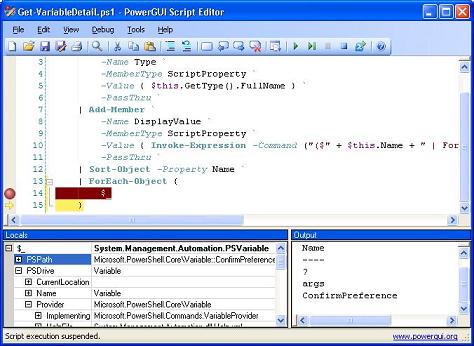
PowerGUI 1.0.12 (now with a debugger!) is now available

Almost a week ago I hinted about the next release of PowerShell (1.0.12) coming soon and showed a screenshot to give people a little teaser of what was coming.  Well that release is now available for download here!  I have been using 1.0.12 for the past three weeks now and its debugging functionality is indispensable when writing PowerShell scripts.  So what are you waiting for?  It’s free!  It rocks!  Go and download it already! ;)

Kirk out.

Technorati Tags: , , , , ,

Passing arguments to nested functions or cmdlets

Last week I posted a function that could be used to  invoke a cmdlet using the fully qualified name (which consists of the name of the PSSnapin followed by a backslash and then the cmdlet name).  This function can be useful when you want to wrap a cmdlet with a function of the same name so that you can do some additional work when that cmdlet is used in a script.

In a script I have been working on, that function has come in very handy however I found a problem with the original function that I posted: it wasn’t properly passing parameters of type array to the cmdlet being invoked.  Fortunately a little work with the debugger that is included in the upcoming release of the PowerGUI Script Editor helped me find the error.  As a result of this debugging session I have come up with three rules that I will follow in the future when passing arguments from one function to another:

  1. When you want to pass the contents of $args on to another function or cmdlet, copy it to another variable and pass the values from there instead.
  2. Leave variables containing values as variables when passing them on to another function or cmdlet.
  3. Be sure to evaluate parameter names in the $args variable (or its copy) before passing them to another function or cmdlet so that the values are assigned to parameters by name, if appropriate.

Here’s a simple, festive example that shows how you would go about doing this while following these rules:

$v1 = “Joy”
$v2 = [string[]]@(‘to’,‘the’)
$v3 = “world”

function one {
   
$args | Out-Host
   
Invoke-Expression “two $($passThruArgs = $args; for ($i = 0; $i -lt $passThruArgs.Count; $i++) { if ($passThruArgs[$i] -match ‘^-‘) { $passThruArgs[$i] } else { `”`$passThruArgs[$i]`” } })”
}
function two {
   
$args | Out-Host
}one -firstWord $v1 -middlePart $v2 -lastWord $v3

All this code does is invoke function one passing a bunch of arguments.  Function one simply passes those arguments directly on to function two without any modification to them.  You can see this in the line that starts with the Invoke-Expression cmdlet.

The post I refered to earlier has been updated with a corrected Invoke-Cmdlet function that follows these rules as well.

Kirk out.

Technorati Tags: , , ,

Change is a very good thing

For over half a year I’ve spent every free moment I could muster outside of work using PowerShell or a PowerShell related tool.  I made the decision a while back to do this with a few goals in mind, and today I finally achieved one of those goals.  Today marks my first day as a member of the PowerGUI team at Quest Software!  I couldn’t be happier about it!

Kirk out.

Technorati Tags: , , ,

Something wicked this way comes…

Troubleshooting PowerShell scripts is about to get easier.

I’ve had the privilege of beta testing early builds of PowerGUI 1.0.12 for the past couple of weeks, and it’s just fantastic!  This release is not generally available yet, but it will be very soon.  To wet your appetite, here’s a screenshot of the PowerGUI Script Editor that is included in the PowerGUI 1.0.12 release.

PowerGUI 1.0.12 Script Editor

Keep your eyes on the PowerGUI Community Site and Dmitry’s blog for news about the official release of PowerGUI 1.0.12 over the next week!

Kirk out.

Technorati Tags: , , , , , ,

What should you do when a cmdlet doesn’t do enough?

Now that I’ve been using PowerShell extensively for almost a year, I frequently discover opportunities for core cmdlets to provide a richer experience than they do out of the box.  Since PowerShell is a scripting language there are many ways to take advantage of these opportunities including writing new cmdlets, adding type data or format data for specific object types, writing specialized functions, etc.  Sometimes though, all I want to do is extend an existing cmdlet as is while adhering to the following rules:

  1. It improves on the functionality of the original version.
  2. It can be used interchangeably in place of the original cmdlet in any script with no modification required and no loss of functionality.

I just finished the first revision of a helper function that is required if you want to extend existing cmdlets in this way.  This helper function allows me to invoke the original cmdlet that I am modifying with the same parameters that my override received.  It’s called Invoke-Cmdlet, and its purpose is simple: retrieve all cmdlets from all loaded snapins that have a specific name and from those determine which one should be executed by following Microsoft’s name resolution rules as closely as possible.  In this particular function, the logic is simply to invoke the core cmdlet if there is a core cmdlet that has the same name; otherwise, the first non-core cmdlet that has the same name will be invoked.  Here is the PowerShell script defining the function:

Function Invoke-Cmdlet {
    param([
string]$cmdletName = $(throw “Cannot bind argument to parameter ‘CmdletName’ because it is empty.”
))

    $matchingCmdlets
= Microsoft.PowerShell.Core\Get-Command -CommandType cmdlet -Name $cmdletName
   
if (@($matchingCmdlets).Count -eq
0) {
       
throw
“The term ‘$cmdletName’ is not recognized as a cmdlet. Verify the term and try again.”
   
}
    $cmdletName = $null
   
foreach ($cmdlet in $matchingCmdlets
) {
       
if ($cmdlet
.PSSnapin.IsDefault) {
           
$cmdletName =
“$($cmdlet.PSSnapin.Name)\$($cmdlet.Name)”
           
break
       
} elseif (-not $cmdletName) {
            $cmdletName = “$($cmdlet.PSSnapin.Name)\$($cmdlet.Name)”
        }
    }


Invoke-Expression “$cmdletName $($passThruArgs = $args; for ($i = 0; $i -lt $passThruArgs.Count; $i++) { if ($passThruArgs[$i] -match ‘^-‘) { $passThruArgs[$i] } else { `”`$passThruArgs[$i]`” } }) | Write-Output”

}

Now that this function is written, what is an example where you could use this to extend a cmdlet while following the rules outlined above?  Right here.

Kirk out.

Technorati Tags: , ,

Exciting news: PowerShell support in SQL Server 2008!

This was just announced earlier today, and it’s really exciting so I wanted to make sure readers of this blog news about it.  Microsoft just announced that SQL Server 2008 will provide simplified scripting through PowerShell!  What great news to wake up to!  I’m thrilled about this news because I work with SQL Server a lot in my work and this will likely greatly simplify that work and open up a lot of opportunities for really cool and powerful PowerShell scripts.  You can read all about it here.

[Update 16-Nov-07]
Well while this has the potential to be something truly great, according to the details that came out of the TechEd IT Forum today it won’t live up to that potential, at least not in the first iteration.  My friend Dmitry shares the details here.

Kirk out.

Technorati Tags: , , , ,

PowerShell v2.0 CTP is now available!

What a wonderful thing to wake up to this morning!  The CTP of PowerShell v2.0 is now available!  I’m still digesting all of the details (and there are lots of them).  Read all about it here and here.

And of course, make sure you understand what a CTP is before you even consider using it.

The PowerShell V2 CTP is not for everyone. You should read this PowerShell Team blog entry ( http://blogs.msdn.com/powershell/archive/2007/11/02/ctp-watch-this-space.aspx ) to find out what it is and what it isn’t and then make an informed decision before installing the CTP.

Kirk out.

Technorati Tags: , ,

Full Circle: Life in the FastLane

In early 1997 I started my professional career with a small start-up company called FastLane Technologies Incorporated.  I believe I was employee number 12 or 13 at the time; I can’t recall exactly which.  It was my first job out of university and my task was to add commands to a scripting language called FINAL (FastLane Integrated Network Application Language).  This product was quite amazing in its time.  It gave administrators a scripting environment with a pretty large quantity of commands so that they could administer their Windows (at the time NT, and then later 2000) environments more easily through automation (sound familiar?).  It was quite a successful product, impressing people by how few lines of script they would have to write to get their job done.

As time went on FastLane expanded their product offering and began developing GUI products that were built on top of the FINAL scripting language (again, this sure seems familiar).  These “point solutions” were designed to solve administration pains through a GUI that allowed them to point-and-click their way to administrative bliss.  Eventually the FINAL scripting language evolved such that you could take advantage of its functionality by being able to call its commands from other languages too.  In this form it was called DM/Developer.  Shortly after that, in August of 1999 I left FastLane to persue opportunities with a few other start-ups until I returned to my professional roots in January of 2004 when I accepted a job at Quest Software (I say my professional roots because Quest Software bought FastLane on June 29, 2000; in fact, many of the old FastLaners I used to work with are still with Quest Software today and others that have left in the past have returned as well).

Now, more than 10 years since I started my career working with a scripting language that was designed to allow Windows administrators to automate many Windows administration tasks, here I am spending every free minute I can working with a scripting language that was designed to allow Windows administrators to automate many Windows administration tasks.  And it just so happens that my employer has a product called PowerGUI, a product build on top of the PowerShell scripting language to help solve administration scripting pains through a GUI.

Is that déjà vu, or what?

Life in the FastLane truly has come full circle for me, and I couldn’t be happier about it!

Kirk out.

Technorati Tags: , , ,

PowerShell v2.0 preview coming next week!

I hinted about the PowerShell storm going on a little while ago, and here’s another part of it.  The PowerShell Team just announced today that PowerShell v2.0 CTP (read: not even close to being finished yet) will be released next week, and I absolutely can’t wait!  You can read all about it here.

Kirk out.

Technorati Tags: , ,

Essential PowerShell: Learn how to find what you are looking for

As silly as this may sound, learning how to find what you’re looking for in PowerShell is key if you want to learn PowerShell quickly and easily.  PowerShell is a rather unique language in that most of the information you will need to use the language is retrievable by using the language itself.  The problem for newcomers to PowerShell who like to dive right in when learning something and who don’t want to read through lots of documentation to get started is that they need to know some PowerShell to learn more about PowerShell and what it can do.

When I first started learning PowerShell I was fortunate to be able to see PowerShell presented twice, both times by Jeffrey Snover, the “father” of PowerShell.  In both presentations as he wrapped things up he mentioned that if there’s one thing you should make sure that you take with you about PowerShell it’s a set of five cmdlets that are key to learning more about PowerShell.  They are (in no particular order): Get-Help, Get-Command, Get-Member, Get-PSDrive and Get-Alias.

Rather than pulling the documentation about these cmdlets into this article, I thought it would be more useful to follow the KISS principle and list a series of questions you might ask yourself about PowerShell accompanied with the PowerShell script (mostly one-liners) that can be used to answer those very questions primarily using the cmdlets I mentioned above.  Here are the questions and their answers to help get you started.

I’ve heard PowerShell cmdlets all follow a verb-noun syntax.  What verbs are available in PowerShell?

Get-Command -CommandType Cmdlet | Group-Object -Property Verb -NoElement

What cmdlets use the verb “out”?

Get-Command -Verb Out

What cmdlets use the noun “command”?

Get-Command -Noun Command

What examples are available for the Tee-Object cmdlet?

Get-Help Tee-Object -examples

What is the full help information for Tee-Object?

Get-Help Tee-Object -Full | Out-Host -Paging
# Note: I could have replaced “Out-Host -Paging” with “more” and the result would have been the same

What are the non-common parameters of Set-Location (with their documentation)?

Get-Help Set-Location -Parameter *

What cmdlets have a parameter like “path”?

Get-Help * -Parameter *path* | Sort-Object -Property Name

What general PowerShell help topics are available?

Get-Help -Category HelpFile,Provider

I need general help on operators.  Where can I find that information?

Get-Help -Category HelpFile,Provider | Where-Object { (Get-Help $_.Name | Out-String).Contains(“operator”) }

Now that I see the help topics and providers that reference the keyword “operator”, how do I see the details?

Get-Help about_operator
Get-Help Variable
# etc.

What aliases are defined for the ForEach-Object cmdlet?

Get-Alias | Where-Object {$_.Definition -eq “ForEach-Object”}

I’ve heard PowerShell even treats the registry as a drive.  What other drives are there?

Get-PSDrive

How do I start browsing the Registry in PowerShell?

Set-Location HKLM: # or cd HKLM:
Get-ChildItem # or dir
Set-Location Software # or cd Software
# etc.

I noticed that there is a drive for environment variables.  How do I use that to check the value of my Path environment variable?

(Get-Item env:Path).Value

How do I add all of my installed PowerShell snapins to the current session so that I can use their cmdlets too?

Get-PSSnapin -Registered | ForEach-Object { if ((Get-PSSnapin $_.Name -ErrorAction SilentlyContinue) -eq $null) { Add-PSSnapin $_.Name } }

(Note: More useful one-liners using Get-PSSnapin can be found here.)

I need to enumerate a bunch of services and then do other things.  Since these are enumerated as objects, how can I tell what I can do with them (i.e. how can I tell what properties and methods they have)?

Get-Service | Get-Member

Are there other basic questions that you think should be on this list?  After learning how to find the information you need within PowerShell, what has been your biggest stumbling block?  Let me know in the comments!

Kirk out.

Technorati Tags: , , , ,