Not too long ago when I posted an Invoke-Cmdlet function that could be used to extend PowerShell cmdlets, I indicated that I would soon post an example of how I use it to extend a cmdlet’s core functionality. In this post I will show you that example, where I will extend the Get-Help cmdlet such that it is able to include provider-specific syntaxes for core cmdlets and documentation for any dynamic parameter that supports a given cmdlet regardless of what provider they come from. Before I show you that example though, I should provide a little background information on core cmdlets and dynamic parameters and why this extension is important when learning how to use core cmdlets.
Background
What is a core cmdlet? A core cmdlet is a PowerShell cmdlet that provides consistent user experience when working with any PowerShell drive, regardless of which PowerShell provider the drive is associated with. In PowerShell 1.0, the list of core cmdlets include any cmdlet with one of the following nouns: ChildItem, Content, Item, ItemProperty, Location, Path, PSDrive or PSProvider. To see the entire list of core cmdlets, simply execute ‘Get-Help about_core_commands’ in PowerShell.
What is a dynamic parameter? A dynamic parameter is a provider-specific parameter that is conditionally available on one or more core cmdlets that come with PowerShell. Dynamic parameters are used to extend the functionality in core cmdlets so that they can use some functionality that is only available when working with certain providers.
How can I find out which dynamic parameters are available for a core cmdlet and where can I read documentation about them? If you’re trying to learn more about a core cmdlet in PowerShell 1.0, and if you want to find out information about the dynamic parameters that are available for that cmdlet, you have the following options:
- Execute ‘Get-Help CmdletName -Full’ in PowerShell and hope that your dynamic parameter was included in the default documentation for the cmdlet. With very few exceptions, if you do this you’ll most likely find the documentation you’re looking for isn’t available. For example, the CodeSigningCert dynamic parameter is included in the parameter documentation for Get-ChildItem, but it is not included in syntax for Get-ChildItem nor is it included in the parameter documentation or syntax for Get-Item where it also applies. Most dynamic parameters that are part of the providers included in PowerShell 1.0 are not included in the default cmdlet documentation, and no dynamic parameters that are available through third-party providers are included in the default cmdlet documentation (obviously, because they didn’t exist at the time that the PowerShell documentation was written).
- Use the Syntax parameter and optionally the ArgumentList parameter of Get-Command to view the syntax for the core cmdlet you are curious about when working with a specific provider. If you only use the Syntax parameter, then the syntax that is returned will be for the provider associated with the current working directory. If you pass in a path in the ArgumentList parameter as well, then the syntax that is returned will be for the provider associated with that path. This works well when you are doing ad-hoc scripting using the drive that hosts your current working directory and you just want the syntax without other help details, but if you are working in an IDE and writing scripts without the concept of a current working directory or if you want more documentation about the dynamic parameters you’ll have to go elsewhere for information.
- Execute ‘Get-Help -Category Provider -Name ProviderName‘ in PowerShell and then look in the section titled “Dynamic Parameters” to see what dynamic parameters are added and which core cmdlets they are added to. This is the most useful out-of-the-box way to find help on dynamic parameters, but the help information is in a slightly different format than other parameter help and to truly get the big picture for the cmdlet and how it works with different providers you need to refer to the provider help AND the cmdlet help just to get parameter information. Add to that the fact that you don’t get to see the updated syntax unless you use Get-Command with the Syntax parameter and it all adds up to more work than you should have to do just to learn everything about how a cmdlet works.
Based on these options, you can see that it is possible to retrieve all of the help documentation for a core cmdlet when working with a particular provider but it requires multiple calls and the documentation isn’t nicely compiled together into a comprehensive document. I wasn’t satisfied with this because I thought I should be able to see all of the help information for a given cmdlet inside the documentation for that cmdlet. In fact, I expected that it functioned this way from the start and used core cmdlets during many months of working with PowerShell oblivious to the fact some of them had dynamic parameters. I simply didn’t know the dynamic parameters existed until I came across a dynamic parameter in PowerShell when using tab completion for a core cmdlet that had dynamic parameters for my current working directory at the time. Cmdlet parameters shouldn’t be found just by chance like that.
There are other problems with the out-of-the-box implementation of dynamic parameters as well. One of my favorite tricks for the Get-Help cmdlet these days is to use it to discover cmdlets with similar parameters. For example, to see all cmdlets containing parameters with ‘path’ as a substring of one or more parameter names, you can simply execute ‘Get-Help * -Parameter *path*’. But this only works for parameters that are in the parameter list in the documentation for a cmdlet. If a dynamic parameter exists that isn’t included in that parameter list in the cmdlet documentation, that parameter won’t be found. Because of how this works behind the scenes, if the documentation for cmdlets did include all parameters, including dynamic ones, you could use this same trick to find all cmdlets that use a dynamic parameter. Unfortunately, that won’t work though because as I mentioned earlier, the documentation for the vast majority of core cmdlets does not include dynamic parameters.
There are other examples to further illustrate how hidden dynamic parameters are, including the following:
- They don’t show up when using tab completion or PowerTab unless the provider associated with the current working directory has the dynamic parameters you are looking for (and therefore if you try to use tab completion or PowerTab at the end of this line, you will never see the Type parameter: ‘Set-Item -LiteralPath hkcu:\temp -‘.
- They don’t show up when using PowerShell Plus for the same reason as above (and since PowerShell Plus uses PowerTab internally this is completely understandable).
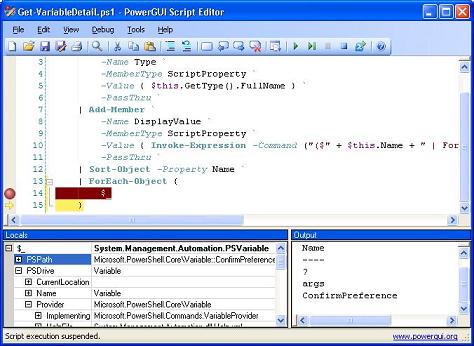
- They don’t show up when using Intellisense in PowerGUI.
Not being satisfied with this, I started investigating what I could do to improve on the user experience by making dynamic parameters much more discoverable in the documentation. Then it dawned on me that I should be able to extend the Get-Help cmdlet so that the documentation it returns will include all dynamic parameters, in both the cmdlet syntax and the cmdlet parameter lists.
Introducing the CmdletExtensionLibrary.ps1 script
The trick to extending existing cmdlets is to wrap them in functions of the same name. Within those functions you can do whatever extra work you want done and then call the original cmdlet using the Invoke-Cmdlet function I referred to earlier. This works because function names take precedence over cmdlet names in command name resolution.
Using that information as well as the knowledge I gained when researching dynamic parameters, I have created a CmdletExtensionLibrary.ps1 PowerShell script file that includes the following functions:
- Get-PSResourceString
The Get-PSResourceString function returns a resource string that is looked up in the System.Management.Automation namespace. It is used to load error messages and localized strings used in PowerShell cmdlet documentation so that the Get-Help extension properly displays the added help documentation in the current culture.
- Invoke-Cmdlet
This function is the same as the one I published on my blog earlier. It is used to invoke a cmdlet by using its fully qualified name.
- Get-DynamicParameterMap
The Get-DynamicParameterMap function extracts the dynamic parameter help information from the PSProvider help documentation and builds a map of cmdlet names to dynamic parameters.
- Add-PSSnapin
The Add-PSSnapin function is a simple wrapper around the Add-PSSnapin cmdlet. Once the snapin is added, it refreshes the dynamic parameter map using the Get-DynamicParameterMap function. This is necessary to ensure that dynamic parameter information is always up to date with the list of PSSnapins that have been added in the PowerShell session.
- Remove-PSSnapin
The Remove-PSSnapin function is a simple wrapper around the Remove-PSSnapin cmdlet. Once the snapin is removed, it refreshes the dynamic parameter map using the Get-DynamicParameterMap function. This is necessary to ensure that dynamic parameter information is always up to date with the list of PSSnapins that have been added in the PowerShell session.
- Get-Help
The Get-Help function integrates the dynamic parameter documentation directly into the help documentation for any core cmdlet where they apply. This includes the cmdlet syntax as well as the cmdlet parameter help information. Once integrated, the dynamic parameter documentation will be displayed in the same language as the rest of the documention.
You can find the latest revision of the CmdletExtensionLibrary.ps1 file in the Script Vault on the PowerShell Community site. Alternatively, if you want to access it directly you can get it here.
All of the functions in the CmdletExtensionLibrary.ps1 file are fully documented in comments that precede the function definitions. In order to add these functions to your PowerShell session, simply dot source the file (e.g. ‘. C:\MyPSScripts\CmdletExtensionLibrary.ps1’). If you want these extensions always loaded, place the dot source command you just ran into the appropriate profile or copy the functions you want directly into your profile (but be careful when doing this since many of the functions call other functions in the same file so if you leave some out others may not work).
Once the functions are available in your PowerShell session, you should start noticing the full cmdlet documentation for core cmdlets when you execute Get-Help. You can see this in PowerShell by executing any of the following commands:
- Get-Help * -Parameter Wait
- Add-PSSnapin pscx; Get-Help * -Parameter Raw
- Help Set-Item -Full
- Get-Help Set-Item -Full | more
When running these commands you will notice how dynamic parameters are now included in the documentation (and are therefore discoverable using the -Parameter parameter for Get-Help). For the first two commands you will get information that was not previously available via Get-Help. For the last two commands you will see that the cmdlet documentation includes all available syntaxes, including provider-specific syntaxes, as well as parameter help for every dynamic parameter that is available. Also note that both the Help function and the Get-Help cmdlet automatically support the Get-Help cmdlet extension function, providing seamless integration into your PowerShell environment. Is that cool or what? It’s amazing how much you can do to customize PowerShell to your liking. Hats off to the PowerShell team for making such a wonderful and flexible scripting environment!
I should point out that adding this set of functions to your PowerShell session does not make the dynamic parameters show up in tab completion or Intellisense in any of the products mentioned above. I believe this could be done by creating a Get-Command extension that returns all available syntaxes for a core cmdlet, including provider-specific syntaxes. I will have to test that theory out later and possibly update this library to support that as well.
Also, despite everything that I did figure out with respect to dynamic parameters I still have one big unanswered question. If the purpose of dynamic parameters is to allow generic core cmdlets to access some provider-specific functionality then why are there dynamic parameters in the Exchange cmdlets? For example, run the script below this paragraph before and after you add the Exchange cmdlets to your environment. Before you add the Exchange snapin, the script will return all core cmdlets that have dynamic parameters (based on the provider associated with the current working directory). After you add the Exchange snapin, the script will return the same core cmdlets as before plus many Exchange cmdlets. It doesn’t make sense to me that parameters would be marked as dynamic in Exchange since there isn’t a provider for Exchange and therefore the core cmdlets do not work against Exchange. Here is the script I was referring to:
foreach ($cmdlet in Get-Command -CommandType Cmdlet) {
$cmdlet.ParameterSets | ForEach-Object {
$_.Parameters | Where-Object { $_.IsDynamic } | ForEach-Object {
$cmdlet.Name | Write-Output
continue
}
}
}
That about wraps it up for this post. I have tested the CmdletExtensionLibrary.ps1 functions pretty extensively on Windows XP SP2 using PowerShell in English and also in French with the PowerShell MUI pack. That doesn’t mean there aren’t any issues in these functions, though, so if you find any please report them back to me and I’ll try to resolve them for you.
Kirk out.
Technorati Tags: PowerShell, PoSh, Poshoholic, PowerGUI, Extending PowerShell, Dynamic Parameters, PowerShell Help, Get-Help, Invoke-Cmdlet
Add to: | Technorati | Digg | del.icio.us | Yahoo | BlinkList | Spurl | reddit | Furl |


 Poshoholic