The following question recently came up on a mailing list I follow:
When I am trying to get the definition for the alias "?", I need to escape it because if not it works like a wildcard. That is ok.
But why do I have to use SINGLE quotes, and why do DOUBLE quotes fail to escape? I thought it should be the other way around.
For example, this works:
Get-Alias ‘`?’
This does not work:
Get-Alias "`?"
Why?
This question was prompted by Aleksandar’s blog post about the problem. There are quite a few things to consider here to understand what is going on.
First, as the author of the question pointed out, in the Get-Alias cmdlet the question mark character is a wildcard character. That means if you simply call Get-Alias with a question mark (Get-Alias ?), you will get all one-character aliases because the question mark will match any character. That will happen regardless of whether you use single quotes, double quotes, or no quotes. So the question mark must be escaped to tell Get-Alias to treat it as an actual question mark, and not a wildcard question mark.
Second, in PowerShell a single-quoted string is a literal string, so characters are taken as is. A double-quoted string is a special string where the contents are evaluated to determine what the actual string is (see Get-Help about_quoting_rules for more details). In a double-quoted string, any variables or subexpressions (identified by their prefix of $) are evaluated and the results are placed in the string. Also, any escaped characters are evaluated and the results are placed in the string. The standard way to escape a character is to precede it with a backtick (`).
Third, if you escape any non-escape character by preceding it with a backtick, the result is simply that non-escape character. The backtick is discarded.
Fourth, there is a difference between escaping escape characters when evaluating a double-quoted string and escaping wildcard characters in cmdlet that accept strings containing wildcards. Both are escaped the same way, but understanding the timing of their evaluation and knowing what characters they consider to be escape characters is very important. Double-quoted string evaluation happens outside of a cmdlet, before it is called. Wildcard string evaluation happens inside of a cmdlet, once it is called.
And lastly, Get-Alias works just like the Path parameter set variant of Get-Item (that is to say, it works just like Get-Item when you call Get-Item with the Path parameter), returning multiple results when unescaped wildcard characters are in the search string and there are multiple matching aliases. Get-Alias is a little simpler to use on a general basis, but if it wasn’t there you could just use Get-Item instead.
Now that we’re armed with that knowledge, lets break down the command we’re having a hard time with.
Get-Alias "`?"
Here are the results of that command in PowerShell:
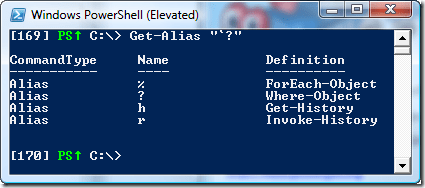
What’s happening here? When this command is executed, the first thing PowerShell has to do is evaluate the double-quoted string and get the result string that comes out of that evaluation, before the cmdlet is called. As I explained above, any non-escape character that is escaped in a double-quoted string is simply evaluated as the non-escape character. In our string, the question mark is being escaped, but that isn’t an escape character when it comes to string parsing (use the command Get-Help about_escape_character to get the list of escape characters in double-quoted strings), so the result of the evaluation is simply ‘?’. When that string is then passed to Get-Alias, the Get-Alias cmdlet thinks we’re looking for any single-character aliases, so that’s what it gives us in the output.
What we need to do is make sure that the results of the evaluation of the double-quoted string are such that the question mark is preceded by a backtick so that it is escaped when it is passed into the Get-Alias cmdlet (string evaluation timing is important, remember?). To do that, we need to know how to generate a single backtick in the result returned from a double-quoted string evaluation. The backtick is an escape character itself as well as the character used to escape other characters (we learned this when we looked at the about_escape_character helpfile, mentioned earlier), so we can create a backtick in a double-quoted string by escaping it with itself, like this: "“".
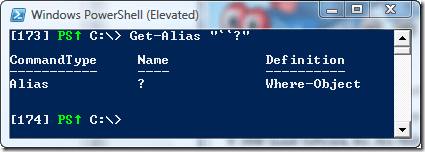
Now that we know how to escape the backtick so that it is passed into the Get-Alias cmdlet, we can change our problematic command we were using by escaping the backtick in the double-quotes and get the results we wanted in the first place:
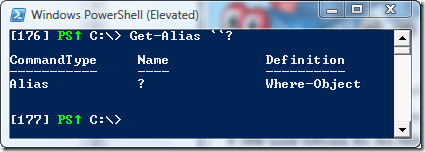
It is important to note that a non-quoted string is treated as a double-quoted string in PowerShell when it is evaluating a command that it is about to run, so if you wanted to do this without quotes at all, you would still have to escape the backtick, like this:
The last thought I want to leave you with is about Get-Item. I mentioned earlier that Get-Alias works just like the Path parameter set variant of Get-Item. Both of these need to have wildcard characters escaped if you want to find an alias that contains a wildcard character. What I didn’t mention is that Get-Item has something that Get-Alias does not: a LiteralPath parameter set variant. The easiest way to retrieve an alias containing a wildcard without worrying about escaping any characters is to simply use Get-Item with the alias PSDrive, like this:
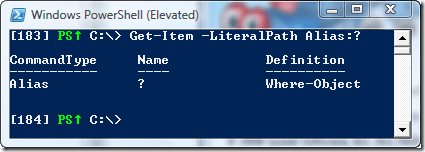
This method requires the use of the LiteralPath parameter name and the alias PSDrive name, but it gives you exactly what you want, without having to worry about most of what I tried to show you here, and it’s easy. Still, I had to show you the details first…a solid foundation in understanding how these things work goes a long way when writing and troubleshooting PowerShell scripts. If you want it even easier, you could create a simple Get-LiteralAlias function that removes the need to use the Alias PSDrive name and calls Get-Item using the LiteralPath parameter set variant behind the scenes. You could also create a Get-Alias function that has a Literal switch parameter so that you could simply indicate whether you wanted to call Get-Alias or Get-LiteralPath behind the scenes. With PowerShell, there are definitely no shortage of options when you don’t have the functionality you are looking for the way you expect it to be there. I’ll leave the exercise of creating the functions up to you, if you think it’s worth it (after all, there is only one default alias with a wildcard character in its name).
Armed with all of this knowledge, it becomes completely obvious why an unusual alias created with the New-Alias command (which doesn’t support wildcard characters) like this:
$foo = ‘bar’
New-Alias "“?$foo" ‘bar’
can be retrieved using either of the following Get-Alias commands:
Get-Alias "““?$foo"
Get-Alias "““`?$foo"
Right? 🙂
Kirk out.
| Share this post: |  |
 |
 |
 |
 |
 |
 |
 |
 |
 Poshoholic