Use-PowerShell | Enter-Contest | Receive-Prize

Ladies and gentlemen, start your engines!  The 3rd annual PowerGUI® Challenge is about to begin!

That’s right, this year Quest Software is sponsoring yet another PowerShell contest that gives you a chance to win some money by having fun with PowerShell and PowerGUI.  I’m totally excited about the contest this year, because there are more prizes, more categories, more judges, and more possibilities with what you can do than ever before!  If any of your entries make it into the top 10 in the two main categories (PowerPacks and Add-ons), they will be put in front of our incredible panel of celebrity judges for review and suggestions.  Judges this year include Jeffrey Snover, Hemant Mahawar, Don Jones, Jeffery Hicks, Shay Levy, Brandon Shell, Aleksandar Nikolic, and Marco Shaw.  If you’ve read even a little bit about PowerShell on the web, I’m sure a few of those names ring a bell.  Dmitry and I will review the entries and offer our own feedback as well.

Sound interesting?  Here’s what you should do:

  1. Head on over to the PowerGUI Challenge contest page and read all of the details about the contest, paying close attention to the tips and the resources that are listed there to help you out.
  2. If you’re not familiar with them already, take a look at the kinds of things you can do with PowerPacks and Add-ons by visiting the PowerPack Library and the Add-ons Library and trying some of them out (and make sure you install the Authoring Toolkit Add-on if you plan on creating Add-ons yourself – it’s a real time-saver).
  3. Enter the contest!  The only way to make sure you don’t win anything is by not trying at all, and this is a really fun way to discover some of the cool things that you can do with PowerShell beyond regular scripting.

The contest runs from October 15 to November 15, so you have a lot of time to get yourself warmed up before the official start date, and then you can start adding your entries and getting community feedback.  Don’t wait, start learning more about what you can do by experimenting now!

In the meantime, I’ll be providing additional resources to help you out that I’ll announce on my blog as well, so keep your eyes open for more useful contest resources.

As always, don’t hesitate to ask questions if you have any.  As Alan Renouf (one of our winners in last year’s contest) knows, I’m more than happy to provide feedback and answer questions.

Happy scripting!

Kirk out.

PowerShell modules made easy with PowerGUI®

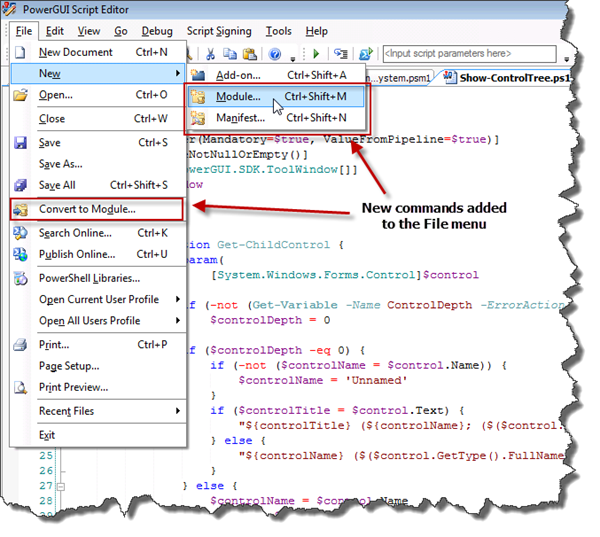
Today I have the pleasure of sharing another PowerGUI Script Editor Add-on with you that I recently finished and that I personally find extremely useful.  This Add-on is all about defining PowerShell modules.  It’s called the Module Management Add-on, and it adds the following commands to the PowerGUI Script Editor menu and toolbars:

  • New Module – facilitates the creation of brand new modules from scratch by creating the module folder as well as the script module (psm1) file and the module manifest (psd1) file that defines the module, pre-populating as many relevant details in the manifest as possible such as the module name, description and GUID, the copyright date, your name, your company name, etc. in the appropriate places.
  • New Module Manifest – facilitates the creation of manifest files for existing modules, pre-populating as many relevant details in the manifest as possible such as the module name, description and GUID, the copyright date, your name, your company name, and the complete listing of all files included in the module.
  • Convert to Module – facilitates creating a new module from an entire script file or from the selected portion of a script file (this also generates the manifest and it is a really easy way to convert from PowerShell 1.0-style ps1 files that act as a function library but cannot be unloaded to PowerShell 2.0 modules that can be loaded and unloaded as needed).

Here’s a screenshot showing what the File menu looks like after you have installed this Add-on:

Module Management Add-on Menu Additions

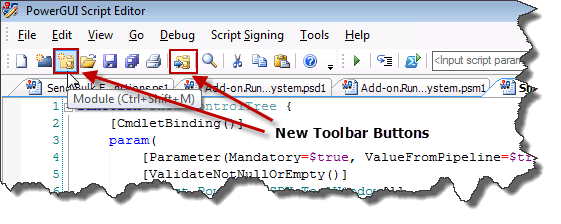
Also, this Add-on adds some of the more frequently used commands to the toolbar:

Module Management Add-on Toolbar Buttons

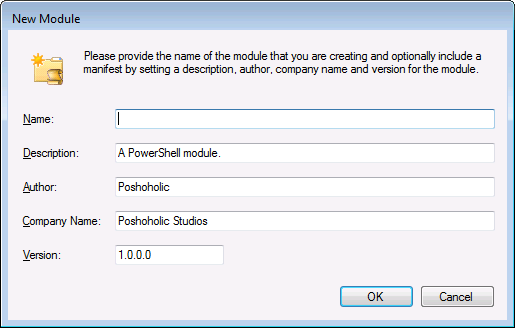
When you want to create a new module, you can either use the menu item or the toolbar button to create the new module, or simply press Ctrl+Shift+M.  This displays the following dialog:

image

The author and company name are pulled directly from your Windows Registry, and the description and version fields are assigned generic default values.  You can change these values however you like for your module, and the Add-on will remember the values (aside from name) for the next time you use this command.  Also, you can use this dialog to create child modules by specifying a name with backslashes in it.  The module that is generated will be placed in the WindowsPowerShell\Modules folder under your user Documents folder, with all files in a folder for the module.  As soon as you enter a name and then click on OK, the module will be created and both the script module (psm1) file and the manifest (psd1) file will open in the Script Editor for editing, allowing you to add them to source control right away if you are using PowerGUI Pro with the source control feature.  As an option, you can use this dialog to create a new module without a manifest by simply clearing all fields except for the Name field.

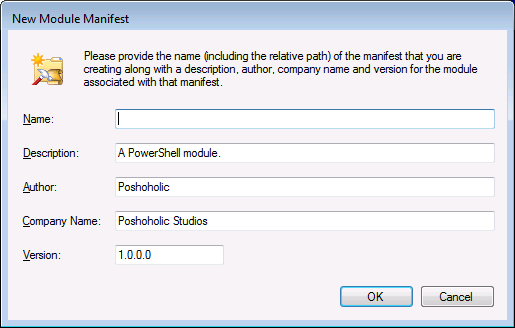
There may be cases where you already have a module that you have created, and you want to create a manifest for that module.  Or perhaps you have a module you are already working with and you want to create additional manifests for that module (this allows users to work with an entire module or only portions of that module).  In these cases, you can use the menu item to create the new manifest, or you can simply press Ctrl+Shift+N.  This displays the following dialog:

image

Look familiar?  It should.  Creating a module manifest for an existing module is very similar to creating a new module because most of the details you provide in this dialog are stored in the module manifest.  Just like when you create modules, you can modify these details that are provided by default and you can assign a name (with an optional relative path) for the module for which you are creating a manifest.  Once the manifest is created, the Script Editor will open the manifest file automatically.

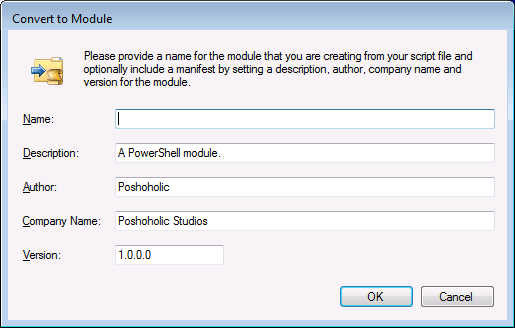
The other useful feature included in version 1.0 of the Module Management Add-on is the Convert to Module command.  This can be invoked through the File menu or the toolbar button as well.  You can either convert an entire file to a module or, if you have any text selected in the file, only the selected text will be used in the new module.  Note that the original file and its contents are left intact during the conversion process.  To perform the conversion, simply open the file you want to use for the conversion and select the text you want to use as the base for your module or don’t select anything if you want to convert the entire file.  Then click on the Convert to Module command in the File menu or on the toolbar, and you will be presented with the following dialog:

image

Once more, this should look familiar.  All operations for creating modules and manifest accept the same input values because they are all used in each operation.  You simply provide the necessary details, or remove all fields except for the module name if you don’t want to use a manifest, and then click on OK for the module to be created and the appropriate files to be opened in the Script Editor for you.

These are all very useful features to have at hand, whether you are working on new modules in PowerShell 2.0 or creating PowerShell 2.0 modules from function libraries (ps1 files) that you created in PowerShell 1.0.

If this Add-on interests you, simply go to the Module Management Add-on page and follow the installation instructions provided there.

As with many other Add-ons I have created, this is an early version of the Add-on so I would love to get your feedback on it. Do you find it useful as is?  How you would like to see it improved in a future release?  Would you like to see a Module menu and/or toolbar with menu items to add functions and aliases?  What else would you like to see for improved module management?  I have ideas, but I don’t want to influence your feedback too much, so I’ll keep my ideas to myself and let you speak up about what else you would like to see in this Add-on or others.

As always, thanks for reading!

Kirk out.

Share this post:

Using PowerGUI® to manage security

One part of my job that I find particularly enjoyable is working closely with other members of the PowerShell Community.  It doesn’t take any time at all when working with these people to feel the passion and excitement that they have for Windows PowerShell and PowerGUI.  One such person I have been working with a fair amount recently is Vadims Podans.  Vadims is a PowerShell MVP from Latvia and you may have seen some of his work in the past on his blog or in the Enterprise PKI Management PowerPack that he entered in our PowerPack Challenge contest last year.  From my experience working with him I’ve come to learn that he knows a heck of a lot about PKI and security in general, not to mention PowerShell.  Vadims’ expertise in these areas has resulted in quite a few new security-related releases in the past several weeks, as follows:

AD-PKI Cmdlets Tech Brief

Quest Software recently published an AD-PKI Cmdlets tech brief that was written by Vadims.  This tech brief reviews the security concepts surrounding digital certificate management and provides details and many examples showing how the AD-PKI cmdlets can be used with Active Directory to simplify PKI management.

Download the AD-PKI Cmdlet Tech Brief here.

Enterprise PKI Management PowerPack

Vadims recently released version 1.5 of his Enterprise PKI Management PowerPack.  This update includes support for the AD-PKI cmdlets that were introduced as part of the 1.4 release of the Quest AD cmdlets.  Notable features listed on the PowerPack page include:

  • A lot of code now uses native Quest AD Cmdlets (version 1.4.2) so the PowerPack demonstrates new PKI cmdlets in action!
  • Added additional error handling.
  • In Certification Authorities node added properties that contains helpful information about CA CRL status. In addition there was revisited View CRL action and renamed to View CRL Info
  • Added Active Directory PKI node that contains the most common AD PKI-related containers. You will be able to review container contents and publish/unpublish certificates/CRLs by using new actions.
  • Changed Enterprise OCSP location behavior. Now the PowerPack realizes the same behavior as it is implemented in pkiview.msc MMC snap-in. Now the PowerPack correctly retrieves all available Enterprise OCSP Responders even if they are not running CA service
  • For Certificates node added two subcontainers (subnodes, as shown in the last screenshot) — Certificates and CRLs. This allows you to browse both — certificates and CRLs in the local certificate store. For CRLs added new basic actions.
  • Revisited certificate export and import actions. In addition to Quest AD cmdlet usage, the interface is provided in GUI form. So now you will be able to use standard dialogs to select a file to save/open.

Learn more and download the Enterprise PKI Management PowerPack here.

Script Signing Add-on

Very shortly after I released the first version of the Script Signing Add-on for the PowerGUI Script Editor, Vadims provided me with some great feedback that I was finally able to incorporate into an update.  Yesterday I released version 1.1 of this Add-on, which includes the following changes:

  • Replaced “Test Certificate” functionality with View Signature, allowing users to view script signing certificates used to sign files in the native Windows Certificate properties dialog.
  • Added View Certificate support to the Script Signing Options dialog.
  • Changed the default signing method to include all certificates in the certificate chain.
  • Optimized the script signing certificate search algorithm so that it only searches for script signing certificates in the My containers.

Learn more and download the latest version of the Script Signing Add-on here.

And if that’s not enough for you, you can also keep your scripts secure by using the integrated source control functionality in the Script Editor in PowerGUI Pro so that you can track any and all changes that are made to your scripts whether they are signed or not!

Please let us know what you think of these and other releases, as well as what you would like to see us add in the future, either here or on the PowerGUI Forums.  The feedback system really works!

Kirk out.

Share this post:

PowerGUI 2.2 public beta is now available!

Today we released a public beta of our upcoming PowerGUI 2.2 release.  This beta includes a very significant change to our debugger as well as compatibility support with version 1.4 of the Quest AD cmdlets.  Here are a few of the improvements that come with the new debugger:

  • Native support for the PowerShell 2.0 debugger, including command-line management of breakpoints using Disable-PSBreakpoint, Enable-PSBreakpoint, Get-PSBreakpoint, Remove-PSBreakpoint and Set-PSBreakpoint;
  • Advanced breakpoint support such as command and variable breakpoints through the PSBreakpoint cmdlets;
  • $MyInvocation support in scripts that you are debugging (this has been an issue we have wanted to fix for a long time)
  • Start-Job and Invoke-Command support in scripts that you are debugging (this was another issue that had to be worked around that is fixed by the new debugger);

This is the first public beta that we have had in a while, so I want to make sure everyone interested knows how the beta works.  It’s a pretty straightforward process, as follows:

  1. If you are interested in trying out the beta, go to the beta download page and follow the instructions to download and install the beta.  If you are using PowerGUI 2.1.1, it will automatically be upgraded when you install the beta.
  2. Use the beta just like you would use the previous version of PowerGUI.
  3. If you run into any issues, please notify us on the PowerGUI 2.2 public beta forum.

That’s pretty much it.  I should also note that auto-update from the beta version of PowerGUI 2.2 to the RTM version of PowerGUI 2.2 will be supported.

We’re looking forward to your feedback, so please download the beta and let us know what you think!

Kirk out.

Share this post:

PowerGUI Script Editor Essentials

Have you ever thought to yourself that it would be great if the PowerGUI Script Editor would allow you to…

select all of my files and open them at one time; or

turn on line/word wrap?

How about if it would allow you to…

…view white space characters (tabs and spaces); or

…move the cursor through the whitespace outside of a document while you edit the same column in multiple lines in your script; or

…zoom in or out using Ctrl+Add or Ctrl+Subtract so that you can adjust the font as necessary during presentations?

Some of these features were requested by members of our community, and others are features that I have wished for at one point or another.  As of today you can get all of these features in the PowerGUI Script Editor by simply downloading and installing the Script Editor Essentials Add-on!

How do I do that you ask?  Simply visit the Script Editor Essentials Add-on page and follow the installation instructions.  It shouldn’t take more than a few minutes to set up.  Once you have it set up, you can start using the new features right away.  For example, to enable the new features that affect your open documents, take a look at the new menu items in the Edit | Advanced menu:
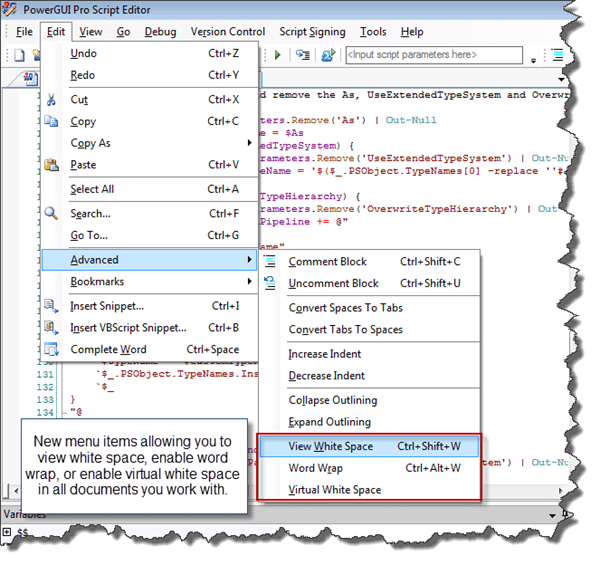
ScriptEditorEssentials.EditAdvancedMenuExtensions.png

That menu allows you to enable the view white space, word wrap, or virtual white space features.  If you enable view white space, you’ll see tabs appear as arrows and spaces appear as dots, like in this screenshot:
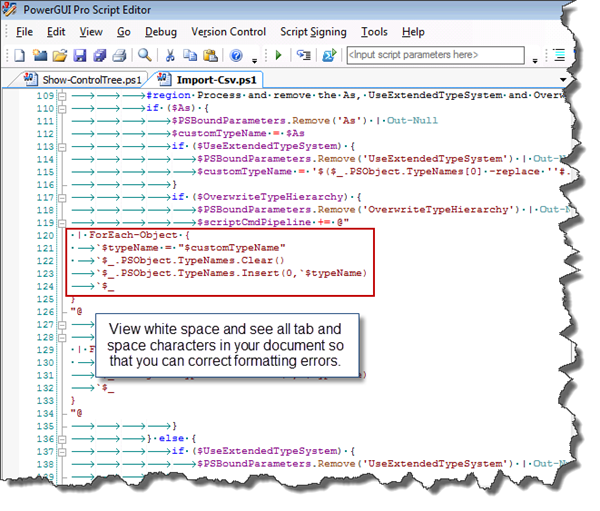
ScriptEditorEssentials.ViewWhiteSpace.png

You can also turn on word wrap, which is great when working with documents that contain long lines of PowerShell script (unless you like scrolling back and forth horizontally when reading script lines).  It even shows a small arrow at the end of any lines that are wrapped, making it easier to distinguish between lines that wrap and lines that don’t:
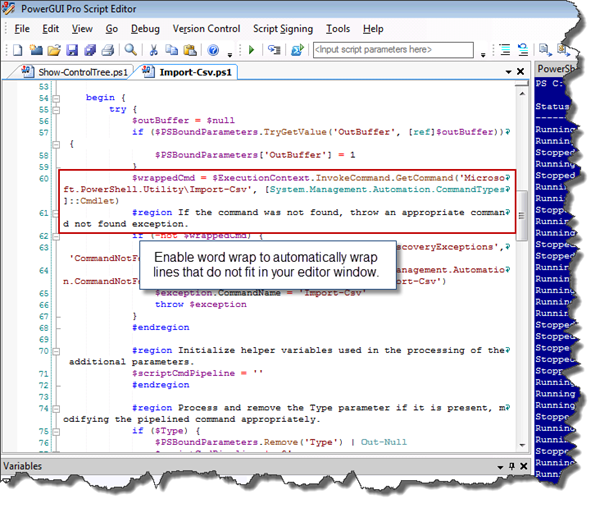
ScriptEditorEssentials.WordWrap.png

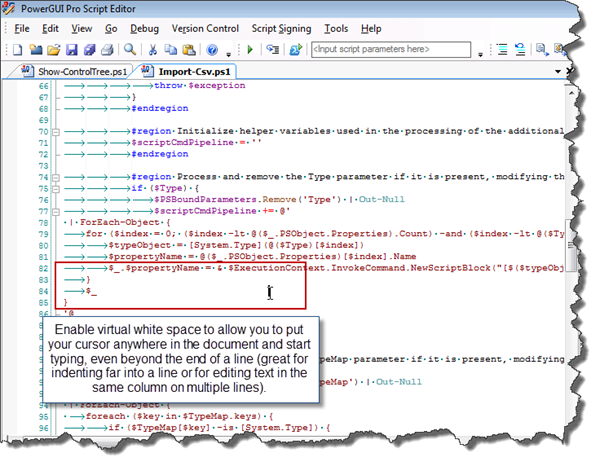
All of these features can be turned on at the same time, allowing you to customize your experience for your needs, and the configuration is saved so that it persists between sessions.  Here’s another screenshot showing the virtual white space feature, which allows you to place the cursor anywhere on any line (normally you cannot place the cursor beyond the end of a line):
ScriptEditorEssentials.VirtualWhiteSpace.png

This feature can come in quite handy when you are modifying script on multiple lines in a similar column position, and when those lines aren’t necessarily adjacent to one another (I’ve had this experience which made me wish for this feature myself).

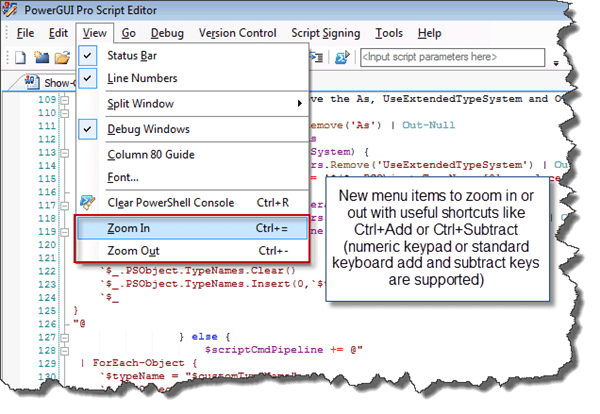
Do you ever show PowerShell to others, either via the web using desktop sharing or LiveMeeting or perhaps during presentations?  Being able to zoom in and zoom out on the fly can be useful if you do, so you may like these new menu items:
ScriptEditorEssentials.ViewMenu.png

They will increase or decrease the font size in the open documents as well as in the embedded PowerShell console by 1.  You can do this without this Add-on today by using Ctrl while moving your mouse wheel, but it is can be very difficult to control depending on your mouse sensitivity and it increases or decreases the font size by 10% instead of by a fixed value, plus it sets all fonts to the same font, which may not give you the results you are looking for (if you use the Blue Console Add-on, it applies a different font to the embedded console window).  The keyboard shortcuts for these menu items are very useful to learn if you ever show PowerShell to anyone while using the PowerGUI Script Editor.

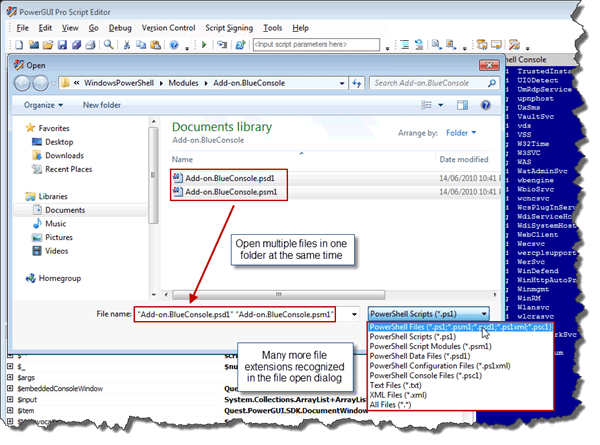
And last, but not least, I have wanted to have multi-select support in the File Open dialog for a long time.  That support is now available, and while I was adding it I also flushed out the list of file extensions to include all PowerShell file extensions plus other extensions commonly used with PowerShell.  Here’s what that looks like once this Add-on is installed (you can click on the image to see it full size):
ScriptEditorEssentials.FileOpen

I would really appreciate any feedback that you would like to share on this (or any other) Script Editor Add-on.  I’ve called this Script Editor Essentials because it contains a variety of general editor features that I think are essential for anyone using the PowerGUI Script Editor without being tied to a specific need.  That doesn’t mean it contains everything that is essential though, and there are a lot of other Script Editor Add-ons available that you should take a look at to see the other options available to you to enhance your script editing experience.  What features would you consider essential to you as you work with PowerShell files in the Script Editor that are not yet available in the core product or as an Add-on?  Let me know in the comments or on the PowerGUI Forums so that we can make sure we’re meeting your needs.

Also, I would be remiss if I didn’t point out that this Add-on, as well as all other Add-ons, are created using PowerShell modules.  There’s even an Add-on Authoring Toolkit that makes it easier to create Script Editor Add-ons, along with a tutorial showing you how you can create your own Add-ons!  Creating an Add-on can be pretty easy to do, so don’t be afraid to give it a try and use the PowerGUI Forums to ask questions as needed.

Hopefully this will be a useful and welcome addition to your PowerGUI experience.  Enjoy!

Kirk out.

Share this post:

VMware Infrastructure Management PowerPack – now with Visio 2010 support!

Tonight I have published a new version of the VMware Infrastructure Management PowerPack.  This release (version 2.4.0) is the first release that provides near 100% feature parity between both PowerGUI and the Virtualization EcoShell.  I say near 100% feature parity because PowerGUI supports displaying progress dialogs during calls to Write-Progress but the Virtualization EcoShell does not, so PowerGUI users have a minor leg up over the Virtualization EcoShell experience.  Depending on what environment you are coming from, you will notice some of the following improvements to this PowerPack:

  • Visio 2010 support for vDiagram functionality
  • Charts for virtual machines, datastores, and resource configuration data
  • Progress bars during the rendering of diagrams created with the vDiagram functionality
  • Improved layout in the nodes in the tree
  • Simplified connection logic, making it easier for you to reuse scripts generated by the PowerPack
  • Additional minor bug fixes

Note that version 4.1 of the VMware PowerCLI is not supported with this release at this time, due to a number of issues.  For now the only supported version of the VMware PowerCLI is version 4.0 U1.

If you are an existing user of this PowerPack, you will automatically get notified about the new version.  If you haven’t looked at this PowerPack yet and you manage VMware vSphere, Virtual Center, ESX, or ESXi hosts, I strongly encourage you to give this PowerPack a try.  You can download it here.  It provides an excellent management experience over those VMware hosts, and it’s free!

As usual, many of the enhancements we add in these releases are based on customer feedback on the PowerGUI Forums.  If you’d like to see more improvements to this PowerPack, please speak up and let us know on the forums.  We’re always listening!

Kirk out.

Share this post:

PowerCLI 4.1: A fork in the road

UPDATE 10-JAN-11: To deal with the issues identified below, I published a beta version of the VMware vSphere PowerPack with PowerCLI 4.1 or later support.  You can read more about the beta and how to install it here.

Earlier this week, VMware released version 4.1 of the PowerCLI.  This release brings some great improvements that the community has been waiting for, and you can read about them on the VMware PowerCLI site and a number of other blogs that have been publicizing the release.  I’m not here to talk about the new features and improvements however.  I’m writing this to notify you about the breaking changes that were introduced in this release that haven’t been discussed externally but that you will want to know about.

With version 4.1 of the PowerCLI, the VMware team has changed the namespaces used in the object model behind the PowerCLI.  The objects themselves have stayed the same, but the namespaces have changed.  This change has a number of impacts once PowerCLI 4.1 is installed, including but not limited to the following:

  • Any PowerShell function that uses strongly typed parameter names with the VMware PowerCLI 4.0 or earlier type names will no longer function properly without an update.
  • Any PowerShell script that uses the is or as operators with the VMware PowerCLI 4.0 or earlier type names type names will no longer function properly without an update.
  • Any PowerGUI extensions (read: PowerPacks) written for PowerCLI 4.0 or earlier will no longer function properly without an update.
  • Any PowerShell scripts that use the VMware PowerCLI 4.0 or earlier type names inside of Add-Type calls will no longer function properly.

In general, any code or script written that is dependent on these type names will have issues once you upgrade to PowerCLI 4.1.  It also means that once these items that don’t work with 4.1 are updated, they may no longer work with PowerCLI 4.0 and earlier.  Also note that these are just PowerShell-related impacts.  If you’re using other languages to manage or automate VMware you need to be aware of the impacts for those languages as well. Here are a few PowerShell-specific examples of the impact of these breaking changes:

  1. The PowerCLI Community Extensions won’t work with PowerCLI 4.1 until they have been updated, and once they have been updated they will not work with PowerCLI 4.0 and earlier as long as they continue to use strongly typed parameter names (which they should).
  2. Scripts on PoshCode like this one and this one will suffer the same fate since they use strongly typed parameters in the advanced functions.
  3. Blog posts like this one from Glenn Sizemore and this one by Maish Saidel-Keesing will only work with PowerCLI 4.0 and earlier unless they are updated.
  4. The VMware Infrastructure PowerPack for PowerGUI and the Virtualization EcoShell will return data from the nodes, however actions will not appear and icons and charts will not show up in the grid.
  5. The VMware Community PowerPack for PowerGUI and the Virtualization EcoShell will return data from the nodes, however actions will not appear and icons and charts will not show up in the grid.
  6. Any blog posts that mentions PowerCLI object types will now be out of date.
  7. Books like this one will contain examples that are now broken.

As you can see, the PowerCLI 4.1 release comes with changes that are pretty far reaching, and they are definitely going to cause confusion in the community.  Unfortunately, since these changes are now in the wild, we’re at a fork in the road where some community contributions will only support 4.0 and earlier for a while and others, as they start supporting 4.1 and later, may only support 4.1 and later depending on how they add that support.  Changes like this are never fun, so please be aware of these changes when considering when to upgrade PowerCLI in your environment. As far as the PowerPack issues go, we will add support for the PowerCLI 4.1 release to the VMware Infrastructure PowerPack soon, but it will take a little while for us to work out the details and do the appropriate testing.  Until then, please don’t upgrade the PowerCLI on your systems where you use the VMware Infrastructure PowerPack. Thanks, Kirk out.

Share this post:

Discover dormant AD accounts with the Windows Security PowerPack

Last week I had the pleasure of participating in a webinar with Randy Franklin Smith of Ultimate Windows Security fame where we demonstrated and discussed the Windows Security PowerPack that was recently published in the PowerPack Library.  Randy’s a great guy to present with and this webinar was a lot of fun.  Judging by the amount of questions and positive feedback we’ve received, it seemed to generate a lot of interest  as well.

A recording of the webinar is now available, so if you missed catching it live you can go here and watch it at your leisure.  You won’t be able to ask questions during the presentation of course, but that’s what the comments on this blog and the PowerGUI Forums are for. 🙂

Enjoy!

Kirk out.

Share this post:

PowerGUI Visual Studio is now in beta!

Due to popular demand, Adam Driscoll has just released Beta 1 of his PowerGUI Visual Studio (aka PowerGUI VSX) project!

If you missed my blog about this last week and don’t know what this product is, it’s an extension for Visual Studio that adds PowerGUI’s editor with Intellisense, syntax highlighting and snippets for PowerShell script files to Visual Studio!  This can make it much easier to create PowerShell scripts or modules if you’re already working inside Visual Studio.

You can learn all about this great project and download the beta release by going to the PowerGUI VSX page on CodePlex now!

This project requires that the following prerequisites be installed first:

Please share any feedback you have for this release in the comments on this blog, on the CodePlex site itself, or on the PowerGUI forums.

Enjoy!

Kirk out.

Share this post:

PowerShell support in Visual Studio!

Update 20-Jun-2010: This is now released as a beta! It supports Intellisense and Syntax Highlighting for any modules you have loaded in PowerGUI, as well as PowerGUI Snippets! Go download it here now!

Here’s something really cool for all the developer types out there.  Adam Driscoll, one of the developers here at Quest Software, is working on an extension for Visual Studio 2010 that integrates PowerGUI Script Editor functionality into the Visual Studio 2010 IDE!  It’s not released yet, but you can learn more about it on the PowerGUI VSX site on CodePlex.  Here’s a teaser screenshot to whet your tastebuds:

I’d love to hear your feedback on this, so please leave comments and let me know if this is of interest to you or not.

Thanks,

Kirk out.

Share this post: