A few weeks back I took a trip to Columbus, Ohio where I had the opportunity to meet with the members of the Central Ohio PowerShell Users Group and talk about PowerShell and PowerGUI®. During that event, one of the attendees highlighted a problem they were having. The problem he highlighted is a fairly common one, so I wanted to share the problem and solution here.
When using PowerShell to generate tabular output, the table that is generated is limited by the width of the buffer. This is intentional so that the tables always fit in your console window so that they can be easily understood, and for the most part this doesn’t get in the way too much because you can control which columns are shown in the table so that you get the data that is most important to you or you can use Format-List to generate list output when you really want a lot of data. It can get in the way though if you want to share data from a large table with someone else, store data in a text file for archival purposes, etc. In these cases you are faced with a challenge because Format-Table does not appear to allow you to create large tables like this due to a few issues that get in your way.
Issue #1: PowerShell truncates table output by default
Let’s say you want to create a table showing a list of aliases for Invoke commands and you want to view all properties for those aliases. The command to do this seems pretty straightforward, simply calling Get-Alias -Definition Invoke-* and passing the results to Format-Table -Property * to show all of the columns. Here are the results of that command, showing a table with column names that span multiple lines and rows with data that is not useful:
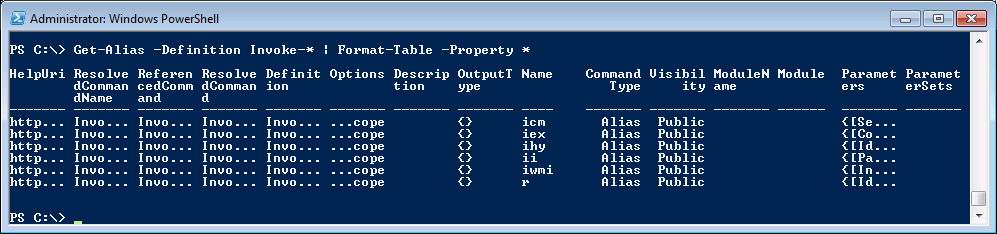
As you can see, the content of the table is truncated so you can’t really tell what the data is in the table, and if you output the results of that command to a file where the lines can be longer you still get the same results.
Issue #2: Auto-sized tables are limited to the width of your screen buffer
If you try to solve this problem by looking at the help for Format-Table, you may come across the AutoSize parameter. The AutoSize parameter allows you to tell PowerShell that you want the formatter to automatically size the table columns, showing as much data as possible. Here is what happens if you add the AutoSize parameter to the same command you just ran:

This is on the right track for what you are after, but notice the warning text that is output at the top of the resulting table. It indicates that 10 columns do not fit into the display and were removed. If you pipe the results of this command to Out-File, PowerShell will simply pass what you see on the screen to the file you are writing to, which is not sufficient for your needs.
Solution: Strings are not subject to the limitations of other objects in PowerShell
When you pass the results of Get-Alias to Format-Table, the Alias data is converted into objects that describe how the table should look. These objects are then passed implicitly to the Out-Default cmdlet which renders the objects according to their format configuration as well as the current console configuration. In fact, every PowerShell command you run ends with the results being implicitly passed to Out-Default. Even if you pass the results of our Format-Table call to Out-File instead, Out-File will render the objects according to their format configuration and the current console configuration. This is the limitation that is making this seemingly simple task so difficult. What we need to do then is to make sure that the data that is sent to Out-File or Out-Default is pre-formatted so that it is not limited by the size of the screen buffer. How do you do that you ask? The answer is simple: use Out-String.
Out-String is a cmdlet that allows you to convert any output to string format, and you can specify the width of that string using the Width parameter which allows you to exceed the limitations of the PowerShell console buffer size. When strings are passed into Out-Default and Out-File they are simply written as is without any truncation or automatic text wrapping. With that additional piece of knowledge you can pass the results of your Format-Table cmdlet call to Out-String using a width that is large enough for the table output, which successfully forces the objects to be rendered with the width that you want without having to change the buffer size.
Here is a screenshot showing what happens when you pass your Format-Table output to Out-String, specifying a width of 4096 characters:
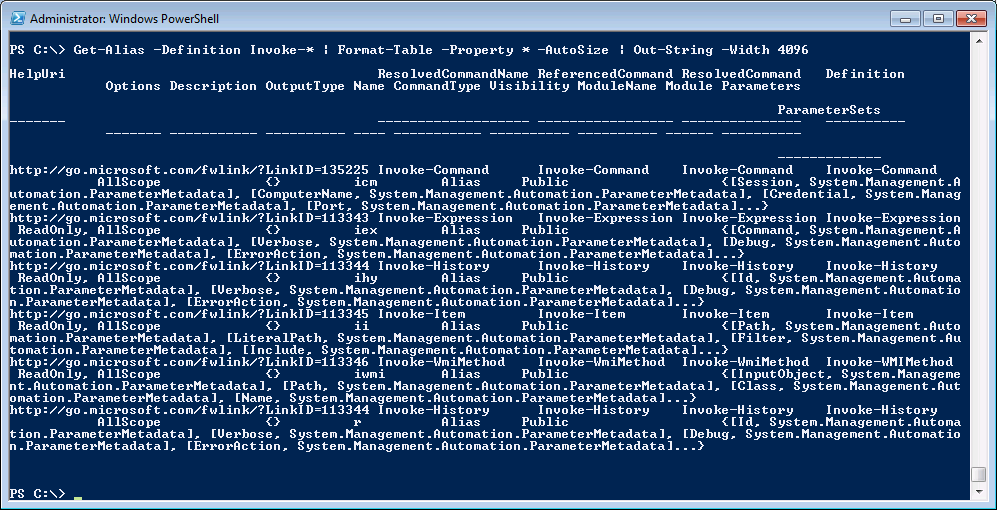
That might not look very useful either, but look what happens when you take this one step further and pass the results to Out-File. Here is the command to do this:
Get-Alias -Definition Invoke-* `
| Format-Table -Property * -AutoSize `
| Out-String -Width 4096 `
| Out-File C:\aliases.txt
Opening the resulting aliases.txt file shows the following contents:
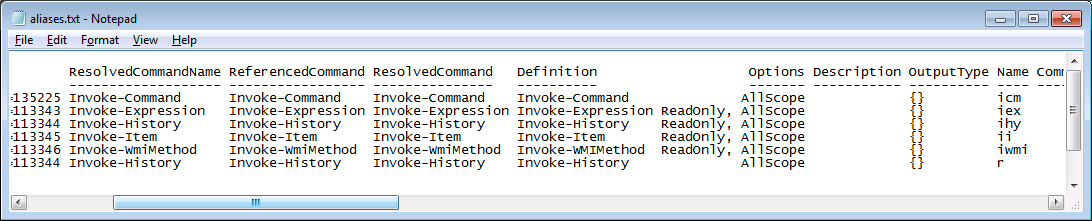
This is only showing part of the results, but did you notice the horizontal scroll bar at the bottom of the window? It illustrates that you have achieved your goal, creating a table wide enough to show all data in the table inside of a text file that can then be sent to others, stored for archival logging purposes, etc.
Sidebar: If you have a specific property that contains a collection of items, that property may still show an ellipsis in the file produced here if the number of items in that collection exceeds the number assigned to the built-in $FormatEnumerationLimit variable. In this case, if you want to see the entire collection of items, you should temporarily change the value in $FormatEnumerationLimit to something large enough to show your collection (-1 if you want to see all items) and then run a command similar to what I have shown you above. The default value of $FormatEnumerationLimit is 4, which can be limiting when generating a file like this. Increasing this value will give you a full report of what you have in the data you are processing.
With that knowledge in hand, the takeaway for you here is to make sure that you autosize your Format-Table results and that you pass them to Out-String with an appropriate width before you write it to a file if you want to output large tables in text format.
Thanks for listening!
Kirk out.
 Poshoholic
Or use Export-CSV. 😉
Sure, but Export-CSV is only useful if you’re going to Excel or some other product that accepts CSV files with your data. Being able to export tables as well formatted text files is a completely separate need that needs to be filled as well.
Great Kirk – thanks,
So the take away from this is –
[1] Collect and refine your deliverable first –
[1a] Using Get-xxx, Select, Sort and other cmdlets upstream in the pipeline
[1b] Shape the presentation of the payload using Format-Table,
Format-List, Format-Wide … (or possibly with an expression in Select)
[1c] Lastly send this to Out-String to get each row on the console without breaking up each row at the 79th column (or routing it to a file as well).
[2]
Question:
[2a] Are there any caveats to the behavior of Out-String such as –
[2b] Null values comprising what comes out?
[2c] Will the output be padded with spaces if the data (in this example of 4,096) doesn’t extend as wide as 4,096.
[2d] If one wants to display the last 100 lines of 80 meg file of a wide file to the console, one might type –
get-content {filename} | select-object -last 100 | out-String -width 4096
Thanks!
Hi David,
Regarding the take away, you got it.
Now to your questions:
2b. $null is interpreted as an empty string when passed to Out-String.
2c. Output is not padded to the value you specify in Width. There may be some padding though as the table formatter lines up columns (for example, if the value in the last column is null, there will be spaces to make the width of that column equal to the width of all other values in that column.
2d. Almost. Only use Out-String when you want to specifically convert to a string because you are pushing data into a file, an email message, etc. To view the last 100 lines of any file, just pipe the results of Get-Content to Select-Object -Last 100. If you want to only get a preview of those lines (i.e. control wrapping) in your console, use the trick I just shared in my answer to your question on the previous post. Or if you want to search the file for rows containing something specific use Select-String to limit the output to those rows.
Let me know if you have more questions.
Kirk out.
Thanks Kirk. That was very informative and helpful. As usual, you were very clear and concise. David’s take away was also good.
Thanks.
Without the parameter -Property * I didn’t get all the column IN SQLPSX.
Now I get all the columns
$datarow | ft -Property * -auto | Out-string -width 10000 -stream
and a few addition too, as described in
https://connect.microsoft.com/PowerShell/feedback/details/400549/dataset-tables-property-returns-additional-properties-in-datarow-in-v2-ctp-3-not-in-v1?wa=wsignin1.0
I’ve been testing the recommendations (thank you for your advise) and for one specific combination, the above settings aren’t quite as effective as needed.
=========================
Here’s the real test:
*-Create an ASCII file in notepad with 3 rows/lines of text in the file.
These lines of text represent the column values from position 1 to column 200 or so. For our example, I can only provide a column width of 79+ for this web page, but on your pc take each row out a couple hundred columns.
=
00000000000000000000000000000000000000000000000000000000000000000000000000->200
00000000011111111112222222222333333333344444444445555555555666666666777777->200
12345678901234567890123456789012345678901234567890123456789012345678901234->200
=
Save the file to c:\1-to-200.txt
Then PowerShell ‘type’ the file with the PS commands:
Get-Content C:\1-to-200.txt
How can you tell PowerShell to display all 200+ columns only on three rows?
For the other constraints, see above
Thanks!
-dpc-
=
In this case, when you call Get-Content you are actually getting 3 rows back. Those rows are automatically wrapping in PowerShell because they exceed the size of the buffer in the PowerShell console. You can’t tell PowerShell to display all of the contents on single lines without changing your buffer size.
If you want to eliminate that wrapping though and only see enough characters from each line that you don’t get the wrapping in the console, pass the results of Get-Content to ForEach-Object and truncate the output yourself, like this:
Get-Content filename.txt | ForEach-Object {
if ($_.Length -gt $host.UI.RawUI.BufferSize.Width) {
(-join $_[0..($host.UI.RawUI.BufferSize.Width – 5)]) + ‘…’
} else {
$_
}
}
That’s the best you will be able to do without changing your buffer size.
Kirk out.
Excellent,
I’m just learning Power-Shell and run now exactly into this, because i wanna evaluate Robocopy Logs. In this Logs there are lots of pathnames longer than 220 Chars.
So i was frustrated, as i have seen the output of my commands is cropped to the window length of PS.
And here came your Site into the Story….
THANK YOU KIRK, you saved my belief that PS is a great piece of SW.
Regards from Vienna
Peter
Thanks for the great feedback Peter, that made my day. 🙂
[…] PowerShell Quick Tip: Creating wide tables with PowerShell « Poshoholic […]
Hi. Great post, worked fine for me on the powershell cmdline but when I run powershell through perl, I still get things truncated at 79 characters…
get-counter -counter “\\server\MSExchange RPCClientAccess\RPC Requests”
If I add | out-string -width 120 it works perfectly fine in the powershell console.
But, if I run it via a perl script which runs powershell as c:\windows\…\powershell.exe -PSConsoleFile “c:\Program Files\…\exshell.psc1” -command “[above command | out-string -width 120]” things still get truncated at 79…
Hi Nik,
Don’t forget, between your call to Get-Counter and Out-String, you need to use Format-Table * -AutoSize to get the proper results.
For example:
C:\windows\…\powershell.exe -PSConsoleFile “C:\Program Files\…\exshell.psc1” -Command “Get-Counter -Counter “”\\server\MSExchange RPCClientAccess\RPC Requests”” | Format-Table * -AutoSize | Out-String -Width 120″
I hope this helps.
Kirk out.
I have been working on this all day, This is awesome. finally got what I needed and a full explanation of why it hasn’t been working all day. Wish I’d have founf this earlier today.
Thanks
Glad it helped you out Dexter! 🙂
Thanks Kirk, this was just the thing i was looking for. Keep up the good work.
Thanks for letting me know it helped. I love this trick!
Kirk out.
Hi, need some quick help here. How can I get this output to all be on 1 line? (keeping 1 liner approach).
gci “C:\Program Files\” -recurse -force | ? {!$_.PSIsContainer -and $_.lastwritetime -gt (get-date).addDays(-365)} | foreach {$_.FullName, ($_.lastwritetime).ToShortDateString()} | ft -a
Hi,
Your one-liner is emitting two separate objects, which is why they appear on different lines. You want one object, so use select instead of foreach and build the object you want, like this:
gci “C:\Program Files\” -recurse -force | ? {!$_.PSIsContainer -and $_.lastwritetime -gt (get-date).addDays(-365)} | select FullName,@{Name=’Date’;Expression={($_.lastwritetime).ToShortDateString()}} | ft
Note if you add -auto to this, and if your filenames are long, you might not see the Date column in your PowerShell host. Lots of ways to solve that though. Here are a few possibilities:
1. Export to csv, open in Excel.
2. Add -Auto, then Convert to string (Out-String -Width 4096) then write to text file (Out-File), then open in notepad.
3. Use an expression for the filename, and if it exceeds some width (say, 60 characters), return a truncated version that has … either at the beginning of the file or somewhere in the middle.
There are of course other ways too, such as stripping off a prefix for the folder you’re searching to make the paths shorter, and I’m sure plenty more, but this should get you started. If you want help with one of these alternatives or some other method, let me know.
Kirk out.
Kirk, thanks so much for the solution and detailed explanation! Really appreciate you taking the time to pass along your knowledge while providing some ‘schoolin’
My pleasure! I’m glad it helped solve your problem.
Kirk out.
Kirk, ran into the same problem and glad that I found your article. Thanks for sharing. I tested your sample command in our environment, but noticed that the last column is still truncated (with …). I have tested this on Windows 7, Windows 2008 R2, Windows 2003, same results, just like what’s on your screenshot. Even if there is scroll bar in the notepad file, the last column is still like what’s show on the screen – truncated. Here is the command I used:
get-alias -definition invoke-* |Format-Table -Property * -AutoSize|Out-String -Width 8000|Out-File test.
Any insight will be greatly appreciated!
I found the answer using tip 1 from the following post: http://www.powershellcommunity.org/Forums/tabid/54/aft/3498/Default.aspx
Excellent, I’m glad you found that post I wrote on the PowerShellCommunity.org forums. I just added a note to this blog post letting people know that they can expand individual properties that are collections using the $FormatEnumerationLimit variable so that they can find all of the details in this post.
I’m happy you found your answer, and thanks for sharing! 🙂
Kirk out.
Thanks so much!!!
Glad I could help!
Kirk out.
Thank you, thank you Thank you ! You rescued my day… Ah c’mon …WEEKS !
This is what I’ve been searching/googeling/yahooing/ for so long and it nearly drove me nuts !
Thanks again and If you make it some day to Germany, I owe you a beer .
Scotty out.
This comment made my day today. Thanks for letting me know this blog post was able to help you out! 🙂
Kirk out.
[…] https://poshoholic.com/2010/11/11/powershell-quick-tip-creating-wide-tables-with-powershell/ […]
Mr. Kirk, I was wondering if you could help with a simple script, I’m trying to format the output of an exchagne 2010 PS comlet and I’m having a hell of a time doing it. What I would like to do is use the “Get-MoveRequestStatistics” cmlet and I want the following objects:
displayname,BadItemsEncountered,QueuedTimestamp,StartTimestamp,OverallDuration,TotalFinalizationDuration,TotalInProgressDuration,MRSServerName,TotalMailboxSize,TotalMailboxItemCount,BytesTransferred,BytesTransferredPerMinute,ItemsTransferred,PercentComplete
I need them out in a csv file neatly tabulated with headers from the cmdlet to show only one time in the top of the file, followed by the data tabulated in each column:
Here’s what I have thus far: I’ll mark the start of each new line with a – since screen is so narrow.
-$filename = Read-Host “Enter file name of Run:”
-$headers = @(“displayname”, “BadItemsEncountered”, “QueuedTimestamp”, “StartTimestamp”, “OverallDuration”, “TotalFinalizationDuration”, “TotalInProgressDuration”, “MRSServerName”, “TotalMailboxSize”, “TotalMailboxItemCount”, “BytesTransferred”, “BytesTransferredPerMinute”, “ItemsTransferred”, “PercentComplete”)
-$Completed = Get-Content C:\Download\stats\completed-users.txt
-$outfile = “C:\Download\stats\$filename”
-foreach ($u in $completed)
{
-Get-MoveRequestStatistics -Identity “$u” | select displayname,BadItemsEncountered,QueuedTimestamp,StartTimestamp,OverallDuration,TotalFinalizationDuration,TotalInProgressDuration,MRSServerName,TotalMailboxSize,TotalMailboxItemCount,BytesTransferred,BytesTransferredPerMinute,ItemsTransferred,PercentComplete | ft -Property * -auto |Out-String -Width 4096 |Out-File $outfile
}
I’m kinda of new working with PS, but I’ve worked with Sun OS 8 in bash scripts before so I have some idea about scripting.. but this has me stumped
thank you in advance in any advise.
Hello Moreno,
Have you seen the Export-Csv cmdlet? That cmdlet will export an object or a collection of objects to a csv file. It automatically creates the headers for you. You will want to use that cmdlet with the -NoTypeInformation parameter so that the type information is not written at the top of the csv file above the headers. Here’s an untested example of what that might look like:
@(foreach ($u in $completed) {Get-MoveRequestStatistics -Identity $u | Select-Object -Property $headers}) | Export-Csv -NoTypeInformation -LiteralPath $outfile
This script breaks down as follows:
1. Get the move request statistics for every user, selecting the properties you care about, and store those in an array).
2. Export the contents of that array to a csv outfile, omitting the type information.
Another way to do this that might be a little more clear:
# Declare the array to hold the user move request statistics
$moveRequestStatistics = @()
# Add the statistics to the array
foreach ($u in $completed) {
$moveRequestStatistics += Get-MoveRequestStatistics -Identity $u | Select-Object -Property $headers
}
# Now export the data
$moveRequestStatistics | Export-Csv -NoTypeInformation -LiteralPath $outfile
Also, just FYI, a better forum for asking questions like these can be found on PowerShell.org. I answer questions there, as do many others, plus the answers are then visible for others coming to the site. This is visible as well, sure, but the forums are just a better medium for Q&A because you have more people paying attention to them. You can find a link to the forums on the main page.
I hope this helps!
Kirk out.
Kirk, I was working on this for days, with no luck, my frustration level (or ego LoL) broke me down to ask someone bigger.. lol, thank you soooo much I was so happy to see it work as it should…. if I could do anything to repay you… i would lol.. 🙂
Graz.
Excellent, I’m glad that I was able to help solve your problem. Thanks for letting me know!
Kirk out.
Excellent ! – Thank you so much – I was struggling with this all day – You made my day!
–ovm
I’m glad I was able to help you out! 🙂
Hey, thank you so much!
What I do not understand: Get-VMHost | Foreach-Object {Get-Compliance -Entity $_ -Detailed | Format-Table -AutoSize} | Out-File D:\report.txt in the console works fine, but as scheduled Task table rows are removed
Can you explain in more detail what you mean by “table rows are removed”? Are you getting some data but not all data? Are you running the scheduled task in the same context as your local user when you run the command in the console?
The above Command is part of a script. When I start this script from a PowerShell Console the Output is complete (7 Table rows) but when I create a scheduled Task which runs the same script, then the Output only has 5 table rows and that is waht I don’t understand. I use the same user for running the schedtask and the console.
Hi Kirk, I just wanted to drop a FREAKIN THANK YOU!.. line. I had spent days trying to get this outupt from a ps1, not a quick script. Like Scotty said above, I scowered high and low, close and far and you teenee tiny post had exactly what I just could not find.
You’re FREAKIN welcome! 🙂
[…] Credit: This post is largely a re-write of this AWESOME Poshoholic gem. […]
Awesome! Thanks for the post!
An alternative is setting the buffer in your script.
#increase the buffer so that we can capture more data from the table before elipses get us.
$pshost = get-host
$size = $pshost.ui.rawui.buffersize
$size.width = 800
$pshost.ui.rawui.buffersize = $size
Thanks for sharing that alternative, Ed.
You don’t need to call Get-Host in your example — you can use the built-in $Host variable instead, like this:
$size = $Host.UI.RawUI.BufferSize
$size.Width = 800
$Host.UI.RawUI.BufferSize = $size
In general I prefer the other technique since it’s not host dependent (which this alternative may be), and since it allows me to get a wide table to disk as a one-off task without having to change my buffer size back to its original setting. Some may prefer changing it for all commands though, so it’s good to know both options are available.
Hi Kirk, your post was really helpful to me. I’ve a list of servers whose disk space details need to fetched in a file. I used the same command which you have mentioned above. |Format-Table -autosize | out-string width 4096 and it is working also. But since the data is collected from different servers, the header is getting displayed for each row of data. In the example, which you have mentioned, the output is that of a single command and that you’re trying to fit inside a table. In my case, the output is from different servers. Hope you understood. Instead of format-table, if i use select-object, the header would display only the first time, and it would be like all the space details under a single header. But this out-string command is working with select-object. Now, when i am using the select-object, the table view is not coming. Can you please help me in this?
My question is that what should i give in the place of out-string, if i’m using select-object instead of format-table? is there any way to increase the buffer size for select-object?
Hello Anand,
There are only two scenarios where you would see the headers repeated multiple times: if you are actually outputting multiple tables, or if the object type is different (incompatible) between each table. I think you’re probably working with multiple tables. Were you using Format-Table -AutoSize multiple times in your script? If so, that’s the culprit. You should only use Format-Table -AutoSize | Out-String -Width 4096 once. If you have a large block of code to get the disk space details from multiple servers and you want to ensure all of that is formatted properly, you could wrap it in a function and then call your function and pipe the results to Format-Table -AutoSize | Out-String -Width 4096. The key point is to make sure all data gets piped from one call into a single Format-Table/Out-String pipeline. This should make sure you end up with one table. On the other hand, if you are trying to say that you’re outputting data to a file and then running another command and appending to that file, then yes, that will also result in multiple headers. If that is the scenario you’re facing, I recommend using Export-Csv in place of Format-Table/Out-String because you can export csv data to a file and use the -Append parameter to append additional records to the csv table.
This doesn’t answer your question about Select-Object, but that’s because I don’t think Select-Object is the right way to go here based on the information I have so far. If this doesn’t help set you on the right path, can you provide more detail about your script and how you are invoking it (running it once to get all data, or running it multiple times to get the data you need, is appending necessary or can you do it in one run, and are you only using Format-Table once or not)?
[…] References: PowerShell Quick Tip: Creating wide tables with PowerShell […]
Hi Kirk,
Great post. I take it that it wouldn’t be possible to somehow wrap the the text in each column somehow?
Thanks,
A
Hey Adrian,
Sure, you can wrap column text. Just use the -Wrap parameter of Format-Table for that. For example, compare this:
Get-Service | Format-Table
with this:
Get-Service | Format-Table -Wrap # Forces PowerShell to wrap all text that would otherwise be truncated
Hi Kirk,
Thanks for answering my query and sorry for the delayed response. I had got the multiple header problem sorted. Actually, I was fetching all the disk space details inside a for loop and writing that immediately to a text file. That was the wrong logic from my end. Now I’ve created a custom object array and stored all the details in that and in the end, i am displaying all the details of that custom array with format-table. Now things are working fine.
Another thing that i would like to know is regarding the export-csv function. I had tried it already and got an empty csv returned. I searched in google and what I came to know is that in order for export-csv to work, you need to have MS Excel installed in your servers. Actually MS Excel is not present in my servers. But another odd thing that happened is that I tried to fetch the printer details in one of the servers with export-csv and there the command worked even though MS Excel is not present in that server. I got all the printer details in a csv file with the export-csv command. Now, i am a little bit confused as to what is the real reason. My ultimate question is this – MS Excel is no present in any of my servers. It would be really good if I could export the disk space details into a csv. Is it possible to do that???
Hi Kirk,
Apologies, if I have confused you. My question is simple. Does the Export-csv command have some pre-requisites like MS Excel should be installed in the servers. I had tried the Export-csv command with my disk space script and it returned an empty csv. That is why I’m asking.
Hi Anand,
Your question was fine, I wasn’t confused. Export-Csv does not require Excel. It has all of its requirements in the box (as part of PowerShell/.NET), and it runs just fine on servers. If you’re using that command and ending up with an empty CSV, then something else is wrong. Let me know if you need help figuring out what the real issue is that results in the empty csv file.
Kirk out.
Hi Kirk,
Thanks for responding.
Yes, i do need help in figuring out why I am getting an empty csv.
Can you please point me in some direction?
Hi Anand, you’ll have to change your command to see where the data stops flowing. For example, if you have a command that looks something like this:
Get-Data | Do-Something | Do-SomethingElse | Export-Csv
then you should comment out each stage in the pipeline one at a time from the last to the first, either letting the data appear in PowerShell (by simply commenting it out) or replacing the command with Get-Member to see what type of data you are getting. Continuing with the above example, you could first try:
Get-Data | Do-Something | Do-SomethingElse | Get-Member #Export-Csv
and then if that shows nothing (meaning there is no data), try:
Get-Data | Do-Something | Get-Member #Do-SomethingElse | Export-Csv
and so on, until you figure out where the data stops flowing. If, on the other hand, you are passing a variable into Export-Csv, like this:
$data | Export-Csv
Then you’ll have to do the same steps, but with the command that fills your $data variable.
These are iterative steps you can take to figure out what is going wrong.
Another approach you can take is to use PowerShell’s built-in debugging features. These are easier to use in PowerShell ISE than in native PowerShell, but you can debug in either environment. Debugging in PowerShell simply means walking through your script a little bit (one line, or a bunch of lines) at a time, checking values of variables along the way.
If after looking at these options you’re still stuck, it might be easier if you just email me directly (using the contact me link on this page, or just contacting me on gmail with my poshoholic account), or find me (or someone else who can help) on the PowerShell Slack channel, and I can help further.
Thank you very much Kirk. I would definitely try these steps and see to it what is the issue. Many thanks for your help. Will let you know in case I get stuck anywhere.
Hi Kirk,
I had posted a question via Contact Me page. Didn’t get any update as of now.
If you are not monitoring that page, I will post it here.
Sorry Anand, I didn’t receive that message. I just updated my Contact Me page because it was being sent to an email address that I don’t monitor as often, and the only thing I can guess is that it got filed in a spam folder. I’ll have to dig deeper later, but in the meantime I didn’t want to keep you waiting. You can post the question here, or email me directly (poshoholic on gmail).
Hi again Anand,
The answer to your question (which I just deleted) is yes, that is my email address. I don’t list it in comments/blog posts in clear text because web site scrapers will grab it and then send me even more spam that I already get.
Kirk
It’s good but only if we don’t use format-table -Wrap parameter. Wrap won’t work with -Width parameter in Out-String..
You’re right, the output ends up appearing truncated if you use wrap and your width value isn’t large enough to support the entire output of one record on one line. That’s worth pointing out, so thanks for drawing attention to it. I’ll mull over how that might work some other way (being able to capture a table with wrapped data as a string without the window width getting in the way — I think it should be possible by specifying the maximum width for the columns/properties that you want wrapped).
Hi Kirk,
I had some more queries after reading your previous mail.
Can you please have a look at them?
Thanks in advance.
I have mentioned those queries in my reply mail. Kindly check.
Thanks once again.
Great post!! Easy to understand with good examples.. Thank you so much..
[…] Later, when I was looking for screenshots in this article, I found another article that basically explains a different way to work around the width issue: PowerShell Quick Tip: Creating wide tables with PowerShell | Poshoholic [WayBack]. […]
Thank you. This helped a lot!
You are welcome! 🙂
Your post is still very valid Kirk.
Hope you and the PowerShell gang are doing well.
Go posh go, and never stop growing.
With warm regards,
Columbus, Ohio
Dave Carnahan
Hi Dave,
Thank you for the kind words. I am doing quite well, thanks.
Nice to hear from you.
Kirk
Useful! Thanks.
You’re welcome!
[…] Kurze Erklärung, wie man größere Tabellen in der Textausgabe macht. Link […]
Great. Amazing. Unique. Wonderful. Absolutely useful for every day’s life. Saved thousands of PowerShell script guys’ lives around. Congrats!
Glad you enjoyed it Tom!
Ha! Out-String… fabulous. Will be adding this to my PS arsenal.
Glad you like it! I use this trick all the time. 🙂
I’m just learning Power-Shell and run now exactly into this, because i wanna evaluate gs richcopy 360 Logs. In this Logs there are lots of pathnames longer than 220 Chars.
Fantastic, thanks! At last a way to output more than 80 characters to a file.
You’re welcome!
This article is fantastic and well written! The staying power of the information is phenomenal, too, eight years old! The one thing I ran into problems with was that notepad.exe has a buffer width issue as well. I used notepad ++ and that fixed my issue. I’d guess that there is a way to adjust notepad.exe’s buffer width, but I went with the quick fix on this one. Thank you, Kirk!
My pleasure Patrick, and thank you so much for the really nice comment! It is very much appreciated. Happy holidays!
Still valid in 2021
Wonderful article, very helpful.
hi i was reading your article but i can’t understand why i can’t view all columns with Out-String command.
The command I’m using is this:
Get-ADUser -Filter * -Properties GivenName, Surname, DisplayName, SamAccountName, Description, AccountExpirationDate | FT -Expand GivenName, Surname, DisplayName, SamAccountName, Description, AccountExpirationDate | Out-File “c: \ users \ guest \ desktop \ all-account-exipiration.txt” | Out-String -Width 4096
I don’t understand why it doesn’t work … Can you help me? Thank you
Donatello Zoffranieri
Hi Donatello,
You need to drop “-Expand” from your Format-Table call. That Expand parameter is used for something completely different. For more information about how that parameter works, you should read the results from “Get-Help Format-Table -Parameter Expand”.
Hope this helps!
Kirk
thanks in the end i solved by increasing the power shell buffer
removing expand didn’t solve it anyway
thanks
I am using this to export the results of a SQL query to a file and I am getting extra columns not in the SQL table such as RowState, Table, ItemArray, HasErrors. Is there a way to just write the query results without having to specify each column?
$results = invoke-sqlcmd -ServerInstance $server -query $QueryText -querytimeout 60000 -OutputSqlErrors $true -ErrorVariable sqlError
if ($pOutputFormatTable -eq $true) {
$results | Format-Table -Property * -AutoSize | out-string -width 25000 >> $OutputFile
} else {
$results | out-string -width 4096 >> $OutputFile
}
At the end of your Invoke-SqlCmd call, add this:
… | Select-Object -ExcludeProperty RowState,Table,ItemArray,HasErrors
Note that if you’re using Windows PowerShell (i.e. version 5 or lower), you’ll need to do it this way instead:
… | Select-Object -Property * -ExcludeProperty RowState,Table,ItemArray,HasErrors
That is perfect. Much appreciated!