After working exclusively with PowerShell in my career for over two years now, it has become quite clear to me that the single most valuable feature in Microsoft Windows PowerShell, in my opinion anyway, is its extensibility. In particular, it’s how easily it can be extended in PowerShell itself through a combination of PowerShell scripts and XML files, without the need of a compiler. There are some features that are a very close second to that (consistency and discoverability), but the extensibility that PowerShell provides is truly second to none.
Version 1.0 of PowerShell was extendible from within PowerShell via combinations of PowerShell functions, the .NET Framework, WMI, ADSI, Add-Member and external ps1xml files that define type extensions and formats, not to mention snapins. Using these features in PowerShell 1.0, I found them more than capable to allow me to create some really creative workarounds to some challenging issues that were identified in that version. Not everything can be worked around, of course; some bugs can really only be fixed by the PowerShell team, and that will always be the case. Those bugs aside though, PowerShell 1.0 really did a great job of providing a ton of functionality and enabling people like you and me to add even more.
Still, the solutions I could come up with in PowerShell 1.0 didn’t function quite the same as a regular PowerShell cmdlet. There were some subtle differences and limitations in what you could do in that release. Version 2.0 of PowerShell addresses some of those limitations, bringing even more extendibility options to the table with advanced functions, classes (using Add-Type), modules, and proxy functions. These new options are a welcome addition to the PowerShell ecosystem and they allow me to ask the question “Why wait for PowerShell 3.0?”, a question I can now try to answer with creative solutions to problems in PowerShell and with creative ways to extend PowerShell so that you don’t necessarily have to wait for the next release to get new features or functionality that you might be looking for. This article is the first in what I hope becomes a series of solutions that allow you to get some functionality you might find in PowerShell 3.0 without having to wait for it.
First on my list of areas needing improvement comes from a recent question that came up on a mailing list I follow:
I’m using Import-CSV to import a two-"column" CSV file and return a custom object with two additional properties. But I want the first property to be an Int and the second to be a DateTime. How do I do that? (I’ve tried several strategies, including explicit casting of the types in an array, but they come out as strings.
Import-Csv is a really, really handy cmdlet. It allows you to import the contents of a csv (character-separated value) file as a collection of objects so that you can then do things with them. It is commonly used in bulk provisioning or modification scenarios, where administrators can work with the data in the csv first if necessary and then write a script to do the required work according to the data from each entry in the csv file.
It has certain limitations, though, and those limitations can cause you to have to include additional complexity in your scripts to work around the limitations. When you import data using Import-Csv, every property on the objects that are created are all of type string. If you are trying to work with some properties containing dates (System.Datetime) or others containing numeric values or other types, complicated pipelines with manual conversion using ForEach-Object or Select-Object is required. That’s fine for one-off scenarios, but this has come up before, and it makes sense for Import-Csv to allow users to set the types for the properties on the objects they are importing — that’s one problem to solve.
Another limitation is that objects imported from Import-Csv don’t necessarily have an appropriate type name associated with them. If the file was created manually or by another program, the objects will be generic PSObjects. If the file was created by exporting data from PowerShell using Export-Csv, a type may be included in the csv file but most csv files I work with come from sources other than PowerShell. You can customize the object type name however you like (and this is recommended if you are doing something like Importing data from a csv file into the PowerGUI Admin Console so that you can then associate relevant actions with that object type), but again this isn’t something you would want to do each time you import csv data because it’s just that much more work.
It sounds to me like this user would have preferred being able to call Import-Csv using a syntax something like this:
Import-Csv C:\birthdays.csv -Type String,Int,Date
or, with a slightly more powerful example, perhaps like this:
Import-Csv C:\birthdays.csv -TypeMap @{Age='Int';Birthday=[System.DateTime]} -As 'BirthdayRecord' -UseETS -Overwrite
We could simply put in a feature request to the PowerShell Connect site (something I recommend you do whenever you come across something you feel is missing or incorrect), but that won’t do anything to help us today. How can we solve those two problems now and bring Import-Csv into a level of functionality we might like to think we’ll get in PowerShell 3.0, like what is shown above, in such a way that getting typed objects with properly typed properties is as simple as importing data from a csv file using nothing but an Import-Csv command? The answer to that comes from one of my new best friends in PowerShell: proxy functions. The proxy function feature in PowerShell allows you to create an advanced function with the same name as a cmdlet that internally calls that cmdlet. Since functions have a higher precedence that cmdlets in the command precedence order, you’ll always get the proxy function if it’s loaded when you are using the basic (that is to say, non-qualified) cmdlet name.
Creating a proxy function is easy. All you have to do is execute a static .NET method called Create on the System.Management.Automation.ProxyCommand class and pass in a new System.Management.Automation.CommandMetaData object created by using the result of calling Get-Command for the cmdlet you want to proxy to get the internal script that will be the body of the proxy function, then wrap that in a function with the same name as the cmdlet you are proxying and then, to add that function to your current script file, output it to another file and then copy it over using an editor. Huh? That sure sounds complicated. Well, since it’s not all wrapped up in a cmdlet for you, it is more complicated than it needs to be.
Let’s try that again.
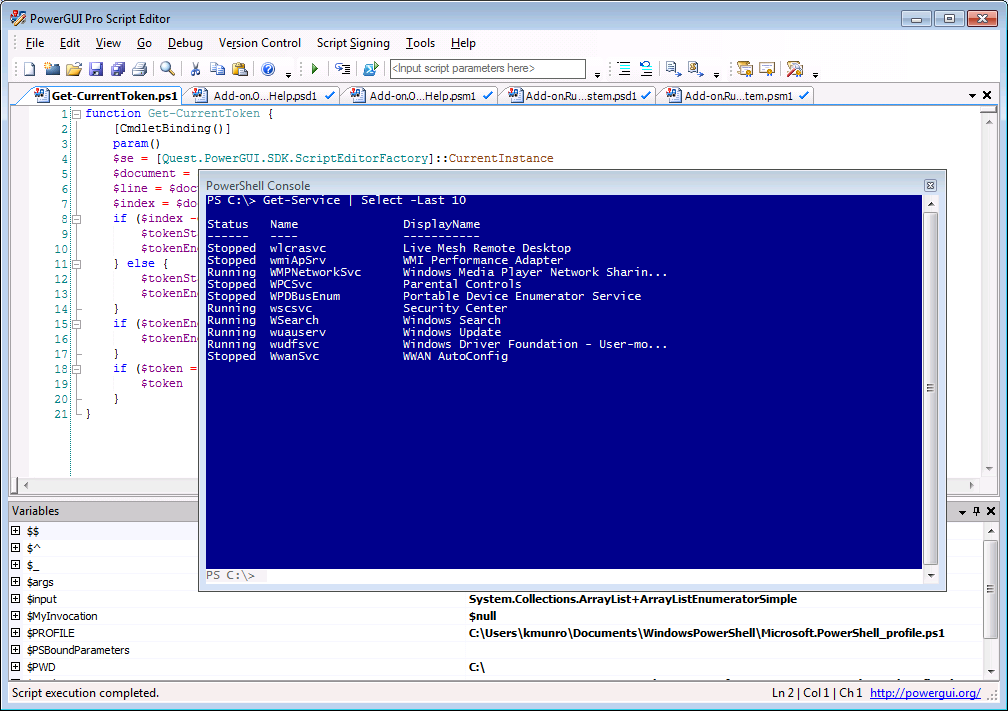
Creating a proxy function is easy. All you have to do is follow a few steps to get the command you need to run that generates the proxy function body, and then work within your favorite editor to copy that command body into your function in the file you are working on. My favorite editor is PowerGUI, so I’ll use that in my example. First, make sure you have installed PowerGUI with the new PowerShell 2.0 snippets (you can read more about those here) and then open up your PowerGUI Script Editor and follow these steps:
- Select Edit | Insert Snippet.
- Scroll down the list of snippets until you find a folder called “PowerShell v2” and double-click on it.
- Scroll down the list of PowerShell v2 snippets until you find one called “function (proxy)” and double-click on it to insert that snippet.
- In the snippet Name field, type in the name of the cmdlet you want to create a proxy for and hit enter.
If you like to learn by watching others, you can watch a demonstration of this (and other snippets) in a screencast that is posted on YouTube. If you’re a keep-your-fingers-on-the-keyboard junkie like me, you can use shortcuts and type in the snippet folder and name and get this done very quickly. When you’re done, you’ll have a function that looks something like this:
<#
    For more information about proxy functions, see the following article on the
    Microsoft PowerShell Team blog:

        http://blogs.msdn.com/powershell/archive/2009/01/04/extending-and-or-modifing-commands-with-proxies.aspx
#>

function Import-Csv {
    <#
        To create a proxy function for the Import-Csv cmdlet, paste the results of the following command into the body of this function and then remove this comment:
        [Management.Automation.ProxyCommand]::Create((New-Object Management.Automation.CommandMetaData (Get-Command Import-Csv)))
    #>
}
That’s not exactly a proxy function yet. There’s one more step you need to take, as described in the comment inside the proxy function. That comment indicates you need to run the command inside it and paste the results of that command over the comment itself. Copy the command as described in that comment and paste it in the embedded PowerShell Console window that is docked in your PowerGUI Script Editor, and once you have it pasted there, run it by pressing enter. The result of that command is string output that will become the main body of your proxy function. If you did this for Import-Csv like I did, it will look like this:
[CmdletBinding(DefaultParameterSetName='Delimiter')]
param(
    [Parameter(ParameterSetName='Delimiter', Position=1)]
    [ValidateNotNull()]
    [System.Char]
    ${Delimiter},

    [Parameter(Mandatory=$true, Position=0, ValueFromPipeline=$true, ValueFromPipelineByPropertyName=$true)]
    [Alias('PSPath')]
    [System.String[]]
    ${Path},

    [Parameter(ParameterSetName='UseCulture', Mandatory=$true)]
    [ValidateNotNull()]
    [Switch]
    ${UseCulture},

    [ValidateNotNullOrEmpty()]
    [System.String[]]
    ${Header})

begin
{
    try {
        $outBuffer = $null
        if ($PSBoundParameters.TryGetValue('OutBuffer', [ref]$outBuffer))
        {
            $PSBoundParameters['OutBuffer'] = 1
        }
        $wrappedCmd = $ExecutionContext.InvokeCommand.GetCommand('Import-Csv', [System.Management.Automation.CommandTypes]::Cmdlet)
        $scriptCmd = {& $wrappedCmd @PSBoundParameters }
        $steppablePipeline = $scriptCmd.GetSteppablePipeline($myInvocation.CommandOrigin)
        $steppablePipeline.Begin($PSCmdlet)
    } catch {
        throw
    }
}

process
{
    try {
        $steppablePipeline.Process($_)
    } catch {
        throw
    }
}

end
{
    try {
        $steppablePipeline.End()
    } catch {
        throw
    }
}
<#

.ForwardHelpTargetName Import-Csv
.ForwardHelpCategory Cmdlet

#>
Select all of that text that was output in your docked PowerShell Console window and copy it to your clipboard. Then paste it over the original comment that told you to do this. Now you have a proxy function. It doesn’t do anything different than the cmdlet you are proxying yet, but when it is loaded in your PowerShell session it will proxy that cmdlet properly.
So now you might be saying to yourself: “That’s great (although the process could be a little more streamlined…), but now what do I do?”. Now you can add your own parameters that you wish were on the original cmdlet in the first place, making the proxy function much more powerful. For our example with Import-Csv that I showed earlier, I would like to be able to specify the type of the properties in the csv file, either as an array when I want to specify all property types or as a hash table when I only want to specify a type for a few named properties, knowing that the rest will default to string. I’ll accomplish that by adding a Type and a TypeMap parameter to my Import-Csv proxy function. I’d also like to be able to specify the type of the object that is imported using Import-Csv, and I’d like to be able to define whether my type name should be treated as an Extended Type Name extension as well as whether or not the current type hierarchy should be overwritten or not. I’ll accomplish that by adding As, UseExtendedTypeSystem (alias UseETS), and OverwriteTypeHierarchy parameters.
Those changes will allow me to use the syntax I proposed above without waiting for someone else to give it to me. By taking the time to create the proxy function that supports these parameters I’ll save myself and others time and complexity in the scripts they write by moving all of the extra pipeline complexity that would otherwise be necessary directly inside the proxy function. It is worth noting that a proxy command isn’t as efficient as it would be if the added functionality were included in the cmdlet itself, but that’s not the point. The point is that you can extend cmdlets when they leave you wanting more today rather than waiting to see if PowerShell 3.0 includes the extensions you want or not tomorrow (or three years from now, who knows when it will be released).
The resulting proxy function is a pretty good sized function, but we’ve added quite a few features to it as well, and those features need to have some logic to support them. I’m including my version of the Import-Csv proxy function at the bottom of this post in its entirety so that you can give it a try yourself and see if it helps you out. With the exception of the parameter definitions I added to the param statement, all logic supporting the new parameters I have added is enclosed in collapsible regions so that you can see the specific locations where I inserted my logic. That should make it a little easier for you to see how logic can be added within a proxy function, enabling you to experiment a little and create your own PowerShell 3.0 flavors of your favorite cmdlets. If you prefer to download the ps1 file containing the proxy command directly, I have also shared that on my SkyDrive, here.
There are several other important things I should mention about proxy functions, as follows:
- You can add parameters, modify parameters, remove parameters, or leave parameters unchanged in proxy functions.
- If you add parameters, you need to remove them from the parameter collection ($PSBoundParameters) before you create your wrapped command so that those parameters are not passed to the cmdlet you are proxying. You may also have to do this if you modify parameters, depending on the modifications you make.
- If you find you are adding pipelines to certain commands you call on a regular basis, it is likely a sign that the cmdlet itself needs improvement. Consider creating proxy functions in these situations so that you don’t have to do as much typing in the long run.
- If you create and use proxy functions, share them with the community so that the PowerShell team can see where cmdlets could be improved. You can’t influence what goes in PowerShell 3.0 if you’re not sharing.
Here’s the final version of my Import-Csv proxy function:
#Requires -Version 2.0

function Import-Csv {
    <#

    .ForwardHelpTargetName Import-Csv
    .ForwardHelpCategory Cmdlet

    #>

    [CmdletBinding(DefaultParameterSetName='Delimiter')]
    param(
        [Parameter(ParameterSetName='Delimiter', Position=1)]
        [ValidateNotNull()]
        [System.Char]
        ${Delimiter},

        [Parameter(Mandatory=$true, Position=0, ValueFromPipeline=$true, ValueFromPipelineByPropertyName=$true)]
        [Alias('PSPath')]
        [System.String[]]
        ${Path},

        [Parameter(ParameterSetName='UseCulture', Mandatory=$true)]
        [ValidateNotNull()]
        [Switch]
        ${UseCulture},

        [ValidateNotNullOrEmpty()]
        [System.String[]]
        ${Header},

        [ValidateNotNullOrEmpty()]
        [System.String[]]
        ${Type},

        [ValidateNotNullOrEmpty()]
        [System.Collections.Hashtable]
        ${TypeMap},

        [ValidateNotNullOrEmpty()]
        [System.String]
        ${As},

        [Alias('UseETS')]
        [ValidateNotNull()]
        [Switch]
        ${UseExtendedTypeSystem},

        [ValidateNotNull()]
        [Switch]
        ${OverwriteTypeHierarchy}
    )

    begin {
        try {
            $outBuffer = $null
            if ($PSBoundParameters.TryGetValue('OutBuffer', [ref]$outBuffer)) {
                $PSBoundParameters['OutBuffer'] = 1
            }
            $wrappedCmd = $ExecutionContext.InvokeCommand.GetCommand('Import-Csv', [System.Management.Automation.CommandTypes]::Cmdlet)

            #region Initialize helper variables used in the processing of the additional parameters.
            $scriptCmdPipeline = ''
            #endregion

            #region Process and remove the Type parameter if it is present, modifying the pipelined command appropriately.
            if ($Type) {
                $PSBoundParameters.Remove('Type') | Out-Null
                $scriptCmdPipeline += @'
 | ForEach-Object {
    for ($index = 0; ($index -lt @($_.PSObject.Properties).Count) -and ($index -lt @($Type).Count); $index++) {
        $typeObject = [System.Type](@($Type)[$index])
        $propertyName = @($_.PSObject.Properties)[$index].Name
        $_.$propertyName = & $ExecutionContext.InvokeCommand.NewScriptBlock("[$($typeObject.FullName)]`$_.`$propertyName")
    }
    $_
}
'@
            }
            #endregion

            #region Process and remove the TypeMap parameter if it is present, modifying the pipelined command appropriately.
            if ($TypeMap) {
                $PSBoundParameters.Remove('TypeMap') | Out-Null
                $scriptCmdPipeline += @'
 | ForEach-Object {
     foreach ($key in $TypeMap.keys) {
        if ($TypeMap[$key] -is [System.Type]) {
            $typeObject = $TypeMap[$key]
        } else {
            $typeObject = [System.Type]($TypeMap[$key])
        }
        $_.$key = & $ExecutionContext.InvokeCommand.NewScriptBlock("[$($typeObject.FullName)]`$_.`$key")
    }
    $_
}
'@
            }
            #endregion

            #region Process and remove the As, UseExtendedTypeSystem and OverwriteTypeHierarchy parameters if they are present, modifying the pipelined command appropriately.
            if ($As) {
                $PSBoundParameters.Remove('As') | Out-Null
                $customTypeName = $As
                if ($UseExtendedTypeSystem) {
                    $PSBoundParameters.Remove('UseExtendedTypeSystem') | Out-Null
                    $customTypeName = '$($_.PSObject.TypeNames[0] -replace ''#.*$'','''')#$As'
                }
                if ($OverwriteTypeHierarchy) {
                    $PSBoundParameters.Remove('OverwriteTypeHierarchy') | Out-Null
                    $scriptCmdPipeline += @"
 | ForEach-Object {
     `$typeName = "$customTypeName"
     `$_.PSObject.TypeNames.Clear()
    `$_.PSObject.TypeNames.Insert(0,`$typeName)
    `$_
}
"@
                } else {
                    $scriptCmdPipeline += @"
 | ForEach-Object {
     `$typeName = "$customTypeName"
    `$_.PSObject.TypeNames.Insert(0,`$typeName)
    `$_
}
"@
                }
            } else {
                if ($UseExtendedTypeSystem) {
                    $PSBoundParameters.Remove('UseExtendedTypeSystem') | Out-Null
                }
                if ($OverwriteTypeHierarchy) {
                    $PSBoundParameters.Remove('OverwriteTypeHierarchy') | Out-Null
                }
            }
            #endregion

            $scriptCmd = {& $wrappedCmd @PSBoundParameters}

            #region Append our pipeline command to the end of the wrapped command script block.
            $scriptCmd = $ExecutionContext.InvokeCommand.NewScriptBlock(([string]$scriptCmd + $scriptCmdPipeline))
            #endregion

            $steppablePipeline = $scriptCmd.GetSteppablePipeline($myInvocation.CommandOrigin)
            $steppablePipeline.Begin($PSCmdlet)
        }
        catch {
            throw
        }
    }

    process {
        try {
            $steppablePipeline.Process($_)
        }
        catch {
            throw
        }
    }

    end {
        try {
            $steppablePipeline.End()
        }
        catch {
            throw
        }
    }
}
Are you still with me? Whew, if you stuck with me this far, thanks! There’s a lot of information here, and while it’s definitely not something for a beginner, if you’re comfortable experimenting in PowerShell I encourage you to give proxy functions a try and see what solutions you can come up with. Or, if you don’t mind taking the time to leave me a note, let me know what your biggest pains are with cmdlets today that you think could be solved with proxy functions and I’ll see what I can do to help create solutions for those. The feedback system really works, so don’t be shy, participate by either sharing solutions or letting others like me know what your problems are so that we can continue to help evolve PowerShell into the best scripting environment out there!
Thanks for listening!
Kirk out.






 Poshoholic