PowerGUI 2.1: The release that keeps on giving

Last Monday while I was down at Tech·Ed we quietly released PowerGUI 2.1 on our website.  I’ve been looking forward to us getting this release out the door for quite a while because there are some really cool features in the release that I wanted to share with you (some of which I’ve been hinting about on my blog recently), so it was very exciting to see this get released.  Since it happened at Tech·Ed though, my schedule was completely booked and I just couldn’t find a minute to start blogging about the release.  Now that I’m back home and fully recovered from a week packed with all sorts of cool technology, I can catch up and share this release with the rest of you.

Aside from the great performance improvements that were made in the Script Editor, not to mention the Charts and custom HTML support in the administrative console, there’s one particular feature that really grabbed my attention in this release: we now have a documented and supported SDK for the PowerGUI Script Editor!  This is great news because up to this point the only extensions that were possible were in the administrative console where you could create PowerPacks.  Now with 2.1 available anyone can create extensions for the Script Editor that add really cool functionality to it as well!

The screenshots I was blogging about a few weeks ago showed some of the Add-ons that I have been working on, and I just started publishing some of those Add-ons in the Script Editor Add-on category on PowerGUI.org.  These Add-ons are just PowerShell modules so you can see exactly how they work by opening the module files in the Script Editor.  With Add-ons, not only do you get the features that were implemented in the core product, you now get to pick and choose additional features that you want as they become available by installing Add-ons.

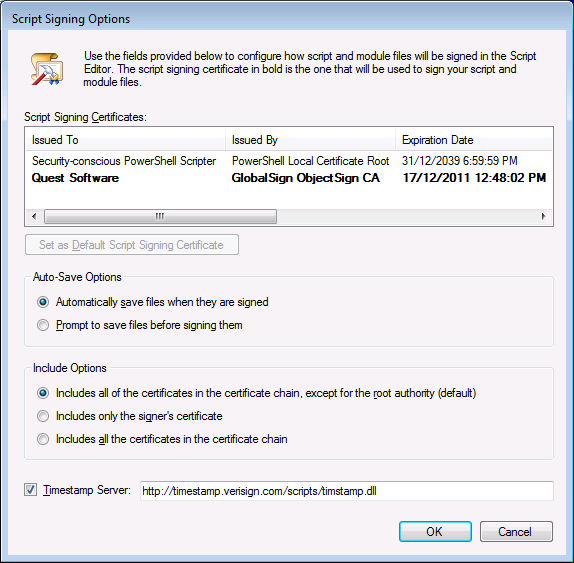
What sort of things can you do with Add-ons?  Well, for starters you can sign your script files:

image

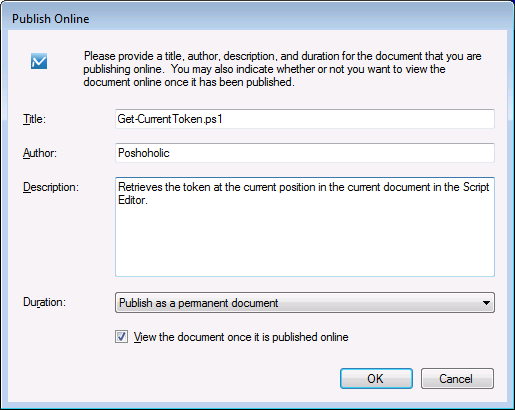
publish scripts online:

image

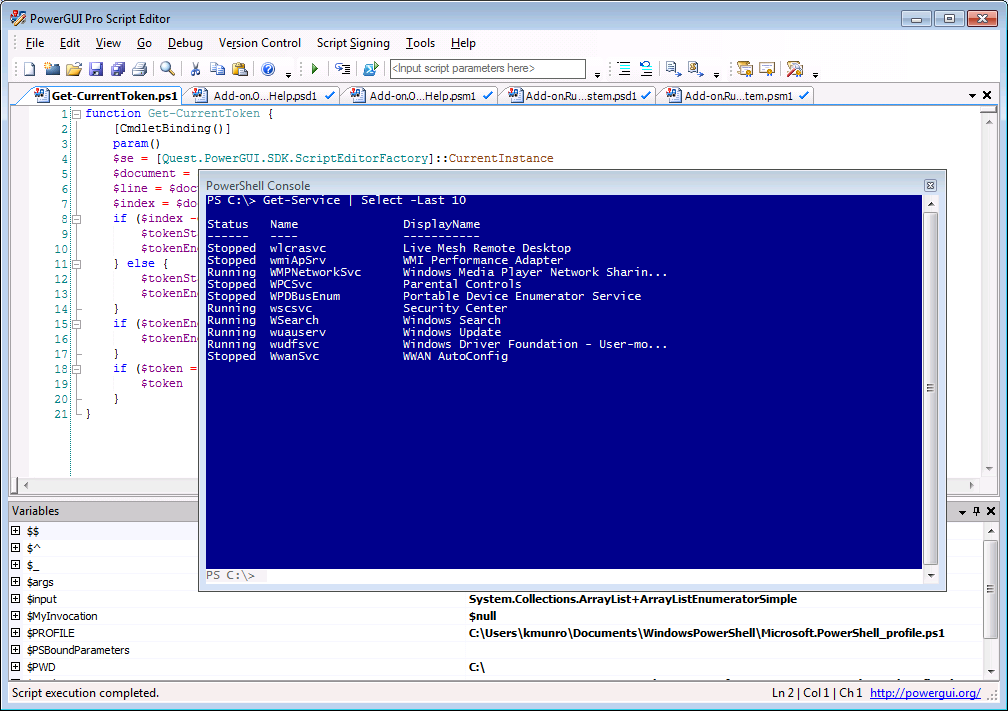
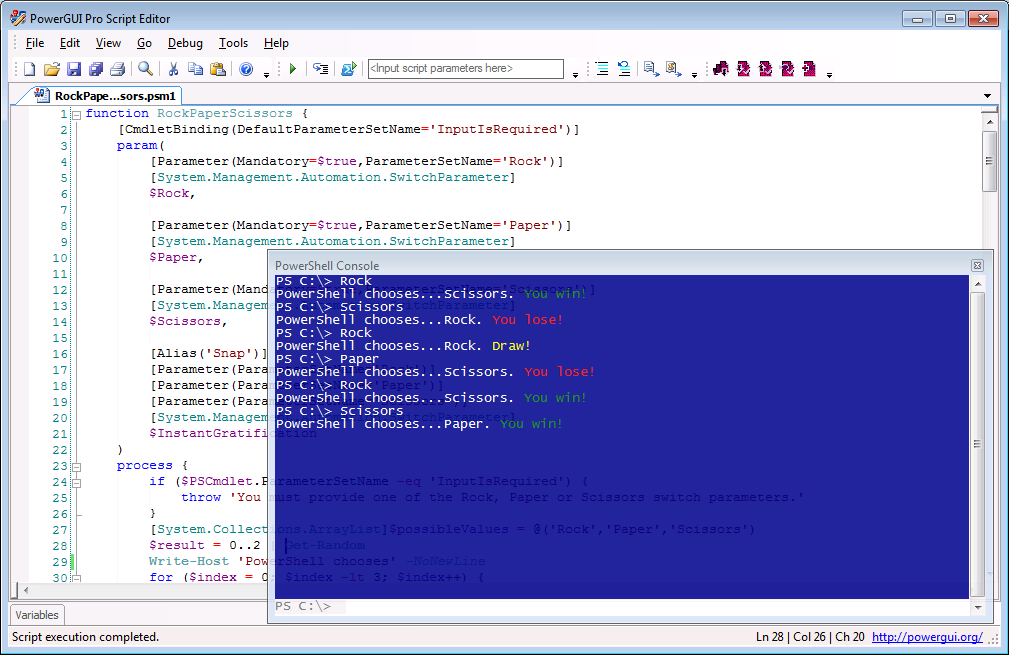
or change your embedded PowerShell Console to blue:

image

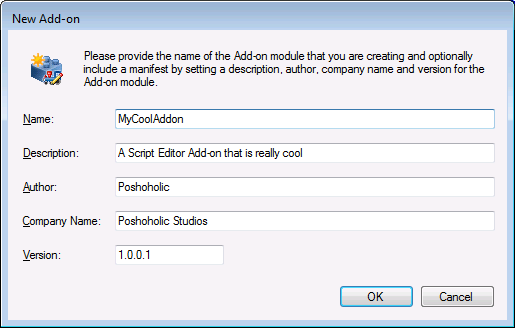
If that inspires you, you can also try creating your own Add-on:

image

And if you want to learn more about how you can create an Add-on, there’s even a tutorial available to help get you started.

There are some other useful Add-ons available right now, and more are in development so check the Script Editor Add-on category often to see what has been recently published.

If there are Add-ons you would like to see developed but you aren’t comfortable creating them yourself, share the ideas on our forums so that others can step up and help you out (or maybe even create the Add-on for you).

The Script Editor SDK that was added to this release is brand new to the PowerGUI product and we would love to hear your feedback on it.  Please speak up and let us know what you think about the SDK, the Add-ons we have made available so far, or anything else related to PowerGUI.  We’re always listening.

Thanks and happy scripting!

Kirk out.

Share this post:

Taking the PowerGUI Train Down to New Orleans

This weekend I’m heading down to New Orleans, LA for Tech·Ed 2010 North America.  I’m totally excited about the trip because (a) I’ve never been to New Orleans and (b) Tech·Ed is always a ton of fun!  This year I’ll be working the PowerShell booth again plus I’ll be hanging around the Quest booth quite a bit when I’m not in a breakout session.  One of the fun things I’ll be doing while I’m there is on Monday June 7th at 2:15 PM CST (mark your calendar!) when I’ll be at the Quest booth taking questions about PowerShell and PowerGUI and doing demos of some cool new features that we’ve been busy working on, such as a blue PowerShell Console and Online Help.

That’s not the only features that I’ll be talking about though…here’s another teaser screenshot showing you something else you’ll be able to do in the PowerGUI Script Editor really, really soon: Script Signing!

script signing code signing PowerGUI Script Editor

If you’d like to hear more about PowerGUI and what we’ve been up to, come by the 30 minute Q&A session on Monday.  Or, if you can’t make that session track down myself or Dmitry or head over to the Quest booth in the partner expo and ask for a demo of PowerGUI at any time.  I’d love to hear how you’re using PowerShell and PowerGUI and show you some of the new features that I haven’t shared here yet.

See you in New Orleans!

Kirk out.

P.S. I’m not literally taking the train down to New Orleans (although that would be really fun), but I am bringing PowerGUI with me on my laptop.  Maybe after the PowerShell market grows a little more I’ll be able to convince Quest to have a locomotive built for PowerGUI that we can use when travelling to events like Tech·Ed! 🙂

P.P.S. If you’re not going to Tech·Ed but you want to share how you’re using PowerShell and PowerGUI with me anyway, drop me a line anytime and tell me about it, or just share it on our forums!

Share this post :

Online help in the PowerGUI Script Editor

Today I’d like to share a little more of what I’ve been working on recently.  Here’s another teaser of something you’ll be able to get for free in the PowerGUI Script Editor very soon:

Online help in the PowerGUI Script Editor

And if you missed the cool Rock-Paper-Scissors support as well, go check out Tuesday’s blog post! 😉

More to come!

Kirk out.

Share this post:

Coming soon to a release near you

Hi everyone,

I’ve been really quiet lately while I’ve been focused on a bunch of fun projects that I’ve been working on for the next release of PowerGUI.  That release isn’t available just yet (soon though – watch this space!), but I can start sharing a few teasers to whet your appetites in the meantime.  Here’s a screenshot to share a little bit of what I’ve been working on recently:

     Blue console with transparency in the PowerGUI Script Editor

That’s right, it’s Rock-Paper-Scissors for Windows PowerShell!  No, no, that’s not it…look at the cool blue console with the transparent effect applied to it.

Some neat things like this and more are coming your way soon in PowerGUI!

Kirk out.

Share this post:

PowerGUI Pro is now available!

Extra! Extra! Read all about it!

PowerGUI has gone Pro!

You’re favorite PowerShell engine is now available in a cool new package.  PowerGUI Pro has all of the same great features that you know and love from PowerGUI Freeware plus it allows you to:

  • Use PowerShell from your favorite mobile device with MobileShell!
  • Protect your scripts using integrated version control!

All that and you get full commercial support from Quest Software to boot!

If you hurry you can buy it for only $99/user for the first 60 days.  After that, it will return to the regular price of $199/user.

Want to learn more?  You can read all about it here:

http://www.quest.com/PowerGUIPro

If you have any questions or want to learn more, feel free to leave a comment or post your question on our forums.

Thanks,

Kirk out.

Share this post:

The specificity of generics in PowerShell

I have recently been listening in on a discussion about PowerShell generics and some challenges they pose in PowerShell, and one of the questions raised in that discussion that wasn’t being answered was from some IT admins asking why they should care about generics.  In my opinion the easiest question that can determine if someone should care about generics or not, regardless of their role at work, is this:

Is strong typing important to you when you write your scripts?

If that question is confusing to you, then you likely aren’t really writing any scripts complex enough that you need to know how to create generics just yet, or maybe you are and there are bugs in your scripts that you just don’t know about.  Regardless, you likely haven’t developed a really strong need for them yet.  But, if you know what strong typing is and the advantages it provides in terms of script readability and in terms of easier script troubleshooting / debugging due to automatic type checking then it would be worthwhile for you to understand how generics can benefit you as well.

An example may help illustrate the benefits you’ll get when using generics.  For this example, keep in mind it may not be that realistic, but I have seen people do similar things and scratch their head wondering what was going on when it didn’t work the way they thought it would.  For this example lets say you wanted a table of something, we’ll use modules, where you could look them up quickly by name.  Maybe you’ve heard of hash tables / associative arrays, so you try something like this:

PS C:\> $moduleTable = @{}
PS C:\> Get-Module -ListAvailable | ForEach-Object {$moduleTable[$_] = $_}

No errors were returned, so you want to check if it worked.  You try to show the module table you built using PowerShell:

PS C:\> $moduleTable
Name                           Value
—-                           —–
PSDiagnostics                  PSDiagnostics
CmdletDesigner                 CmdletDesigner
TroubleshootingPack            TroubleshootingPack
AppLocker                      AppLocker
BitsTransfer                   BitsTransfer
WebAdministration              WebAdministration
AdminConsole                   AdminConsole
Class                          Class

That looks right, sort of, so you then try accessing one of the module table values:

PS C:\> $moduleTable.WebAdministration
PS C:\> $moduleTable[‘WebAdministration’]
PS C:\>

That’s no good, something isn’t working right at all.  If you’ve learned at some point that hash tables can contain any type of value as their key you might have an idea what the problem is here, but if not this can be really puzzling and it’s time to revisit hash tables 101.  A hash table is a dictionary that associates an object of any type to an object of any other type.  In the case of a hash table though, both types are generic objects (*not* to be confused with generics), so you can mix key types and value types as you wish, like this:

PS C:\> [System.Reflection.Assembly]::LoadWithPartialName(‘System.Drawing’)
PS C:\> $mixedUpMotherGoose = @{}
PS C:\> $mixedUpMotherGoose[1] = ‘One’
PS C:\> $mixedUpMotherGoose[‘Two’] = 2
PS C:\> $mixedUpMotherGoose[‘Red’] = [System.Drawing.Color]::Red
PS C:\> $mixedUpMotherGoose[[System.Drawing.Color]::Blue] = ‘Blue’
PS C:\> $mixedUpMotherGoose
Name                           Value
—-                           —–
Color [Blue]                   Blue
Red                            Color [Red]
Two                            2
1                              One

Accessing values in tables like this can be challenging, as can be shown here:

PS C:\> $mixedUpMotherGoose.$([int]1)
One
PS C:\> $mixedUpMotherGoose.Two
2
PS C:\> $mixedUpMotherGoose.Red
R             : 255
G             : 0
B             : 0
A             : 255
IsKnownColor  : True
IsEmpty       : False
IsNamedColor  : True
IsSystemColor : False
Name          : Red
PS C:\> $mixedUpMotherGoose.$([System.Drawing.Color]::Blue)
Blue

In many cases though, when you are creating a hash table you know the type of association (or rather, the types you want to associate) ahead of time.  You can use the generic hash table (again, this is generic in terms of the objects used inside the hash table and is not to be confused with generics) and many times this will be sufficient for what you want to do.  But if you know the type of association ahead of time, wouldn’t it be great if you could ask PowerShell to watch your back and make sure that the objects you place into your hash table are of the correct type, and to let you know via an error if ever they are not so that you will have one less thing to worry about when you are debugging your script?  Or wouldn’t it be great if you could define your collection with strong typing in mind so that later someone else who works with the same scripts you do doesn’t come along and put other associations of different types into your collection, which may break the logic in your script?  Enter generics.

Generics are collections that have strong type associations enforced by the language itself (in this case, PowerShell).  Depending on your perspective, you may think of them as type-specific collections (or “specifics” as Hal Rottenberg jokingly refers to them) instead of as generics because they enforce strong typing on any items added to the collection once they are created.  System.Collections.Generic.Dictionary is a generic collection that allows you to create strongly typed System.Collections.HashTable’s.  System.Collections.Generic.List is a generic collection that allows you to create strongly typed System.Collections.ArrayList’s.  These collections are generic in the sense that they can be applied generically to any object type resulting in the ability to create strongly-typed collections.  This allows you get all the advantages that strong typing provides in your collections just like you do when you create strongly-typed variables (script readability and easier troubleshooting/debugging, remember?).

Let’s see what this means for PowerShell and the example that we looked at earlier.  To create a table of modules where we can easily look up any module with its string representation (which is its name), we can define a generic dictionary that associates System.String to System.Management.Automation.PSModuleInfo.  We need to be careful and make sure we set the lookup comparison to case insensitive when we create it if we want it to work just like hash tables do in PowerShell.  The command to do that looks like this:

PS C:\> $moduleTable = New-Object -TypeName ‘System.Collections.Generic.Dictionary[System.String,System.Management.Automation.PSModuleInfo]’ -ArgumentList @([System.StringComparer]::CurrentCultureIgnoreCase)

It is important to note the syntax of this command.  The single-quotes that enclose the type name are required when working with generics.  There is definitely room for improvement in how this sort of thing could be done in the future (or today if you don’t want to wait and you want to create a type accelerator called Dictionary using the Accelerator module that Joel Bennett created), but for now knowing this is the format for generic dictionaries and knowing that you can use any type names inside the dictionary definition should be sufficient.  Also as mentioned you need to make sure you don’t forget to set the generic collection up to be case insensitive when you are working with PowerShell and you don’t want to worry about case by passing in the appropriate static property of the StringComparer class.  By default string comparisons are done case sensitive in .NET, so if you leave the ArgumentList parameter out your dictionary keys will be case sensitive.

Once you have that collection, watch what happens when you try to build the contents of the table using the same command you used before.

PS C:\> Get-Module -ListAvailable | ForEach-Object {$moduleTable[$_] = $_}

You get a bunch of errors that look something like this:

Array assignment to [WebAdministration] failed: The value “WebAdministration” is not of type “System.String” and cannot be used in this generic collection.
Parameter name: key.
At line:1 char:58
+ Get-Module -ListAvailable | ForEach-Object {$moduleTable[ <<<< $_] = $_}
    + CategoryInfo          : InvalidOperation: (WebAdministration:PSModuleInfo) [], RuntimeException
    + FullyQualifiedErrorId : ArrayAssignmentFailed

The important details here are in the errors themselves, and they are what you get when using strongly typed collections with incorrect types.  They inform you that the value you are assigning to the “key” parameter is not of type System.String.  In my opinion, when working with scripts that are even a little bit complicated, it is better to get this error that points you to a problem in your script than no error at all.  That’s one of the ways generics add value.

The other way they add value is in the assignment of the collection itself.  The command above that created the generic dictionary associating strings to PSModuleInfo objects tells you what types of objects you are associating, which can go a long way towards helping someone else other than you when they are looking at your script and trying to understand what you’re doing.  Of course they would have to understand generics, but you must be realizing by now that they aren’t all that hard, right?

To eliminate the logic error you were facing in your original hash table experience and properly create your module table, you can do this instead:

PS C:\> Get-Module -ListAvailable | ForEach-Object {$moduleTable.Item($_) = $_}

Now when you try to access a module in the module table using the name, you get the results you were originally after:

PS C:\> $moduleTable.WebAdministration
ModuleType Name                      ExportedCommands
———- —-                      —————-
Manifest   WebAdministration         {}

I should note that when using generic dictionaries, it is easier to use the Item parameterized property by name than it is to use the square brackets identifying the Item parameterized property when populating the dictionary.  The reason for this is because the named Iteme parameterized property takes care of all of the typecasting for you, but assignment when using the square brackets identifying the Item parameterized property does not.  For example, if I were to try populating my dictionary using a syntax similar to my original syntax, the only way I can get that to work in PowerShell 2.0 without errors is as follows:

PS C:\> Get-Module -ListAvailable | ForEach-Object {$moduleTable[[string]$_] = [System.Management.Automation.PSModuleInfo]$_}

This is another area where there is room for improvement in PowerShell when working with generics.  Both methods give you strong typing and therefore raise errors if there are any unexpected types, but the syntax when using the Add method is obviously much easier to type and read afterwards.

Anyhow, that about covers it.  If after reading all of this you still don’t care about generics, even though it’s very likely you use them in PowerShell without realizing it, then you can simply come back here later if you find yourself in a position where you start to care about them.

I hope this helps!

Kirk out.

Share this post:

PowerGUI Quick Tip: Create a PowerPack from start to finish in 10 minutes

This Sunday at midnight PST marks the closing of our second annual PowerPack Challenge contest.  The rules of this contest are very simple: create a new PowerPack or modify one of your existing PowerPacks and submit it to the contest folder in the PowerPack Library for a chance to win some cool prizes.  Now you might be thinking: "Sunday, but that’s  just three days away…I don’t have time to put together an entry between now and Sunday. Besides, I want my weekend to myself!"  Well, you’re in luck my friend because you don’t need three days…you only need 10 minutes (well, 10 minutes after you watch a screencast showing what you can do with PowerShell, the PowerGUI Admin Console, and 10 minutes of your time).  That’s not even going to take up your whole lunch hour on Friday, and if you plan to go out for lunch you could make your PowerPack during your afternoon break instead!

Here’s all you need to do:

1.  Bookmark the PowerPack section of the wiki.  I published a big update to our wiki earlier this week and it should be able to answer a lot of questions you might have.  Don’t read the whole thing right now though, that might take too long and what you really want to do right now is explained in the next step.

2.  Watch this screencast (also shown below on YouTube) that shows how I created a cool Windows Server Roles and Features PowerPack from scratch earlier today and published it to the PowerPack Library in only 10 minutes.  The PowerPack even has dynamic nodes generated from 4 script nodes, which used to be quite a lot of work but thanks to the AdminConsole module they are much, much easier now.  In fact, if you pay close attention to the screencast, you’ll see that all of the functionality in the PowerPack itself is done with only 7 lines of PowerShell script plus one basic node and two basic actions — that’s pretty amazing.  The entire screencast is longer than 10 minutes because I needed to explain a few things before and after the demonstration, but the creation and publishing of the PowerPack itself is done in only 10 minutes during the screencast.

Now that I’ve armed you with the wiki documentation and the screencast demo, I’ll be looking forward to seeing your PowerPacks in the PowerPack Library after your lunch or afternoon break! 😉

Good luck with your PowerPacks!

Kirk out.

Share this post:

PowerShell 3.0: Why wait? Importing typed objects with typed properties from a CSV file

After working exclusively with PowerShell in my career for over two years now, it has become quite clear to me that the single most valuable feature in Microsoft Windows PowerShell, in my opinion anyway, is its extensibility.  In particular, it’s how easily it can be extended in PowerShell itself through a combination of PowerShell scripts and XML files, without the need of a compiler.  There are some features that are a very close second to that (consistency and discoverability), but the extensibility that PowerShell provides is truly second to none.

Version 1.0 of PowerShell was extendible from within PowerShell via combinations of PowerShell functions, the .NET Framework, WMI, ADSI, Add-Member and external ps1xml files that define type extensions and formats, not to mention snapins.  Using these features in PowerShell 1.0, I found them more than capable to allow me to create some really creative workarounds to some challenging issues that were identified in that version.  Not everything can be worked around, of course; some bugs can really only be fixed by the PowerShell team, and that will always be the case.  Those bugs aside though, PowerShell 1.0 really did a great job of providing a ton of functionality and enabling people like you and me to add even more.

Still, the solutions I could come up with in PowerShell 1.0 didn’t function quite the same as a regular PowerShell cmdlet.  There were some subtle differences and limitations in what you could do in that release.  Version 2.0 of PowerShell addresses some of those limitations, bringing even more extendibility options to the table with advanced functions, classes (using Add-Type), modules, and proxy functions.  These new options are a welcome addition to the PowerShell ecosystem and they allow me to ask the question “Why wait for PowerShell 3.0?”, a question I can now try to answer with creative solutions to problems in PowerShell and with creative ways to extend PowerShell so that you don’t necessarily have to wait for the next release to get new features or functionality that you might be looking for.  This article is the first in what I hope becomes a series of solutions that allow you to get some functionality you might find in PowerShell 3.0 without having to wait for it.

First on my list of areas needing improvement comes from a recent question that came up on a mailing list I follow:

I’m using Import-CSV to import a two-"column" CSV file and return a custom object with two additional properties. But I want the first property to be an Int and the second to be a DateTime. How do I do that? (I’ve tried several strategies, including explicit casting of the types in an array, but they come out as strings.

Import-Csv is a really, really handy cmdlet.  It allows you to import the contents of a csv (character-separated value) file as a collection of objects so that you can then do things with them.  It is commonly used in bulk provisioning or modification scenarios, where administrators can work with the data in the csv first if necessary and then write a script to do the required work according to the data from each entry in the csv file.

It has certain limitations, though, and those limitations can cause you to have to include additional complexity in your scripts to work around the limitations.  When you import data using Import-Csv, every property on the objects that are created are all of type string.  If you are trying to work with some properties containing dates (System.Datetime) or others containing numeric values or other types, complicated pipelines with manual conversion using ForEach-Object or Select-Object is required.  That’s fine for one-off scenarios, but this has come up before, and it makes sense for Import-Csv to allow users to set the types for the properties on the objects they are importing — that’s one problem to solve.

Another limitation is that objects imported from Import-Csv don’t necessarily have an appropriate type name associated with them.  If the file was created manually or by another program, the objects will be generic PSObjects.  If the file was created by exporting data from PowerShell using Export-Csv, a type may be included in the csv file but most csv files I work with come from sources other than PowerShell.  You can customize the object type name however you like (and this is recommended if you are doing something like Importing data from a csv file into the PowerGUI Admin Console so that you can then associate relevant actions with that object type), but again this isn’t something you would want to do each time you import csv data because it’s just that much more work.

It sounds to me like this user would have preferred being able to call Import-Csv using a syntax something like this:

Import-Csv C:\birthdays.csv -Type String,Int,Date

or, with a slightly more powerful example, perhaps like this:

Import-Csv C:\birthdays.csv -TypeMap @{Age='Int';Birthday=[System.DateTime]} -As 'BirthdayRecord' -UseETS -Overwrite

We could simply put in a feature request to the PowerShell Connect site (something I recommend you do whenever you come across something you feel is missing or incorrect), but that won’t do anything to help us today.  How can we solve those two problems now and bring Import-Csv into a level of functionality we might like to think we’ll get in PowerShell 3.0, like what is shown above, in such a way that getting typed objects with properly typed properties is as simple as importing data from a csv file using nothing but an Import-Csv command?  The answer to that comes from one of my new best friends in PowerShell: proxy functions.  The proxy function feature in PowerShell allows you to create an advanced function with the same name as a cmdlet that internally calls that cmdlet.  Since functions have a higher precedence that cmdlets in the command precedence order, you’ll always get the proxy function if it’s loaded when you are using the basic (that is to say, non-qualified) cmdlet name.

Creating a proxy function is easy.  All you have to do is execute a static .NET method called Create on the System.Management.Automation.ProxyCommand class and pass in a new System.Management.Automation.CommandMetaData object created by using the result of calling Get-Command for the cmdlet you want to proxy to get the internal script that will be the body of the proxy function, then wrap that in a function with the same name as the cmdlet you are proxying and then, to add that function to your current script file, output it to another file and then copy it over using an editor.  Huh?  That sure sounds complicated.  Well, since it’s not all wrapped up in a cmdlet for you, it is more complicated than it needs to be.

Let’s try that again.

Creating a proxy function is easy.  All you have to do is follow a few steps to get the command you need to run that generates the proxy function body, and then work within your favorite editor to copy that command body into your function in the file you are working on.  My favorite editor is PowerGUI, so I’ll use that in my example.  First, make sure you have installed PowerGUI with the new PowerShell 2.0 snippets (you can read more about those here) and then open up your PowerGUI Script Editor and follow these steps:

  1. Select Edit | Insert Snippet.
  2. Scroll down the list of snippets until you find a folder called “PowerShell v2” and double-click on it.
  3. Scroll down the list of PowerShell v2 snippets until you find one called “function (proxy)” and double-click on it to insert that snippet.
  4. In the snippet Name field, type in the name of the cmdlet you want to create a proxy for and hit enter.

If you like to learn by watching others, you can watch a demonstration of this (and other snippets) in a screencast that is posted on YouTube.  If you’re a keep-your-fingers-on-the-keyboard junkie like me, you can use shortcuts and type in the snippet folder and name and get this done very quickly.  When you’re done, you’ll have a function that looks something like this:

<#
    For more information about proxy functions, see the following article on the
    Microsoft PowerShell Team blog:

        http://blogs.msdn.com/powershell/archive/2009/01/04/extending-and-or-modifing-commands-with-proxies.aspx
#>

function Import-Csv {
    <#
        To create a proxy function for the Import-Csv cmdlet, paste the results of the following command into the body of this function and then remove this comment:
        [Management.Automation.ProxyCommand]::Create((New-Object Management.Automation.CommandMetaData (Get-Command Import-Csv)))
    #>
}

That’s not exactly a proxy function yet.  There’s one more step you need to take, as described in the comment inside the proxy function.  That comment indicates you need to run the command inside it and paste the results of that command over the comment itself.  Copy the command as described in that comment and paste it in the embedded PowerShell Console window that is docked in your PowerGUI Script Editor, and once you have it pasted there, run it by pressing enter.  The result of that command is string output that will become the main body of your proxy function.  If you did this for Import-Csv like I did, it will look like this:


[CmdletBinding(DefaultParameterSetName='Delimiter')]
param(
    [Parameter(ParameterSetName='Delimiter', Position=1)]
    [ValidateNotNull()]
    [System.Char]
    ${Delimiter},

    [Parameter(Mandatory=$true, Position=0, ValueFromPipeline=$true, ValueFromPipelineByPropertyName=$true)]
    [Alias('PSPath')]
    [System.String[]]
    ${Path},

    [Parameter(ParameterSetName='UseCulture', Mandatory=$true)]
    [ValidateNotNull()]
    [Switch]
    ${UseCulture},

    [ValidateNotNullOrEmpty()]
    [System.String[]]
    ${Header})

begin
{
    try {
        $outBuffer = $null
        if ($PSBoundParameters.TryGetValue('OutBuffer', [ref]$outBuffer))
        {
            $PSBoundParameters['OutBuffer'] = 1
        }
        $wrappedCmd = $ExecutionContext.InvokeCommand.GetCommand('Import-Csv', [System.Management.Automation.CommandTypes]::Cmdlet)
        $scriptCmd = {& $wrappedCmd @PSBoundParameters }
        $steppablePipeline = $scriptCmd.GetSteppablePipeline($myInvocation.CommandOrigin)
        $steppablePipeline.Begin($PSCmdlet)
    } catch {
        throw
    }
}

process
{
    try {
        $steppablePipeline.Process($_)
    } catch {
        throw
    }
}

end
{
    try {
        $steppablePipeline.End()
    } catch {
        throw
    }
}
<#

.ForwardHelpTargetName Import-Csv
.ForwardHelpCategory Cmdlet

#>

Select all of that text that was output in your docked PowerShell Console window and copy it to your clipboard.  Then paste it over the original comment that told you to do this.  Now you have a proxy function.  It doesn’t do anything different than the cmdlet you are proxying yet, but when it is loaded in your PowerShell session it will proxy that cmdlet properly.

So now you might be saying to yourself: “That’s great (although the process could be a little more streamlined…), but now what do I do?”.  Now you can add your own parameters that you wish were on the original cmdlet in the first place, making the proxy function much more powerful.  For our example with Import-Csv that I showed earlier, I would like to be able to specify the type of the properties in the csv file, either as an array when I want to specify all property types or as a hash table when I only want to specify a type for a few named properties, knowing that the rest will default to string.  I’ll accomplish that by adding a Type and a TypeMap parameter to my Import-Csv proxy function.  I’d also like to be able to specify the type of the object that is imported using Import-Csv, and I’d like to be able to define whether my type name should be treated as an Extended Type Name extension as well as whether or not the current type hierarchy should be overwritten or not.  I’ll accomplish that by adding As, UseExtendedTypeSystem (alias UseETS), and OverwriteTypeHierarchy parameters.

Those changes will allow me to use the syntax I proposed above without waiting for someone else to give it to me.  By taking the time to create the proxy function that supports these parameters I’ll save myself and others time and complexity in the scripts they write by moving all of the extra pipeline complexity that would otherwise be necessary directly inside the proxy function.  It is worth noting that a proxy command isn’t as efficient as it would be if the added functionality were included in the cmdlet itself, but that’s not the point.  The point is that you can extend cmdlets when they leave you wanting more today rather than waiting to see if PowerShell 3.0 includes the extensions you want or not tomorrow (or three years from now, who knows when it will be released).

The resulting proxy function is a pretty good sized function, but we’ve added quite a few features to it as well, and those features need to have some logic to support them.  I’m including my version of the Import-Csv proxy function at the bottom of this post in its entirety so that you can give it a try yourself and see if it helps you out.  With the exception of the parameter definitions I added to the param statement, all logic supporting the new parameters I have added is enclosed in collapsible regions so that you can see the specific locations where I inserted my logic.  That should make it a little easier for you to see how logic can be added within a proxy function, enabling you to experiment a little and create your own PowerShell 3.0 flavors of your favorite cmdlets.  If you prefer to download the ps1 file containing the proxy command directly, I have also shared that on my SkyDrive, here.

There are several other important things I should mention about proxy functions, as follows:

  1. You can add parameters, modify parameters, remove parameters, or leave parameters unchanged in proxy functions.
  2. If you add parameters, you need to remove them from the parameter collection ($PSBoundParameters) before you create your wrapped command so that those parameters are not passed to the cmdlet you are proxying.  You may also have to do this if you modify parameters, depending on the modifications you make.
  3. If you find you are adding pipelines to certain commands you call on a regular basis, it is likely a sign that the cmdlet itself needs improvement.  Consider creating proxy functions in these situations so that you don’t have to do as much typing in the long run.
  4. If you create and use proxy functions, share them with the community so that the PowerShell team can see where cmdlets could be improved.  You can’t influence what goes in PowerShell 3.0 if you’re not sharing.

Here’s the final version of my Import-Csv proxy function:

#Requires -Version 2.0

function Import-Csv {
    <#

    .ForwardHelpTargetName Import-Csv
    .ForwardHelpCategory Cmdlet

    #>

    [CmdletBinding(DefaultParameterSetName='Delimiter')]
    param(
        [Parameter(ParameterSetName='Delimiter', Position=1)]
        [ValidateNotNull()]
        [System.Char]
        ${Delimiter},

        [Parameter(Mandatory=$true, Position=0, ValueFromPipeline=$true, ValueFromPipelineByPropertyName=$true)]
        [Alias('PSPath')]
        [System.String[]]
        ${Path},

        [Parameter(ParameterSetName='UseCulture', Mandatory=$true)]
        [ValidateNotNull()]
        [Switch]
        ${UseCulture},

        [ValidateNotNullOrEmpty()]
        [System.String[]]
        ${Header},

        [ValidateNotNullOrEmpty()]
        [System.String[]]
        ${Type},

        [ValidateNotNullOrEmpty()]
        [System.Collections.Hashtable]
        ${TypeMap},

        [ValidateNotNullOrEmpty()]
        [System.String]
        ${As},

        [Alias('UseETS')]
        [ValidateNotNull()]
        [Switch]
        ${UseExtendedTypeSystem},

        [ValidateNotNull()]
        [Switch]
        ${OverwriteTypeHierarchy}
    )

    begin {
        try {
            $outBuffer = $null
            if ($PSBoundParameters.TryGetValue('OutBuffer', [ref]$outBuffer)) {
                $PSBoundParameters['OutBuffer'] = 1
            }
            $wrappedCmd = $ExecutionContext.InvokeCommand.GetCommand('Import-Csv', [System.Management.Automation.CommandTypes]::Cmdlet)

            #region Initialize helper variables used in the processing of the additional parameters.
            $scriptCmdPipeline = ''
            #endregion

            #region Process and remove the Type parameter if it is present, modifying the pipelined command appropriately.
            if ($Type) {
                $PSBoundParameters.Remove('Type') | Out-Null
                $scriptCmdPipeline += @'
 | ForEach-Object {
    for ($index = 0; ($index -lt @($_.PSObject.Properties).Count) -and ($index -lt @($Type).Count); $index++) {
        $typeObject = [System.Type](@($Type)[$index])
        $propertyName = @($_.PSObject.Properties)[$index].Name
        $_.$propertyName = & $ExecutionContext.InvokeCommand.NewScriptBlock("[$($typeObject.FullName)]`$_.`$propertyName")
    }
    $_
}
'@
            }
            #endregion

            #region Process and remove the TypeMap parameter if it is present, modifying the pipelined command appropriately.
            if ($TypeMap) {
                $PSBoundParameters.Remove('TypeMap') | Out-Null
                $scriptCmdPipeline += @'
 | ForEach-Object {
     foreach ($key in $TypeMap.keys) {
        if ($TypeMap[$key] -is [System.Type]) {
            $typeObject = $TypeMap[$key]
        } else {
            $typeObject = [System.Type]($TypeMap[$key])
        }
        $_.$key = & $ExecutionContext.InvokeCommand.NewScriptBlock("[$($typeObject.FullName)]`$_.`$key")
    }
    $_
}
'@
            }
            #endregion

            #region Process and remove the As, UseExtendedTypeSystem and OverwriteTypeHierarchy parameters if they are present, modifying the pipelined command appropriately.
            if ($As) {
                $PSBoundParameters.Remove('As') | Out-Null
                $customTypeName = $As
                if ($UseExtendedTypeSystem) {
                    $PSBoundParameters.Remove('UseExtendedTypeSystem') | Out-Null
                    $customTypeName = '$($_.PSObject.TypeNames[0] -replace ''#.*$'','''')#$As'
                }
                if ($OverwriteTypeHierarchy) {
                    $PSBoundParameters.Remove('OverwriteTypeHierarchy') | Out-Null
                    $scriptCmdPipeline += @"
 | ForEach-Object {
     `$typeName = "$customTypeName"
     `$_.PSObject.TypeNames.Clear()
    `$_.PSObject.TypeNames.Insert(0,`$typeName)
    `$_
}
"@
                } else {
                    $scriptCmdPipeline += @"
 | ForEach-Object {
     `$typeName = "$customTypeName"
    `$_.PSObject.TypeNames.Insert(0,`$typeName)
    `$_
}
"@
                }
            } else {
                if ($UseExtendedTypeSystem) {
                    $PSBoundParameters.Remove('UseExtendedTypeSystem') | Out-Null
                }
                if ($OverwriteTypeHierarchy) {
                    $PSBoundParameters.Remove('OverwriteTypeHierarchy') | Out-Null
                }
            }
            #endregion

            $scriptCmd = {& $wrappedCmd @PSBoundParameters}

            #region Append our pipeline command to the end of the wrapped command script block.
            $scriptCmd = $ExecutionContext.InvokeCommand.NewScriptBlock(([string]$scriptCmd + $scriptCmdPipeline))
            #endregion

            $steppablePipeline = $scriptCmd.GetSteppablePipeline($myInvocation.CommandOrigin)
            $steppablePipeline.Begin($PSCmdlet)
        }
        catch {
            throw
        }
    }

    process {
        try {
            $steppablePipeline.Process($_)
        }
        catch {
            throw
        }
    }

    end {
        try {
            $steppablePipeline.End()
        }
        catch {
            throw
        }
    }
}

Are you still with me?  Whew, if you stuck with me this far, thanks!  There’s a lot of information here, and while it’s definitely not something for a beginner, if you’re comfortable experimenting in PowerShell I encourage you to give proxy functions a try and see what solutions you can come up with.  Or, if you don’t mind taking the time to leave me a note, let me know what your biggest pains are with cmdlets today that you think could be solved with proxy functions and I’ll see what I can do to help create solutions for those.  The feedback system really works, so don’t be shy, participate by either sharing solutions or letting others like me know what your problems are so that we can continue to help evolve PowerShell into the best scripting environment out there!

Thanks for listening!

Kirk out.
Share this:

Learn PowerShell v2 features using PowerShell code snippets

Learning and using PowerShell v2 features just got easier!  Earlier this week I uploaded a collection of PowerShell v2 code snippets to the PowerGUI website, and they are ready for you to download and use.  All you need to do is follow the installation instructions in the snippet document.

Once you have the snippets installed, watch the screencast that demonstrates how you can learn more about some PowerShell v2 features by using the v2 code snippets.  You can watch it in flash format with a table of contents, or you can watch the YouTube version below.

Want to see more snippets?  Let me know which areas of PowerShell you would like to see covered in snippets by leaving me a note in the comments.

Enjoy!

Kirk out.

Share this post:

Recover deleted Active Directory objects with the AD Recycle Bin PowerPack

Last week Microsoft made the announcement that Windows Server 2008 R2 reached RTM.  Among the many cool new features provided with that release (Hello?  PowerShell v2?  Need I say more?), Microsoft has now added a recycle bin feature to Active Directory.  The management interface provided by Microsoft for this feature is the command line, or more specifically, PowerShell.  That’s great if you’re like me and you love to manage your infrastructure using PowerShell, but what if you prefer a GUI?  Fortunately there is a solution for you too.

As Jackson Shaw suggested on his blog about a week ago, PowerGUI provides an admin console that allows you to create your own management UI that is layered on top of PowerShell.  This admin console can be extended with PowerPacks, which are essentially add-ins that provide additional user interface elements in PowerGUI that invoke PowerShell script when clicked.  All you need to do is add the user interface elements you want and then provide the scripts to power those elements, managing the Active Directory Recycle Bin objects or anything else you need to manage.  Or alternatively you can check to see if someone on the PowerGUI Community like myself has already created a PowerPack with the functionality you are looking for.

In the case of the Active Directory Recycle Bin, you’re in luck.  I just finished creating the first release of a new PowerPack that is designed to allow you to manage any objects in your recycle bin.  You can find the Active Directory Recycle Bin PowerPack by following the hyperlink here or by going directly to http://www.powergui.org and browsing into the Active Directory subcategory in the PowerPack Library.  This PowerPack includes the following features:

  • View the contents of the recycle bin, including hierarchies
  • Restore individual items in the recycle bin (recursively or not) to their original location
  • Restore individual items in the recycle bin (recursively or not) to a specified location
  • Permanently delete objects in the recycle bin (recursively or not)
  • Empty the contents of the recycle bin
  • Modify the number of days that the recycle bin is configured to retain objects and the number of days that objects are to be kept in a tombstone state before permanent deletion

If you would like to see a demo of the Active Directory Recycle Bin PowerPack, watch this screencast:

If you prefer watching a high resolution version of the screencast, you can watch it in flash format here or on YouTube directly in HD format here.

This is the initial release of this PowerPack and it contains a good amount of new functionality.  If you are experimenting with the Active Directory Recycle Bin feature, please take a look at this PowerPack and provide any feedback you have so that we can continue to provide improvements that are valuable to you and others in future releases.

Thanks for listening!

Kirk out.

Share this post: