PowerShell Challenge: Converting objects to types defined at runtime

I was recently working on a function where I had to convert objects to a type that was passed into the function when I came across something that may surprise some people.  Assuming you have a type stored in $type, what is the difference between the following two commands (other than style):

  1. $result = Invoke-Expression “[$type]`$value”
  2. Invoke-Expression “`$result = [$type]`$value”

I don’t have any prizes for this, but I thought it was worth asking just for fun.  I’ll post the solution after people have had some time to take a crack at it.

Solution

It’s been long enough to let people chew on this, so I can share the solution.  Only two people came back to me indicating that they had figured it out: Arnoud Jansveld and Thomas Lee.

The key difference between these is in how data is assigned to the $result variable when using an array.  In the first case, Invoke-Expression returns the converted $value (after it has been case to $type), but that return $value is then implicitly sent to Out-Default, which returns generic objects (boxing), so in the end if you started with an array you have a collection of objects (System.Object[]).  In the second case, the assignment is done inside of Invoke-Expression, before any boxing would occur.  Once the assignment is done, nothing is returned from Invoke-Expression, and you end up with an array of the type you were expecting.

This was just a silly little exercise, but it illustrates an important concept in PowerShell by showing how objects coming out the end of a pipeline are boxed in generic System.Objects.  That knowledge comes in handy from time to time when you are scripting, so it is worth remembering.

Enjoy!

Kirk out.

Share this post:

Introduction to the Hyper-V PowerPack Screencast

I recently published a new screencast on the PowerGUI Documentation page called “Introduction to the Hyper-V PowerPack“.  If you want to learn a little bit about what this PowerPack can offer you and how you can get started using it, take a few minutes and watch the screencast today!

In case you haven’t had a chance to see some of the functionality that this PowerPack provides you with, I’m including a few screenshots below to give you a quick preview.  Or, if you want to see the list of custom functions that drive the functionality in this PowerPack, read my blog post titled, “Use PowerPacks to Learn PowerShell“.

Managing VMs using the Hyper-V PowerPack:

Managing Snapshots using the Hyper-V PowerPack:

Kirk out.

Share this post:

Use PowerPacks to Learn PowerShell

The Hyper-V PowerPack for PowerGUI that I published last month is one of my favorite PowerPacks so far.  It’s a great example of how you can take a task that is pretty complicated for someone who doesn’t program for a living (like using PowerShell to manage Hyper-V via WMI), simplify it with rich PowerShell functions that look and feel like cmdlets, and then build a user interface on top those functions to perform management and automation tasks.  Since all of the PowerShell script behind the PowerPack is freely available through the PowerGUI Admin Console, using a PowerPack like the Hyper-V PowerPack is a great way to learn PowerShell because it allows you to get familiar with how specific administrative tasks translate into PowerShell scripts that you can then use for automation, provisioning, scheduled tasks, etc.

The scripts powering the Hyper-V PowerPack are particularly interesting because there are no cmdlets available yet to manage Hyper-V unless you use Microsoft System Center Virtual Machine Manager 2008.  The prescribed way to manage Hyper-V via script with the release of Windows Server 2008 is WMI.  Since working with WMI directly is not much fun after you have become spoiled with the ease-of-use you get with PowerShell cmdlets, not to mention quite difficult, I have included a lot of useful functions (over 30 of them so far) that wrap the WMI management code inside of a cmdlet-like experience complete with support for pipelining so that you can write scripts to work with your Hyper-V servers much more easily.  Here’s a complete list of the functions that are included in the current revision of the Hyper-V PowerPack:

Job Management

Get-HyperVJob
Wait-HyperVJob

Server Configuration

Get-HyperVServerSettings
Set-HyperVServerSettings

Service Management

Get-HyperVService

Physical Network Adapter Management

Get-HyperVPhysicalNIC
Set-HyperVPhysicalNIC

Virtual Network Management

Get-HyperVVirtualNetwork
New-HyperVVirtualNetwork
Remove-HyperVVirtualNetwork
Rename-HyperVVirtualNetwork
Set-HyperVVirtualNetwork

Virtual Machine Management

Checkpoint-HyperVVirtualMachine
Export-HyperVVirtualMachine
Get-HyperVVirtualMachine
Import-HyperVVirtualMachine
New-HyperVVirtualMachine
Remove-HyperVVirtualMachine
Rename-HyperVVirtualMachine
Restore-HyperVVirtualMachine
Set-HyperVVirtualMachine

Virtual Network Adapter Management

Add-HyperVVirtualNIC
Get-HyperVVirtualNIC
Remove-HyperVVirtualNIC
Set-HyperVVirtualNIC

Virtual Ide Drive Management

Add-HyperVVirtualIdeDrive

Virtual Scsi Drive Management

Add-HyperVVirtualScsiDrive

Snapshot Management

Get-HyperVSnapshot
Set-HyperVSnapshot
Remove-HyperVSnapshot
Rename-HyperVSnapshot
Update-HyperVSnapshot

Virtual Hard Disk Management

Get-HyperVVirtualHardDisk
New-HyperVVirtualHardDisk

These functions do not provide comprehensive coverage of all Hyper-V features and there are many more that I plan to add in a future update, but it’s well on it’s way to becoming a comprehensive set of functions.  If you are looking for specific functionality that doesn’t appear to be available through these functions, I encourage you to take a look at the methods on the rich objects that are output by these functions.  There is a whole lot more functionality available than you might think!  I just haven’t had time to expose all of the method-based functionality as cmdlet-like functions yet.

To use these functions in your own scripts you simply have to copy them out of the Hyper-V PowerPack.  Be sure to keep an eye on dependencies and make sure you get all the functions you need.  Most of the PowerPacks I’ve been working on lately come with useful functions like this, for the explicit reason that I want people to be able to use them inside and outside of PowerGUI.  I’ll blog about them as time permits, but until I make time for that I wanted to at least make you aware that they are there as a resource and as a learning tool.

If you want to write PowerShell scripts to manage your Hyper-V servers, doing yourself a favor to take a look at the Hyper-V PowerPack and the functions that it contains.  They might go a long way to helping you get your work done faster and more easily, either by using the functions themselves in your scripts or by looking at the PowerShell code behind the functions and learning how to get WMI to do what you want to do.

Kirk out.

Share this post:

Hyper-V PowerPack Updated

Since the Hyper-V PowerPack for PowerGUI was published several weeks ago, I have found and fixed several defects, particularly in the area of adding and removing managed Hyper-V servers.  I have also enhanced the search functionality so that it is easier to use when you work with one domain in particular.  To see the complete list of changes, see the revision history section on the Hyper-V PowerPack page.

If you downloaded the Hyper-V PowerPack before Friday, November 14, 2008, I recommend that you visit the Hyper-V PowerPack site and upgrade your PowerPack to the most recent version.  Upgrading the Hyper-V PowerPack can be done in a few easy steps, as follows:

  1. Download the new version of the PowerPack.
  2. Open the PowerGUI Admin Console if you haven’t already.
  3. Right-click the Hyper-V folder at the root of the Hyper-V PowerPack in PowerGUI and click on Delete.
  4. Right-click the root node in the PowerGUI tree, click on Import, and select the updated HyperV.powerpack file that you downloaded.

Once you have done these steps, you will be using the most recent version of this PowerPack.  If you have any feedback or questions you would like to raise for this PowerPack or any others, please feel free to contact me directly (see my about page for details) or leave me a note on the PowerGUI Forums.

Enjoy!

Kirk out.

Share this post:

PowerGUI: Now with 100% more Hyper-V!

About three months ago I decided to go on a deep technology dive, exploring a facet of some technology with PowerShell and seeing what made it tick.  Typically these sorts of things take anywhere from a few days to a few weeks to work out the details and the end result is some useful scripts that I then blog about and try to leverage with a PowerPack or two.  Well this time I ended up going a little deeper than I have in the past, and I decided to go silent on my blog while I worked out the PowerShell scripts behind this huge project.  Today I’m happy to end that silence by sharing with you the largest PowerPack that has been published to date!

Hyper-V DrinkAs of today, PowerGUI users can download a free Hyper-V PowerPack for PowerGUI!  This PowerPack has been a huge undertaking, to put it mildly, and I’m absolutely thrilled with the end result (and so happy that I’ve finally finished the first version…whew)!  Here’s a list of some of the key features that this PowerPack provides:

  1. Bulk management of multiple VMs, Virtual Networks, Virtual Hard Drives, Snapshots, etc. within one Hyper-V servers and across multiple Hyper-V servers.
  2. Support for remote management of Hyper-V servers using alternate credentials.
  3. Integrated management of standard Windows features like Processes, Services, Event Logs, etc.
  4. Automatic credential caching (in memory, not to disk) allowing you to enter a password for a Hyper-V server you are managing only once per PowerGUI session.
  5. Discovery of Hyper-V servers through Active Directory.
  6. Over 30 rich user-defined functions that wrap the Hyper-V WMI interfaces and provide a cmdlet-like experience when scripting with Hyper-V while outputting rich, custom objects complete with properties and methods to script to your heart’s content.  Many of these functions support CSV input through Import-Csv, so there are a lot of opportunities for provisioning already available.
  7. 101 links and actions allowing you to manage just about everything you would want to manage in Hyper-V, including configuration of security via AzMan Scopes, Snapshot refresh, and many, many more.

In terms of Hyper-V functionality, the PowerPack is pretty comprehensive at this point.  There are some features that I have support for in functions that I just didn’t have time to put into the PowerPack at the end of this cycle.  There are also quite a few features in the PowerPack that aren’t available in the Hyper-V Manager.  But that just means there are opportunities for new features to be added in later versions of this PowerPack.  Let me know what features are the most important to you so that I can help you meet your Hyper-V management/scripting needs.

To give you an idea of what it took to make this PowerPack, the main script that contains the function library I’m using in this PowerPack is over 9500 lines long (if you’re new to PowerShell, that’s a heck of a lot of code in a language that lets you do so much with very, very short scripts)!  This huge script, and the scripts powering the links and actions, plus the rest of the PowerShell script behind the PowerGUI PowerPacks are all visible to the end user.  If you’re trying to figure out how to do something with Hyper-V via WMI and you can’t find the answer, take a look at the functions I have and see if they are already doing what you want to do.  Then you can use the functions or try to copy out the code that you need and go from there!

Just a quick note to get you started, once you download and import the PowerPack into PowerGUI, expand the Hyper-V node and then click on Managed Hyper-V Servers.  That will expose the Add Connection functionality you need to use to add your first connection to a Hyper-V server.  Once you’ve done that, you’ll be able to use the rest of the functionality against that server.

If you have any feedback for this PowerPack (or any others), feel free to leave a note on my blog or on the PowerGUI discussion forums.  We’ll be sure to try and help you meet your needs any way that we can!

So what are you waiting for?  Go to the Hyper-V PowerPack site and download the PowerPack today!

Kirk out.

Share this:

Essential PowerShell: Define default properties for custom objects

After posting my blog entry about naming your custom object types on Thursday, Hal Rottenberg left me a comment saying how it’s a shame that you have to manually create ps1xml files to store your type data and format data extensions.  Hal’s right.  Having to create ps1xml files to accompany each script you make that generates custom objects is too much work for the script author, and the script consumer has more files to download each time.  But then I thought twice about what Hal said, and asked myself: Is creating the ps1xml files to get the output you want from custom objects really necessary?

Fortunately the answer to this is “No”.  But why not?  Before I answer that, I should give a short explanation about how PowerShell determines what properties it will display when an object is output and in what format that object will be displayed.

How PowerShell determines the default format for an object

Let’s use the WMI service object for the Windows Update service as an example.  You can get this object in PowerShell using this command:

$object = gwmi Win32_Service -Filter ‘name=”wuauserv”‘

This command calls Get-WmiObject (using the gwmi alias) and requests the Win32_Service object that has the name “wuauserv”.  The result object is stored in the $object variable.

Now that the object is stored, if you want to view it you simply need to enter “$object” (minus the quotes) in your PowerShell console and you’ll see the default representation of that object.  It looks like this:

image

Here you can see the ExitCode, Name, ProcessId, StartMode, State and Status properties for the Win32_Service object.  There are many more properties than these six though.  You can type “$object | Format-List *” in PowerShell for yourself to see them all…there is quite a long list.  So how did PowerShell decide that these six properties were the ones to display by default?  In this case, the object itself contained the list of properties that would be displayed by default.  In PowerShell, any object may have the set of properties that will be output by default when that object is displayed stored in a member on the object itself.  It’s not kept in the most obvious of locations, but you can find it when you need to.

For any object in PowerShell, you can access its PSStandardMembers.DefaultDisplayPropertySet property to see the properties that are default for that object, if they are defined.  They won’t be defined for all objects, but in our example, they happen to be.  I show the results of the command to see the default property set here:

image

In this output window, the ReferencedPropertyNames property contains the list of properties that are displayed in PowerShell by default (ExitCode, Name, ProcessId, …).

What caused our object to display the properties in list format though?  After the default properties are set on an object (assuming they are set), when you output an object to the console without any Format-verb cmdlets at the end of the pipeline, the PowerShell formatting engine looks in the format data it has loaded and finds the first format data specification whose object type matches the one of the types in the object hierarchy that can be found by accessing the PSObject.TypeNames parameter.  It doesn’t matter if it is for a list format, a table format, a wide format, or a custom format — the first one found is used.  The types in the object hierarchy are looked up starting with the lowest derived type (index 0 in that collection) and then moving on to the next lowest (index 1), and so on until the base type is reached.

For our Win32_Service object, there is no format data specification for any of the object types, in which case PowerShell applies a default formatting rule: if there are four properties or less in the list of properties to display (the default properties if they were assigned, all properties if they were not), display the object in table format; otherwise, display it in list format.  For other types of objects there may be formatting data found, and when this happens the default properties are ignored and the default format is derived using the first matching format data specification.  This simplifies this whole process, but it should give you an idea how it works.

How to define the default properties for any object

Now that you have a general idea how formatting works, do you see the shortcut to defining the default output for custom objects you create?  Here’s a hint: it isn’t through the creation of a ps1xml file.

The easiest way to define the default output for a custom object is to add a PSStandardMembers member to the object and set the default properties in that member.  For objects that don’t have their default properties defined in a type data file, this is very easy to do.  Assume you have a script that generates and returns one or more custom objects with six properties: Name, Property1, Property2, Property3, Property4 and Property5.  Here’s a script to create one such object:

$myObject = New-Object PSObject
$myObject | Add-Member NoteProperty Name ‘My Object’
$myObject | Add-Member NoteProperty Property1 1
$myObject | Add-Member NoteProperty Property2 2
$myObject | Add-Member NoteProperty Property3 3
$myObject | Add-Member NoteProperty Property4 4
$myObject | Add-Member NoteProperty Property5 5

To view this object, enter $MyObject in the console.  Here is the default output for that object:

image

There are no default properties assigned for this object and there are no type data or format data for the object type, so PowerShell resorts to determining the output format based on the number of properties that the object has.  This is fine for one object, like we have here, but if you have a script that returns a collection of these, having their default output in list format does not give users of your script a very good user experience because it is very hard to find information in a long list of objects output in list format in PowerShell.  To show the objects in table format users can simply pipe them to the Format-Table cmdlet where they can specify the properties to show, but they shouldn’t have to do that.  Instead, you can update your script so that it specifies the default properties when these objects are created.  Here are the additional commands required to specify the default properties for our sample object:

$defaultProperties = @(‘Name’,’Property2′,’Property4′)

$defaultDisplayPropertySet = New-Object System.Management.Automation.PSPropertySet(‘DefaultDisplayPropertySet’,[string[]]$defaultProperties)

$PSStandardMembers = [System.Management.Automation.PSMemberInfo[]]@($defaultDisplayPropertySet)

$myObject | Add-Member MemberSet PSStandardMembers $PSStandardMembers

The first command sets the default properties.  Then in the next command we create a new property set containing those default properties.  With that property set, we can create the collection of member info objects we need.  And then once we have that collection we can add that as our member set to our object.

After you have done this your custom object will display the default properties you specified when you output it without any Format-verb cmdlets.  Here’s our $myObject default output after running the commands shown above:

image

That’s more like it!  Now we have a custom object with a predefined default property set, ready for users to start using, and our custom object still contains all of the properties for the object so that users can get additional fields if they want them!

Taking it further

Armed with this knowledge, you should be able to specify the default properties on any custom objects you create without using ps1xml files.  What if you wanted to take this further?  What functionality would be useful to have for this in a generic script so that you could get even more use out of it?

Using the knowledge derived above I was able to put together a script called Select-Member.ps1 that provides rich support for selecting the default properties for an object if none exist, or overriding the default properties for an object if they were defined in a type data file.  Select-Member can be used in a pipeline against a collection, or it can be used by itself passing the objects to process into the inputObject property.

Note that when you download this script, if you haven’t already you will also need to download Get-PSResourceString.ps1.  This is a simple utility script used to look up localized error messages, and it is used by Select-Member.

Here are the syntaxes supported by Select-Member:

Select-Member [-include] <string[]> [-exclude <string[]>] [[-inputObject] <psobject>]
Select-Member -exclude <string[]> [[-inputObject] <psobject>]
Select-Member -reset [[-inputObject] <psobject>]

The first variation allows you to specify which properties you want to include and optionally which properties you want to exclude.  If you exclude properties, those will be removed only after the list of properties to include have been processed.  Both the include and the exclude parameters support wildcards as well.

The second variation allows you to specify which properties you want to exclude from the default without including any parameters.

The last variation allows you to reset the object so that it will use the default property set as defined by the type data files and throw away any default property set that was added with Select-Member.

Here’s a screenshot showing some cool things you can do with this script and WMI objects:

image

Here’s another screenshot showing how you can get better formatting on ADSI objects:

image

Note that in both these examples, the value isn’t simply in being able to specify the defaults ad-hoc like this; format-table can allow you to specify which properties you see.  The real value lies in writing scripts or functions that output objects already formatted a certain way.  You could have a script that would set the default properties for a bunch of WMI objects you use, or a script that creates its own objects and outputs them with default properties defined.  There are other opportunities with this cmdlet as well, but this should get you started.

What’s missing from this?

The Select-Member script doesn’t yet support specifying the parameter sort order, nor does it support specifying the single default parameter that is used when using wide format.  These could be easily added in the future, and I will look into that as time permits.

Give feedback!

As with all scripts I write, I’d love to hear what you think.  Whether you use the simple solution to specify default properties for custom objects or the more advanced Select-Member script, let me know how well it works out for you.

Thanks,

Kirk out.

Share this post:

Essential PowerShell: Name your custom object types

PowerShell is a very flexible scripting language that allows users to dynamically create and/or extend objects with additional methods and properties.  This is very useful when you’re trying to build up a rich data set with all of the properties or methods you need.  One important thing that is often overlooked when people are writing scripts that do this is that they can also give those objects a type name.  Why is this type name important?  Three reasons:

  1. If you want to further extend those types automatically via a type data file, you’ll want a unique type name so that only the appropriate objects are extended.
  2. If you want to apply specific default custom formatting to those types via a format data file, you’ll want a unique name so that only the appropriate objects are formatted this way.
  3. If you want to associate specific links and actions with your custom object type in PowerGUI, you’ll want a unique name so that you don’t get links and actions associated with other types.

In practice there are only two use cases where I need to create a custom object type name, and I apply different names depending on the scenario I’m working with at the time.

If I have created a brand new generic PSObject, then I apply a name appropriate to the object.  In this case, after I created my custom object and added the properties, I would do the following:

$myObject.PSObject.TypeNames.Insert(0,’MyObjectTypeName’)

Alternatively, if I am extending an object of a particular type, then I apply an extended type name for that object to the modified version.  In this case, after I created my custom object and added the properties, I would do the following:

$derivedTypeName = $myObject.PSObject.TypeNames[0]
$myObject.PSObject.TypeNames.Insert(0,”$derivedTypeName#MyExtensionName”)

Then if you create type or format data files, you simply need to use your new type name in appropriate XML attribute to set up the association.  Or if you’re adding functionality to PowerGUI, any links and actions you create will automatically be associated with the lowest derived object type, which will be the type name you applied to the object before outputting it in the PowerGUI data grid.

You can add as many type names as you want to your objects, so if you want to create a virtual object hierarchy with your custom object types, and then associate format or type data specifications with derived or base object types, you can do that as well through multiple calls to the Insert method on the TypeNames collection.  This can be useful if you want to share a certain set of functionality between two types of objects you are creating but in addition you want some functionality to be specific to each type and you don’t want to duplicate code.

Hopefully this will encourage you to name your custom object types and define their default properties in scripts that you share with others.

If you’re working with custom objects you should also check out the follow-up post to this that resulted from Hal’s comments on this post, titled “Essential PowerShell: Define default properties for custom objects“.

Enjoy!

Kirk out.

Share this post:

PowerGUI hits 100,000 downloads!

Last week marked a major milestone in the history of PowerGUI.  Since the first beta was released to the web last year, PowerGUI has been downloaded 100,000 times!  Thanks to everyone for their support and participation in the forums!

Still not using PowerGUI as part of your PowerShell toolbelt?  Download the latest version from www.powergui.org and see what it’s all about!

Kirk out.

Share this post:

PowerShell Quick Tip: Use the command argument last when calling PowerShell.exe

Have you ever tried calling PowerShell.exe with the -NoExit argument and wondered why PowerShell is still exiting when it’s done your script?  For example, if you want to quickly launch a new clean PowerShell session that immediately runs a script, you might run this:

PowerShell.exe -Command “your script” -NoExit

When you do this, PowerShell still exits after it is done with your script.  Also, if you were paying attention it likely reports an error that references “NoExit”.  It seems that this happens because PowerShell.exe looks at all arguments after -Command and treats them as the command you want to execute in your new PowerShell session.

The solution to this problem is simple.  Always make -Command the last named argument in your argument list.  Looking at the above example, that means rearranging the command to look like this instead:

PowerShell.exe -NoExit -Command “your script

This will execute your script and leave PowerShell open for you to work with it afterwards.

Kirk out.

Share this post:

Get-ChildItem -ne dir

For the past little while I’ve had many opportunities to be able to speak in front of a lot of IT professionals (both administrators and developers) about PowerShell.  This has included touring with the EnergizeIT Certification Bootcamp User Group Tour and presenting at various local user group events here in Ottawa.  It also included helping out a little at the PowerShell demo station at the IT Pro week of TechEd 2008.  All of this has been great fun because I really love being able to talk face-to-face with IT professionals and help them with their problems (I guess sitting in a cubicle for 10 years writing code must have gotten to me).

During these presentations, one (of several) common messages that I have been delivering is this:

If you go into cmd.exe to run some command, do it in PowerShell instead.

In general, this recommendation works well because you can draw from skills you’ve acquired while using cmd.exe and apply those directly in PowerShell.  These commands don’t work exactly the same way they did outside of PowerShell, but in most cases you won’t notice and you can start getting comfortable using the PowerShell console instead of cmd.exe.

What about the cases where you will notice that one of the commands that you know and use doesn’t function the same way in PowerShell?  Let’s look at an example of a very common cmd.exe command that either doesn’t work in PowerShell in many cases without modification or that doesn’t give you the results you were looking for in others.  The command I’m talking about is the dir command.  Dir is a good example to use to illustrate this for several reasons:

  1. It is often the first command that anyone will try in PowerShell when they open it for the first time if they haven’t seen demonstrations showing all of the cool commands like Get-Service, Get-Process, Get-QADUser, etc. (aside from help, but what else are you going to try in a command shell you’re not familiar with where your current directory is somewhere in the file system?).
  2. It has a ton of command-line arguments to allow you to do some really complex directory searches on the file system with a very pithy command syntax.
  3. It outputs some useful details and aggregate information that is not part of the list of objects returned.
  4. It isn’t a standalone application that can be simply run from PowerShell.

Assume for example that you want to perform a recursive directory search for all files with a certain extension.  In cmd.exe, you would use a command syntax similar to this (varying on the extension, of course):

dir /s *.ps1

Running this command as is inside of PowerShell results in an error because the Get-ChildItem command (for which dir is an alias) doesn’t have a /s parameter.  All parameters in PowerShell are prefixed with a dash (-) instead of a slash (/), and the parameter for recursion in Get-ChildItem is -recurse (or -r), something that /s doesn’t necessarily translate to very intuitively.  Still, the help documentation you get from help dir is comprehensive, so you can quickly discover the -recurse parameter that way.  So now we have this:

dir -r *.ps1

When you run this in PowerShell, you won’t get an error anymore, but you will not likely get the results you expect either.  Personally, I know this has caused me to do some head-scratching a number of times.  The only ps1 files that will be listed are those that are in your current directory and those that are in a subdirectory (recursive) that ends with “.ps1”.  In other words, you most likely won’t get any results from this command.  Another visit to the help file and looking at the examples reveals that you actually meant to pass *.ps1 as the filter, not the path, so you need to do this:

dir -r -fi *.ps1

That’s not quite the same syntax as dir /s *.ps1 and it will definitely take some getting used to.  Also, if you were looking for the total amount of space consumed on the hard drive by these sorts of files like you would get in the results from cmd.exe, you won’t find that in PowerShell either.  This can be quite frustrating, especially to the newcomer.

Here’s another scenario: what if you want to do something simple like view all files in the current directory that are hidden?  It should be simple, right?  Here’s the cmd.exe syntax for that command:

dir /a:h

This command will also raise an error in PowerShell.  Once you get past the error and you learn the correct syntax, you’ll discover that the syntax in PowerShell, is a little more complicated, like this:

dir -fo | ? { $_.Attributes -band 2 }

Please note that the value of 2 is actually the integer value of [System.IO.FileAttributes]::Hidden and the ? is an alias for the Where-Object cmdlet.  In practice I would use the  [System.IO.FileAttributes]::Hidden enumeration instead of the value of 2 because I don’t have the attribute values memorized, but I am using pithy commands as short as I can make them to illustrate a point.

In both of these cases, as well as every other case I could come up with using dir, the old cmd.exe dir command syntax is shorter and it produces more information.  Plus, like many PowerShell users who have been using cmd.exe for a while, I already know the switches that are available in dir today.  There are a ton of cases like this because dir has so many switches that it supports, and these switches can be combined in many different ways to produce very useful results.

There are other issues with applying your knowledge of the dir command within PowerShell as well.  For example, with Windows Vista and Windows Server 2008, the dir command had some new switches added to it:

  • /r to show alternate file streams
  • /a:i to show files that are not content indexed
  • /a:l to show reparse points

Each of these switches works in Windows Vista and Windows Server 2008 but they don’t work in Windows XP or Windows Server 2003.  And by default, they don’t work in PowerShell either.

What do you do when facing differences like this that make it harder for you to get what you need from PowerShell?  Well, there are three options to choose from:

  1. Run back to cmd.exe when working with the file system because it already works (if it ain’t broke, don’t fix it).
  2. Translate the dir commands you use into PowerShell dir (or Get-ChildItem or gci) syntax and use them.
  3. Find a Poshoholic and ask him to help.

Personally I recommend the third option. 🙂

If you choose the first option you’re not learning PowerShell, you’re going back to oldschool cmd.exe (yuck!), you’re not getting rich .NET objects that you can work with in a pipeline, and you’re not getting support for the newer dir switches in downlevel operating systems like Windows XP and Windows Server 2003.  If you choose the second option, while that’s an admirable choice, there may be more work there than you think.  Really, the third option is the best.  And if you go with the third option, here are the sort of results you are going to get:
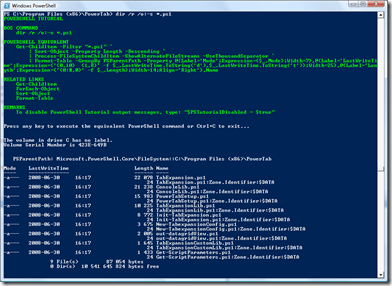
dir with tutorial in PowerShell

Over the last little while I’ve slowly put together a set of PowerShell extensions that will allow you to have full dir support in PowerShell like what is shown above on Windows XP, Windows Vista, Windows Server 2003 and Windows Server 2008, whether you’re running 32-bit or 64-bit.  This includes supporting for the following:

  1. Writing the PowerShell pipeline equivalent of dir to the host, regardless of which switches are used (this can be disabled).
  2. Full alternate file stream (AFS) support on demand; this includes retrieving alternate file streams, blocking or unblocking files, and adding or removing alternate data streams on any file or folder.  Even on Windows XP and Windows Server 2003 where dir in cmd.exe doesn’t support retrieving this information!
  3. Filtering options for files that are not content indexed and showing reparse points (not to mention any other attribute filters that are supported by dir) on all platforms supported by PowerShell.
  4. Recognition of and support for the dircmd environment variable.
  5. Support for every dir switch that is available today.
  6. Outputting detailed header and footer information just like you get from dir in cmd.exe.

See that green block of text in the screenshot?  That’s tutorial information, showing you the dir command you typed as well as the equivalent PowerShell command.  This is output no matter what your dir command is, unless you disable it by running “$PSTutorialDisabled = $true”.  Want the tutorial back?  Just remove the $PSTutorialDisabled variable or set it to $false.  Also if you noticed, the screenshot output includes detailed header and footer information plus integrated alternate file stream details like you get in dir.  That output is controlled by a script I wrote called Process-FileSystemChildItem (alias: pfsci), which you can see being called in the PowerShell equivalent script generated by the tutorial.  This modular support for outputting header and footer details as well as alternate file streams allows you to use Get-ChildItem and pipe the results to Process-FileSystemChildItem, selecting which output options are important to you.

What if you want to work with alternate file streams?  Looking at that list of files in the output above, removing the alternate file streams and showing header and footer information with the results is as simple as running this script:

gci *.ps1 `
    | % { if ($_.IsBlocked) { $_.Unblock() } } `
    | pfsci -showAlternateFileStreams

Want to block a file or folder?  Just do this:

(Get-Item $myItem).Block()

How about setting your own alternate file stream on a file or folder?  Here’s that syntax:

(Get-Item $myItem).WriteAlternateFileStream(‘Secret message’,’Poshoholic was here.’)

To retrieve the contents of that stream, it’s as simple as this:

(Get-Item $myItem).AFS[‘Secret message’].GetContents()

If either the true dir support or the AFS support interests you, you’ll need to download a few files and import them into PowerShell.  The required files along with their details for importing them into PowerShell are as follows:

ImportDirCmd.ps1
Requirements: dir.ps1, Process-FileSystemChildItem.ps1, Get-PSResourceString.ps1, FileStreams.types.ps1xml, and FileStreams.format.ps1xml

This file contains the required commands to load all of this functionality into PowerShell, provided that all items are in the same folder.  To use this functionality in PowerShell, simply dot-source this file after you have downloaded it and all required files.  This is the easiest way to extend PowerShell using this functionality.

dir.ps1
Requirements: Process-FileSystemChildItem.ps1

This file contains the script that processes the dir command you enter, parses it, generates the equivalent Get-ChildItem pipeline, outputs the tutorial information to the host and executes the command.  To use this command, simply invoke the script file directly using the call operator or dot-source the file and use the dir alias it creates.

Process-FileSystemChildItem.ps1
Requirements: FileStreams.types.ps1xml, FileStreams.format.ps1xml, and Get-PSResourceString.ps1

This file contains a script that supports outputting detailed header and footer information with pipelined file system items as well as alternate file stream information.  If the required type data and format data files are automatically loaded into the PowerShell session if they haven’t been loaded already.  To use this command, simply invoke the script file directly using the call operator or dot-source the file and use either the Process-FileSystemChildItem or the pfsci alias it creates.

Get-PSResourceString.ps1
Requirements: None

This file contains a script that supports loading localized resources to be used in PowerShell scripts.  This is a utility command often used when making parameters required, and therefore this file must either be placed in your path or it must be dot-sourced to create the Get-PSResourceString and grs aliases.  I use this internally when reporting certain errors back to the host, and I always call it by name without a path.

FileStreams.types.ps1xml
Requirements: None

This file contains the xml definitions for extending the PowerShell types to include types for alternate file streams, as well as extensions for FileInfo and DirectoryInfo objects so that they support file streams.  To use these extensions, import the file as follows:

Update-TypeData .\FileStreams.types.ps1xml

If you don’t update the type data manually, when you call Process-FileSystemChildInfo the type data will be updated automatically as long as the file is in the path or in the same directory as the Process-FileSystemChildInfo.ps1 script.

FileStreams.format.ps1xml
Requirements: None

This file contains the xml definitions for formatting alternate file streams in PowerShell.  To use this formatting, import the file as follows:

Update-FormatData -PrependPath .\FileStreams.format.ps1xml

You must use -PrependPath to import this file correctly.  If you don’t update the format data manually, when you call Process-FileSystemChildInfo the format data will be updated automatically as long as the file is in the path or in the same directory as the Process-FileSystemChildInfo.ps1 script.

Once you’ve downloaded these files, unblocked them and imported them into PowerShell, dir should work as well for you (better in some cases) as it does in cmd.exe, and you should have additional management support for blocked files and alternate file streams in general through PowerShell itself.  And hopefully, you’ll learn more about PowerShell along the way!

Thanks for reading,

Kirk out.

P.S.  Thanks to /\/\o\/\/ (Marc van Oursow) for the work he did with alternate file streams in this post and for the related files he included in PowerTab.  This work was my starting point for the support for alternate file streams.  My extension here differs slightly from his in that I don’t use a dll (this allows me to support both 32-bit and 64-bit platforms), my method signatures are slightly different and I added support for folders since they can also have streams added to them, but his work gave me a big head start on this.

Share this post: