Virtualization EcoShell and the VMware Infrastructure PowerPack

Wow, have I been busy.  In case you hadn’t noticed from my blog posts late last year and early this year, I’ve been working very hard at putting together multiple back-to-back updates for the VMware Infrastructure Management PowerPack for the past several months.  This has involved working long hours with many thousands of lines of PowerShell script and figuring out how to do some really cool things with both PowerShell and VMware’s PowerCLI (formerly known as the VI Toolkit).  The end result is always fulfulling, and I’m usually pretty good at setting up the really cool functionality so that I can leverage it in any PowerPack so all my hard work pays off in the long run.

A few weeks ago I finished off yet another update with some really cool new features, however this update isn’t available for the PowerGUI admin console just yet.  That update is coming shortly after we release the next version of PowerGUI, which has some functionality that it is dependent on.  If you can’t wait until then though, you can take a look at the new functionality now as part of the first public beta release of the Virtualization EcoShell that came out on April 15th.

What is the Virtualization EcoShell?  The Virtualization EcoShell is a project started by Scott Herold that was designed to provide an administrative experience that is tailored for virtualization administrators.  It is powered by PowerGUI and comes with a script editor and an admin console just like PowerGUI.  The out of the box experience is different though because it doesn’t come with PowerPacks for Exchange and Active Directory.  Instead it includes functionality that virtualization administrators care most about.  At the moment this is simply the VMware Infrastructure Management PowerPack, but over time this will grow to include other virtualization-related administrative functionality (think: additional VMware features, functionality to work with virtualization platforms from other vendors, and capabilities to extend into important technologies surrounding virtualization such as storage).

If you want a preview of the next generation of the VMware Infrastructure Management PowerPack a little early as well as a look at a new virtualization administration platform, all you have to do is pop over to the Virtualization EcoShell site and download it.  You can install and use it side-by-side with PowerGUI, so you won’t need any secondary systems or a VM to run it on either.  Once you’ve taken a look, let us know what you think or what you would like to see next on the forums!  Your feedback directly influences the features we add, and we’re listening!

Kirk out.

Share this post:

VMware Infrastructure PowerPack 2.1.5 released

The PowerGUI VMware Infrastructure Management PowerPack seems to be really popular with people, so I’ve been spending a lot of time over the past four months significantly enhancing that PowerPack.  Some of the enhancements are things that we wanted to put in and others are things that community members had requested (note to the reader: if you like a particular PowerPack and would like to see it improved, speak up on the PowerGUI Forums…we really take your feedback very seriously! :)).  Today I just finished posting another release of the VMware Infrastructure Management PowerPack with a few more enhancements, and I’m particularly happy with this one.

This release greatly improves usability through the new icons that were added (and I mean *greatly* improves…the value the icons add is huge).  It’s also the first PowerPack release that takes advantage of some really cool Visio scripts that I’ve been working on.  The Visio scripts I’m referring to were largely inspired by Alan Renouf’s vDiagram script, although the Visio script I ended up with doesn’t look anything like the original.  I’m itching to talk more about those scripts, but I want to write a blog post specifically on that topic so watch for more on this soon.  For now I’ll simply point out that to use the Visio functionality, you have to download the additional VESI_Visio.zip file that was added to the VMware Infrastructure Management PowerPack document page and install it as per the instructions in that document (see the “How to enable vDiagram support” section).  Visio 2007 is required.

For those of you who were fortunate enough to attend VMworld Europe in Cannes at the end of February, this release contains the icons and Visio features that Scott Herold was showing off during that show.  You can see a live demo of the new features on Scott’s website, here.

If you want to learn more about this PowerPack, including version history and other details, you can go here.  You can download the PowerPack from that location as well.

Kirk out.

Share this post:

PowerShell Deep Dive: Understanding Get-Alias, wildcards, escape characters, quoting rules, literal vs. non-literal paths, and the timing of string evaluation

The following question recently came up on a mailing list I follow:

When I am trying to get the definition for the alias "?", I need to escape it because if not it works like a wildcard.  That is ok.

But why do I have to use SINGLE quotes, and why do DOUBLE quotes fail to escape?  I thought it should be the other way around.

For example, this works:

Get-Alias ‘`?’

This does not work:

Get-Alias "`?"

Why?

This question was prompted by Aleksandar’s blog post about the problem.  There are quite a few things to consider here to understand what is going on.

First, as the author of the question pointed out, in the Get-Alias cmdlet the question mark character is a wildcard character.  That means if you simply call Get-Alias with a question mark (Get-Alias ?), you will get all one-character aliases because the question mark will match any character.  That will happen regardless of whether you use single quotes, double quotes, or no quotes.  So the question mark must be escaped to tell Get-Alias to treat it as an actual question mark, and not a wildcard question mark.

Second, in PowerShell a single-quoted string is a literal string, so characters are taken as is.  A double-quoted string is a special string where the contents are evaluated to determine what the actual string is (see Get-Help about_quoting_rules for more details).  In a double-quoted string, any variables or subexpressions (identified by their prefix of $) are evaluated and the results are placed in the string.  Also, any escaped characters are evaluated and the results are placed in the string.  The standard way to escape a character is to precede it with a backtick (`).

Third, if you escape any non-escape character by preceding it with a backtick, the result is simply that non-escape character.  The backtick is discarded.

Fourth, there is a difference between escaping escape characters when evaluating a double-quoted string and escaping wildcard characters in cmdlet that accept strings containing wildcards.  Both are escaped the same way, but understanding the timing of their evaluation and knowing what characters they consider to be escape characters is very important.  Double-quoted string evaluation happens outside of a cmdlet, before it is called.  Wildcard string evaluation happens inside of a cmdlet, once it is called.

And lastly, Get-Alias works just like the Path parameter set variant of Get-Item (that is to say, it works just like Get-Item when you call Get-Item with the Path parameter), returning multiple results when unescaped wildcard characters are in the search string and there are multiple matching aliases.  Get-Alias is a little simpler to use on a general basis, but if it wasn’t there you could just use Get-Item instead.

Now that we’re armed with that knowledge, lets break down the command we’re having a hard time with.

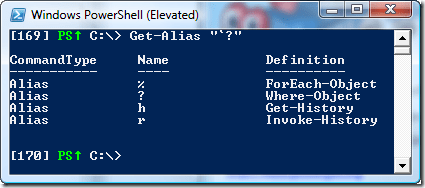
Get-Alias "`?"

Here are the results of that command in PowerShell:
image

What’s happening here?  When this command is executed, the first thing PowerShell has to do is evaluate the double-quoted string and get the result string that comes out of that evaluation, before the cmdlet is called.  As I explained above, any non-escape character that is escaped in a double-quoted string is simply evaluated as the non-escape character.  In our string, the question mark is being escaped, but that isn’t an escape character when it comes to string parsing (use the command Get-Help about_escape_character to get the list of escape characters in double-quoted strings), so the result of the evaluation is simply ‘?’.  When that string is then passed to Get-Alias, the Get-Alias cmdlet thinks we’re looking for any single-character aliases, so that’s what it gives us in the output.

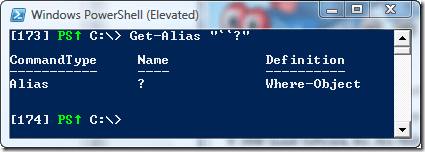
What we need to do is make sure that the results of the evaluation of the double-quoted string are such that the question mark is preceded by a backtick so that it is escaped when it is passed into the Get-Alias cmdlet (string evaluation timing is important, remember?).  To do that, we need to know how to generate a single backtick in the result returned from a double-quoted string evaluation.  The backtick is an escape character itself as well as the character used to escape other characters (we learned this when we looked at the about_escape_character helpfile, mentioned earlier), so we can create a backtick in a double-quoted string by escaping it with itself, like this: "“".

Now that we know how to escape the backtick so that it is passed into the Get-Alias cmdlet, we can change our problematic command we were using by escaping the backtick in the double-quotes and get the results we wanted in the first place:
image

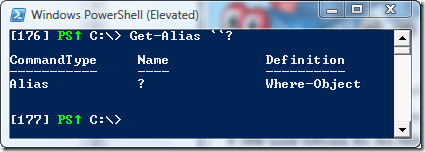
It is important to note that a non-quoted string is treated as a double-quoted string in PowerShell when it is evaluating a command that it is about to run, so if you wanted to do this without quotes at all, you would still have to escape the backtick, like this:
image

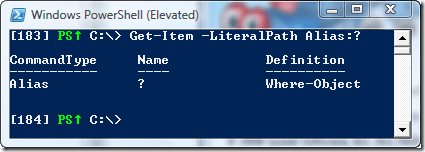
The last thought I want to leave you with is about Get-Item.  I mentioned earlier that Get-Alias works just like the Path parameter set variant of Get-Item.  Both of these need to have wildcard characters escaped if you want to find an alias that contains a wildcard character.  What I didn’t mention is that Get-Item has something that Get-Alias does not: a LiteralPath parameter set variant.  The easiest way to retrieve an alias containing a wildcard without worrying about escaping any characters is to simply use Get-Item with the alias PSDrive, like this:
image 

This method requires the use of the LiteralPath parameter name and the alias PSDrive name, but it gives you exactly what you want, without having to worry about most of what I tried to show you here, and it’s easy.  Still, I had to show you the details first…a solid foundation in understanding how these things work goes a long way when writing and troubleshooting PowerShell scripts.  If you want it even easier, you could create a simple Get-LiteralAlias function that removes the need to use the Alias PSDrive name and calls Get-Item using the LiteralPath parameter set variant behind the scenes.  You could also create a Get-Alias function that has a Literal switch parameter so that you could simply indicate whether you wanted to call Get-Alias or Get-LiteralPath behind the scenes.  With PowerShell, there are definitely no shortage of options when you don’t have the functionality you are looking for the way you expect it to be there.  I’ll leave the exercise of creating the functions up to you, if you think it’s worth it (after all, there is only one default alias with a wildcard character in its name).

Armed with all of this knowledge, it becomes completely obvious why an unusual alias created with the New-Alias command (which doesn’t support wildcard characters) like this:

$foo = ‘bar’
New-Alias "“?$foo" ‘bar’

can be retrieved using either of the following Get-Alias commands:

Get-Alias "““?$foo"
Get-Alias "““`?$foo"

Right? 🙂

Kirk out.

Share this post:

PowerShell Quick Tip: Create aliases to facilitate invocation of PowerShell script (ps1) files

I was just reading Steve Murawski’s latest blog post which contains a script called ConvertTo-Function that allows you to generate a function from a script file.  The intent is to allow you to have scripts you don’t call as often, and therefore don’t load into your profile, but when you need them you can use this script to easily generate functions that wrap them so that you don’t need to think about the path beyond the initial call to the ConvertTo-Function script.  That’s one way to facilitate this, but I have something I use quite commonly in my own environment that works much better for me for this scenario: aliases.

Aliases can reference a path to a script file.

This capability is often overlooked because aliases are most commonly used and thought of as terse command names.  Using them to reference a path to a script file is quite useful because it allows you to keep all of your scripts, complete or in development, in a common location.  You can control which ones are loaded in your profile by only creating aliases for those scripts.  Alternatively, for scripts that you really don’t use very often, you could have a function in your profile to create the aliases to those scripts on an as needed basis (which sounds a little like the Add-Module capabilities in PowerShell v2).  In either case, using aliases to reference script files is very handy because you don’t need to worry about whether the scripts you want to invoke are in a folder in your path environment variable or not.  You simply need to create an alias to the full path and then you can use that alias to invoke your script.

For example, assuming you had a script with the path C:\MyScripts\Miscellaneous\Do-Something.ps1, you could invoke it using the absolute or relative path, or if C:\MyScripts\Miscellaneous happened to be in your path environment variable you could simply invoke it using the Do-Something command.  But if you don’t have your script path in your path environment variable and/or you don’t want to change that variable, aliases give you the same capability on a temporary basis for your current PowerShell session (and only in your current scope by default if you want it really temporary).  Using our example script path, all you would have to do is create a new alias with this command:

New-Alias Do-Something C:\MyScripts\Miscellaneous\Do-Something.ps1

That allows you to invoke your script any time you want to by simply using the Do-Something alias, as long as it is created and visible in the current scope.

Kirk out.

Share this post:

VMware Infrastructure PowerPack 2.1 released

Hot on the heels of the new release of the VMware VI Toolkit, I just finished uploading version 2.1 of the VMware Infrastructure Management PowerPack for PowerGUI.  This PowerPack facilitates management and automation of VMware Infrastructure servers using the VMware VI Toolkit with PowerGUI’s extendable administrative console.

Version 2.1 of the VMware Infrastructure Management PowerPack includes the following highlights:

  • Significant performance improvements when loading datacenters and clusters.
  • New top-level container nodes to facilitate viewing objects without having to browse into the Managed Hosts node.
  • Links allowing you to browse into log files from hosts.
  • Support for the VMware VI Toolkit 1.5 release.
  • VMotion support for virtual machines.

In addition to these changes, several links have been added and quite a few defects have been fixed.

You can learn more about this PowerPack, including version history and other details here.  You can download it from that location as well.

As always, feedback on this PowerPack and all others is welcome and appreciated.  If you want to see something in the PowerPack, just ask!  You can either contact me directly (see my about page), or you can post your request using the PowerGUI forums.  We’re listening!

Kirk out.

Share this post:

PowerShell Quick Tip: How to retrieve the current line number and file name in your PowerShell script

(aka How to add C-style __LINE__ and __FILE__ macros to PowerShell)

When troubleshooting PowerShell scripts, it can be useful to log, store or output the current line number and and file name position so that you know where your script was when something happened.  This information is given to you automatically when there is an error, however if you’re not facing a PowerShell error but you have a problem with the logic in your script, you need to manually retrieve it from PowerShell.

The MyInvocation variable was designed for this purpose, providing you with details about the invocation of the current script or function as well as details about the current command that you are executing.  The trouble is that when you use $MyInvocation directly in a script file, the details it provides are about the invocation of the script, meaning the command used to invoke the script, and not about the current line within the script.  Fortunately, though, as with many things PowerShell there is a way.  To be able to use $MyInvocation to retrieve details about the current line in a script, you need to wrap it in a function and call that function.  When you do this, $MyInvocation will give you details about the command used to call the function that contains it, and if that command is inside a script file the details will include the script file name as well as the line number of the command.

Armed with that knowledge, you can create a few useful functions in your profile, and they will allow you to retrieve the current file name and line number from within any script you use.  Here are my interpretations of those functions:

#region Script Diagnostic Functions

function Get-CurrentLineNumber {
    $MyInvocation.ScriptLineNumber
}

New-Alias -Name __LINE__ -Value Get-CurrentLineNumberDescription Returns the current line number in a PowerShell script file.

function Get-CurrentFileName {
    $MyInvocation.ScriptName
}

New-Alias -Name __FILE__ -Value Get-CurrentFileName -Description Returns the name of the current PowerShell script file.

#endregion

A few good uses for these functions might be:

  1. In complicated scripts where you want to verify the order of execution of certain lines of script.
  2. When you are returning a value in multiple locations and you would like to simply know which location you returned from while troubleshooting without stepping through any lines in your script.

I hope this is useful for you.  I just started using these functions and they are already coming in quite handy for me.

Enjoy!

Kirk out.

Share this post:

VMware Infrastructure PowerPack 2.0 is now available

Were you  curious what was hiding inside that gold box in theimage  PowerGUI train?  Keeping with the spirit of giving, I just finished publishing version 2.0 of the VMware Infrastructure Management PowerPack.  A lot of effort went into this PowerPack, which ended up including a complete restructuring of the elements in the tree, as well as the addition of a lot of new functionality that was not available in previous versions, all for free just like the many other PowerPacks that are available for PowerGUI.

A few highlights in this version include:

  • Easy management of multiple VMware Virtual Center, ESX, ESXi or Virtual Server hosts from within one console.
  • Single sign-on to multiple hosts that use the same credentials.
  • Support for browsing through any of the inventory hierarchical views that are available in Virtual Center.
  • Management of virtualization elements within one host or across many hosts through the same set of links and actions.
  • Reporting and management of sessions, datacenters, clusters, resource pools, hosts, folders, virtual machines, templates, snapshots, networks, datastores, files, tasks and log files.

You can learn more about this PowerPack, including version history and other details here.  You can download it from that location as well.

Still not convinced you should give the VMware Infrastructure Management PowerPack a look?  Below you can click on a few screenshots to get a taste of what you’ll find if you do.

Browsing the Virtual Center hierarchy while managing snapshot files

Managing host sessions

Managing virtual machines

Looking into log files

If you manage VMware hosts or if you are interested in writing scripts against VMware hosts using PowerShell, I strongly encourage you to give this PowerPack a look.

As always, feedback on this PowerPack and all others is welcome and appreciated.  If you want to see something in the PowerPack, just ask!  You can either contact me directly (see my about page), or you can post your request using the PowerGUI forums.  We’re listening!

Happy Holidays everyone!

Kirk out.

Share this post:

PowerShell Challenge: Converting objects to types defined at runtime

I was recently working on a function where I had to convert objects to a type that was passed into the function when I came across something that may surprise some people.  Assuming you have a type stored in $type, what is the difference between the following two commands (other than style):

  1. $result = Invoke-Expression “[$type]`$value”
  2. Invoke-Expression “`$result = [$type]`$value”

I don’t have any prizes for this, but I thought it was worth asking just for fun.  I’ll post the solution after people have had some time to take a crack at it.

Solution

It’s been long enough to let people chew on this, so I can share the solution.  Only two people came back to me indicating that they had figured it out: Arnoud Jansveld and Thomas Lee.

The key difference between these is in how data is assigned to the $result variable when using an array.  In the first case, Invoke-Expression returns the converted $value (after it has been case to $type), but that return $value is then implicitly sent to Out-Default, which returns generic objects (boxing), so in the end if you started with an array you have a collection of objects (System.Object[]).  In the second case, the assignment is done inside of Invoke-Expression, before any boxing would occur.  Once the assignment is done, nothing is returned from Invoke-Expression, and you end up with an array of the type you were expecting.

This was just a silly little exercise, but it illustrates an important concept in PowerShell by showing how objects coming out the end of a pipeline are boxed in generic System.Objects.  That knowledge comes in handy from time to time when you are scripting, so it is worth remembering.

Enjoy!

Kirk out.

Share this post:

Introduction to the Hyper-V PowerPack Screencast

I recently published a new screencast on the PowerGUI Documentation page called “Introduction to the Hyper-V PowerPack“.  If you want to learn a little bit about what this PowerPack can offer you and how you can get started using it, take a few minutes and watch the screencast today!

In case you haven’t had a chance to see some of the functionality that this PowerPack provides you with, I’m including a few screenshots below to give you a quick preview.  Or, if you want to see the list of custom functions that drive the functionality in this PowerPack, read my blog post titled, “Use PowerPacks to Learn PowerShell“.

Managing VMs using the Hyper-V PowerPack:

Managing Snapshots using the Hyper-V PowerPack:

Kirk out.

Share this post:

Use PowerPacks to Learn PowerShell

The Hyper-V PowerPack for PowerGUI that I published last month is one of my favorite PowerPacks so far.  It’s a great example of how you can take a task that is pretty complicated for someone who doesn’t program for a living (like using PowerShell to manage Hyper-V via WMI), simplify it with rich PowerShell functions that look and feel like cmdlets, and then build a user interface on top those functions to perform management and automation tasks.  Since all of the PowerShell script behind the PowerPack is freely available through the PowerGUI Admin Console, using a PowerPack like the Hyper-V PowerPack is a great way to learn PowerShell because it allows you to get familiar with how specific administrative tasks translate into PowerShell scripts that you can then use for automation, provisioning, scheduled tasks, etc.

The scripts powering the Hyper-V PowerPack are particularly interesting because there are no cmdlets available yet to manage Hyper-V unless you use Microsoft System Center Virtual Machine Manager 2008.  The prescribed way to manage Hyper-V via script with the release of Windows Server 2008 is WMI.  Since working with WMI directly is not much fun after you have become spoiled with the ease-of-use you get with PowerShell cmdlets, not to mention quite difficult, I have included a lot of useful functions (over 30 of them so far) that wrap the WMI management code inside of a cmdlet-like experience complete with support for pipelining so that you can write scripts to work with your Hyper-V servers much more easily.  Here’s a complete list of the functions that are included in the current revision of the Hyper-V PowerPack:

Job Management

Get-HyperVJob
Wait-HyperVJob

Server Configuration

Get-HyperVServerSettings
Set-HyperVServerSettings

Service Management

Get-HyperVService

Physical Network Adapter Management

Get-HyperVPhysicalNIC
Set-HyperVPhysicalNIC

Virtual Network Management

Get-HyperVVirtualNetwork
New-HyperVVirtualNetwork
Remove-HyperVVirtualNetwork
Rename-HyperVVirtualNetwork
Set-HyperVVirtualNetwork

Virtual Machine Management

Checkpoint-HyperVVirtualMachine
Export-HyperVVirtualMachine
Get-HyperVVirtualMachine
Import-HyperVVirtualMachine
New-HyperVVirtualMachine
Remove-HyperVVirtualMachine
Rename-HyperVVirtualMachine
Restore-HyperVVirtualMachine
Set-HyperVVirtualMachine

Virtual Network Adapter Management

Add-HyperVVirtualNIC
Get-HyperVVirtualNIC
Remove-HyperVVirtualNIC
Set-HyperVVirtualNIC

Virtual Ide Drive Management

Add-HyperVVirtualIdeDrive

Virtual Scsi Drive Management

Add-HyperVVirtualScsiDrive

Snapshot Management

Get-HyperVSnapshot
Set-HyperVSnapshot
Remove-HyperVSnapshot
Rename-HyperVSnapshot
Update-HyperVSnapshot

Virtual Hard Disk Management

Get-HyperVVirtualHardDisk
New-HyperVVirtualHardDisk

These functions do not provide comprehensive coverage of all Hyper-V features and there are many more that I plan to add in a future update, but it’s well on it’s way to becoming a comprehensive set of functions.  If you are looking for specific functionality that doesn’t appear to be available through these functions, I encourage you to take a look at the methods on the rich objects that are output by these functions.  There is a whole lot more functionality available than you might think!  I just haven’t had time to expose all of the method-based functionality as cmdlet-like functions yet.

To use these functions in your own scripts you simply have to copy them out of the Hyper-V PowerPack.  Be sure to keep an eye on dependencies and make sure you get all the functions you need.  Most of the PowerPacks I’ve been working on lately come with useful functions like this, for the explicit reason that I want people to be able to use them inside and outside of PowerGUI.  I’ll blog about them as time permits, but until I make time for that I wanted to at least make you aware that they are there as a resource and as a learning tool.

If you want to write PowerShell scripts to manage your Hyper-V servers, doing yourself a favor to take a look at the Hyper-V PowerPack and the functions that it contains.  They might go a long way to helping you get your work done faster and more easily, either by using the functions themselves in your scripts or by looking at the PowerShell code behind the functions and learning how to get WMI to do what you want to do.

Kirk out.

Share this post: