VMware vSphere PowerPack beta, now with PowerCLI 4.1 and later support

If you’ve been following my blog you probably heard that we hit a bit of a stumbling block with our VMware PowerPack with versions 4.1 and 4.1.1 of the PowerCLI.  There are some changes in those versions that break compatibility with previous versions of the PowerCLI, and this prevented our PowerPack from working with either of those two versions.  I had also mentioned on my blog that I anticipated we would provide two separate versions of our PowerPack in the short term, one that works with PowerCLI 4.0 U1 only and another that works with PowerCLI 4.1 and later.  Well I’m happy to let you know that I just finished uploading a beta version of the VMware vSphere PowerPack with PowerCLI 4.1 support to the PowerGUI® website.  This version has been posted in the same document in the PowerPack Library that contains the other version of the VMware PowerPack, so now there are two files to choose from when you visit the VMware vSphere PowerPack download page:

  1. VMware.VIToolkit.powerpack.  This file contains the version of the PowerPack that requires version 4.0 U1 of the PowerCLI and that ships with PowerGUI Pro and PowerGUI 2.3.
  2. VMware.PowerCLI.4.1.powerpack.  This file contains the beta version of the PowerPack that works with PowerCLI 4.1 and later releases.

A number of you have been asking via twitter if we have PowerCLI 4.1 (and PowerCLI 4.1 U1) support, and now we do, in beta form at least.  The functionality between the two versions is identical, with the exception of two minor bug fixes in the beta version that I came across during testing that are not yet fixed in the other version.

If you want to try out the beta version of this PowerPack, here is what you need to do:

If you are using PowerGUI Pro or PowerGUI 2.4 and you have the VMware PowerPack and PowerCLI 4.0 U1 already installed:

  1. Open the PowerGUI Admin Console.
  2. Select File | PowerPack Management.
  3. Browse down to the VMware PowerPack and select it.
  4. Click on the Remove button to remove the VMware PowerPack.
  5. Click on OK to close the PowerPack Management dialog.
  6. Close the PowerGUI Admin Console.
  7. Uninstall PowerCLI 4.0 U1.
  8. Download and install PowerCLI 4.1 U1 (or 4.1 if you prefer).
  9. Download the VMware.PowerCLI.4.1.powerpack that is linked earlier in this blog post.
  10. Open the PowerGUI Admin Console.
  11. Select File | PowerPack Management.
  12. Click on the Import button.
  13. Browse to the location where you put the VMware.PowerCLI.4.1.powerpack file that you downloaded in step 9, select it, and click on Open.
  14. Click on OK to close the PowerPack Management dialog.

If you do not have the VMware PowerPack installed simply follow steps 7 through 14 in the list above.

At this point you should be up and running with the beta version of the VMware PowerPack with PowerCLI 4.1 U1 (or 4.1 if that is what you installed).

Please use the PowerGUI Forums if you have any feedback you want to share or issues you want to report regarding the beta release of this PowerPack.

Enjoy!

Kirk out.

PowerShell MVP for 2011

Did I ever mention how much I think my kids are great? Smile

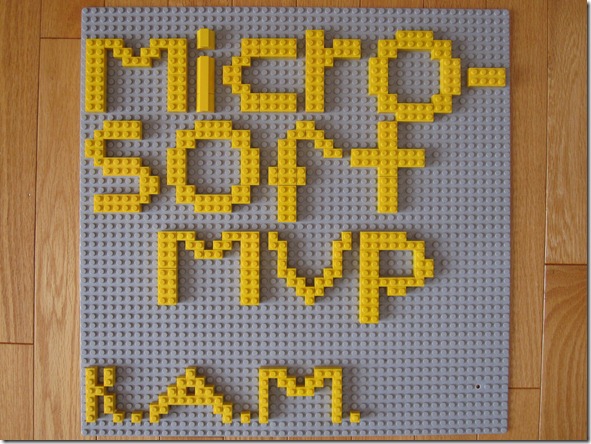
Last year I blogged about a very cool Lego model of PowerGUI® that I received from my kids for my birthday.  It turns out that this was mostly the work of my son, and my daughter (who refused to be outdone) decided she wanted to offer me something equally special on her own for Christmas that I could also share on my blog.  She knows how important my MVP award is to me, so on Christmas morning she gave me this great gift:

Microsoft PowerShell MVP - Kirk A Munro

What more could a person ask for?  And isn’t Lego just the coolest toy ever? Smile

When I first saw this it reminded me of the original Microsoft logo from 1983. It’s not quite the same as that logo, but it definitely came to mind when I saw it.

Of course upon receiving this there was a little nervous anticipation as I waited until January 1, 2011 to see if I was re-awarded the PowerShell MVP award again, but sure enough I received the email that morning.  Thanks Microsoft for allowing me to continue my work as a PowerShell MVP for another year!  PowerShell is a truly exciting product to work with, and with all of the innovative solutions in that space (check out PowerGUI Pro, I highly recommend it!), and the strong community that is really second to none, 2011 looks like it will be another very exciting year to continue working with PowerShell!

Kirk out.

PowerCLI 4.1 U1: Current state of affairs

UPDATE 10-JAN-11: To deal with the issues identified below, I published a beta version of the VMware vSphere PowerPack with PowerCLI 4.1 or later support.  You can read more about the beta and how to install it here.

Luc Dekens suggested that I share my concerns about upgrading to PowerCLI 4.1 U1 here so that the rest of the community could be aware of some of the details behind the issues between upgrading from PowerCLI 4.0 U1 to version 4.1 or 4.1 U1.  Ask and ye shall receive. Smile

Back in July 2010 I shared my concerns about upgrading to version 4.1 of the PowerCLI due to a number of breaking changes introduced in that release.  These changes were far reaching and have caused us challenges as we try to support the VMware community with our VMware PowerPack for PowerGUI®.  A little while later, Scott Herold sat down with members of the PowerCLI team and they agreed to put in temporary support for the old object model as part of their 4.1 U1 release, so going forward this seemed like it would give us a smooth upgrade path for our customers.  PowerCLI 4.1 U1 was released earlier this month, and it was supposed to address these issues while also including great new enhancements for the community.  Unfortunately we were not aware of the release schedule for the PowerCLI, nor were we provided early release versions to work with, so while we were working on our PowerGUI Pro and PowerGUI 2.3 releases which included (among many other things) the VMware PowerPack for the first time, we had no choice but to include a firm requirement in the installer for PowerCLI 4.0 U1.  This is why the VMware PowerPack will not install with PowerGUI Pro or PowerGUI 2.3 if you are using any version of the PowerCLI other than 4.0 U1.  As a result, the inclusion of the VMware PowerPack in PowerGUI has met mixed reviews because many community members expected it to work with PowerCLI 4.1.1 out of the box, however we had no knowledge of that release during our own release cycle so we simply could not build-in support for that release.

Now that PowerGUI Pro and PowerGUI 2.3 are released as well as VMware’s PowerCLI 4.1 U1 though, which is supposed to come with complete support for the old type names, I suspected that I would be able to manually upgrade my PowerCLI to the latest version and that my PowerPack would continue to function the way it did before, possibly having a few minor issues to deal with.  That suspicion has proved incorrect because of a number of problems.  Based on my initial testing, here are the issues that I see in PowerCLI 4.1 U1:

  1. PowerCLI 4.1 U1 still returns the same type hierarchies that were returned in PowerCLI 4.1, which are not compatible with the VMware PowerPack which is based on the 4.0 U1 types.  As indicated on the blog post titled “PowerCLI 4.1: A fork in the road”, these incompatibilities affect many community-driven content that is based on the PowerCLI, including the VMware PowerPack, the VMware Community PowerPack, books, blog posts, shared scripts on PoshCode, the VMware VI Toolkit Extensions module, etc.  I have tested multiple commands (Get-VMHost, Get-VM, Get-Cluster, Get-Datacenter) against multiple labs using PowerCLI 4.1 U1 and none of them show the old type names, so backward compatibility is still broken as far as I can tell.
  2. When you invoke a PowerCLI cmdlet like Get-VM, if you show all of the properties for those VMs you will now see warnings about properties that are to be deprecated in a future release.  The properties still work today, but the warning indicates they are obsolete and therefore they are not guaranteed to work tomorrow.  The trouble is you see these warnings even if you are not directly using those properties.  For example, if you invoke Get-VM and pipe that to Format-List * to see all properties, you’ll see warnings in the output before you see the results.  In this case the warnings are benign (unless there are other warnings mixed in that should get your attention), however it shows a disturbing trend that VMware has taken to changing PowerCLI object data such that scripts that work today are not guaranteed to work tomorrow unless they are updated when the existing properties are deprecated, causing multiple rifts between users are on the current release and those who don’t upgrade right away.  It means you will see multiple ways to do things in scripts over time that have different properties, and when you view those scripts you may or may not be aware of which is current so this is bound to cause some user confusion.  This also makes it difficult for anyone to consider upgrading if you use anything with scripts that are dependent on the PowerCLI (PowerPacks for example), because there is no guarantee with this approach that those will not break when you switch from one version to the next unless you are sure they have upgraded to support new releases as well where object properties may deprecate over time.  Blog content that normally could be published and left as is for a very long time may become out of date more quickly.  Books will have a much more limited lifetime if they don’t use the right properties.  And so on.

Breaking changes in any programming language are considered something to completely avoid unless those changes are absolutely necessary.  On those rare few occasions when they are necessary, there are mechanisms in place that allow you to reduce the impact of those breaking changes (side-by-side versions for example).  PowerShell has a rich Extended Type System that allows for type extensions so that you can evolve objects over time, using alias properties, script properties, code methods, etc. to allow you to continue supporting older versions while you upgrade your technology to new versions.  All of these together should give cmdlet authors enough flexibility that they don’t need to introduce breaking changes haphazardly like this.  Unfortunately I don’t feel that VMware gets this yet, but I continue to try to evangelize this and work with them so that this gets easier going forward.

If you have any questions about any of this, please don’t hesitate to ask.

Thanks,

Kirk out.

A letter of apology to the VMware PowerPack community

UPDATE 10-JAN-11: I just published a beta version of the VMware vSphere PowerPack with PowerCLI 4.1 or later support.  You can read more about the beta and how to install it here.

I have heard via email and Twitter that quite a number of you were disappointed when you upgraded PowerGUI® Pro or PowerGUI® to version 2.3 only to discover that the VMware PowerPack does not work with PowerCLI 4.1.1.  Instead the VMware PowerPack today has a firm requirement for PowerCLI 4.0 U1.  I apologize for the disappointment that you have experienced with this and I felt I should take a minute to talk about the situation we are facing and let you know what our plans are going forward.

When VMware released version 4.1 of the PowerCLI, they completely changed the object model that they were using in earlier releases.  This change came with many undesirable and unwelcome side effects, effectively breaking backwards compatibility with many scripts that are built on top of the PowerCLI cmdlets, and the VMware PowerPack was no exception to the effects of those breaking changes.  We have been working with VMware to ensure that they are aware of the ramifications of changes like this, but it is an uphill battle because while they have said that they were committed to providing backwards compatibility for the old type names back into the PowerCLI in 4.1.1, our testing shows that this backward compatibility is not there like it should be.  Further, you may now start to see many warnings from scripts that previously ran without warning or errors because VMware is planning to deprecate many of the properties that were there in previous versions.  These warnings are a concern because they show that VMware is continuing to make changes that will break older scripts going forward without much communication at this point about why they are making those changes.  I am working with many other MVPs and vExperts in the community to give feedback about why this is really not a good idea, but unfortunately we haven’t had any knowledge about the changes in these releases any earlier than you have, so we haven’t been in a position to work closely with VMware to help prevent complications such as the ones introduced in the 4.1 and 4.1.1 releases.

Now we are faced with a decision about what should be done going forward.  I cannot simply do an upgrade for the VMware PowerPack to require 4.1.1 because existing customers who are using PowerCLI 4.0 U1 and who may not be able to upgrade to 4.1.1 right away due to internal policies will have a broken PowerPack on their hands if their PowerPack is auto-updated.  I can however create a separate version of the VMware PowerPack that does not auto-update to support users who have upgraded to PowerCLI 4.1.1 and who want to use the VMware PowerPack.  This will take some time though because the changes are not straightforward, and if you want a version of the PowerPack that has been put through the property quality control channels we will have to retest everything to make sure it works with the new version, which is no small feat for a PowerPack of this size.  I may also be able to create a version that works with both PowerCLI 4.0 U1 and PowerCLI 4.1.1, however I’m not very optimistic about that at this time.  There is also a VMware Community PowerPack available that I do not manage, and it suffers the same challenges.  All of this adds up to a lot of things to consider and a lot more work than should be required when looking at the right way to upgrade this PowerPack (and those considerations apply the VMware Community PowerPack as well as I just mentioned since it is partially dependent on the VMware PowerPack as well as the PowerCLI).

What will most likely happen is that we will create a version of the VMware PowerPack that requires PowerCLI 4.1.1 or later, and that we will try to support two different versions of the PowerPack for a while until we eventually deprecate the older version.  That is not what I would like to do, but my hand is being forced here so that is the only realistic option I see in front of me.  I may be able to create a preliminary beta version of that PowerPack fairly quickly, however it will not have been put through a full test cycle and it will not address the warnings that appear from properties that are being deprecated – that will require much more time and effort.  I will of course notify you when this beta version is available.  Our plan is obviously to support every new release of snapins and modules that come out that are used with our PowerPacks, ideally the moment that those releases become publically available, but usually providing that support is much easier than this so please bear with us as we work through the messy situation we’re in right now.

In the meantime I would recommend that you continue to use PowerCLI 4.0 U1 with the VMware PowerPack and the VMware Community PowerPack because it works very well and is something we can support today.  At the same time you can of course put version 4.1.1 of the PowerCLI in a separate VM so that you can work with both versions for a while — we are talking about a virtualization solution after all…

Thank you for your patience and continued support while we work through these challenges together.

Sincerely,

Kirk Munro

PowerGUI® reaches 1,000,000 downloads!

Today is a major milestone in the history of PowerGUI.  PowerGUI has been downloaded 1,000,000 times since the release of the first public version of PowerGUI freeware that went beta on March 28, 2007!  This couldn’t have happened without the strong community that has grown around PowerGUI and PowerGUI.org.  PowerGUI would simply not be the great product that it is today without you, so thank you for your continued support!

Here is the download count history since March 2007:

Note that this does not represent the actual number of users of PowerGUI.  This represents the number of times that PowerGUI has been manually downloaded from the PowerGUI.org site by a user who left-clicks on the download link.  Right-clicks are not counted, so these numbers are not 100% accurate but they give an impression of the growth of the community, and that growth is pretty amazing.  Even without perfectly accurate numbers, I’m thrilled with the success that PowerGUI has achieved and I am very proud to be a part of it!

I think this calls for some fireworks, don’t you?  With the release of PowerGUI Pro and PowerGUI 2.3 that I published last week, I also uploaded the Christmas 2010 wallpaper to our download site, complete with fireworks coming from the smoke stack on the train.

thumbnail

If you’d like to have this wallpaper on your computer desktop to celebrate the holiday season, click on the image above to open the PowerGUI downloads page where you can pick the size (there are 8 to choose from) and flavour (we have freeware and Pro editions of the wallpaper) that you want.

Thanks again to everyone who uses PowerGUI for your support!  I look forward to continuing to work with you while taking PowerGUI Pro and PowerGUI to new heights in 2011!

Cheers!

Kirk out.

PowerGUI® Pro and PowerGUI® 2.3 are now available!

Today I am happy to announce that PowerGUI Pro  and PowerGUI 2.3 are now available.  This is a really exciting release for all PowerGUI users because there are a lot of cool new features in this release.

For PowerGUI Pro customers, we’ve spent quite a bit of time on MobileShell and made the following enhancements:

  • More mobile device support!
    MobileShell now supports iPhone 3G, 3GS, and 4G, iPad, BlackBerry OS 5.0 and 6.0, Android OS 2.1 and 2.2, and even Windows Phone 7 OS devices!
  • Improved user experience for MobileShell on smartphones!
    Since smartphones have limited real estate for apps, we have redesigned MobileShell to better fit your smartphone device.  Now when you log in you will see your favourite scripts first, front and center, and optionally you can go to another tab if you want to do some ad hoc scripting.  If you are using an iPhone and prefer the old UI, you can specifically use that UI but the new UI is highly recommended for smartphone devices.  Larger devices such as desktop browsers and the iPad still use the old UI since they have more real estate to work with.
  • Improved favourite script management for MobileShell admins!
    Now admins can preconfigure the default favourites that are assigned to users when they first log on to MobileShell.  This makes it easier for you to set up the default commands you want available for your team once and then when they log in for the first time they will get assigned those commands automatically.
  • Role-based assignment of MobileShell commands!
    Admins can now associate modules with Active Directory users and groups so that when a user logs on to MobileShell, all public commands in any module associated with their user account or with a group they are a member of are automatically made available to them as favourites.  This allows you to manage your MobileShell commands in modules using the PowerGUI Script Editor, and whenever you publish a new version your MobileShell users will automatically have the commands from that version available on their handheld device when they log on!

We didn’t forget the freeware community either!  This release also includes the following features for both PowerGUI Pro and PowerGUI (freeware):

  • Virtualization support in PowerGUI!
    With version 2.3, the VMware PowerPack is now available as a core PowerPack included in the PowerGUI Admin Console.  This PowerPack is a fantastic way to manage your virtualization infrastructure.  If you want an example of how this might make a difference for you, have a quick look at this blog post.
  • HTML Reporting support in PowerGUI!
    We have had an Advanced Reporting PowerPack available for download from PowerGUI.org for a while now.  That PowerPack has recently been renamed the HTML Reporting PowerPack, and it now comes with PowerGUI.  This PowerPack allows you to generate HTML reports with features such as indenting, grouping, collapsible sections, and support for list or tabular format for any data you have in front of you in the PowerGUI Admin Console grid.  Just click on the “Create report…” action, configure the report you want to generate, and it will handle the rest for you!
  • Enter-PSSession and Exit-PSSession support!
    You asked, we answered.  Now you can use Enter-PSSession and Exit-PSSession from within the PowerGUI Script Editor to manage remote machines as if you were working on them locally.
  • Greatly improved snippet support!
    This one is a personal favourite of mine.  Snippets are a great way to create a lot of useful PowerShell functionality really quickly.  You just insert the snippet you want, fill in the input fields, and you’re done!  We have had this for a while, and now we have added more features to this support including:

    a) Support for user defined snippets!  If you have snippets you want to use in PowerGUI, you no longer have to have admin access to put them in the snippets subdirectory under the PowerGUI installation folder.  Instead, you can put them into your Documents\WindowsPowerShell\snippets folder and they will automatically be picked up by the PowerGUI Script Editor.  Even better still, if you have a snippet that comes with PowerGUI that you want to override, you simply use the same relative path in the snippets folder in your profile and your snippet will be used in place of the one that comes with PowerGUI!

    b) Support for snippets in modules!  If you import a module, and if that module has a snippets subfolder, then PowerGUI will recognize those snippets and they will be available in the Script Editor automatically.  This allows module authors to include snippets as part of their offering so that users can learn how to use the module commands much more easily!  If you author a module and share it with others, I strongly encourage that you add snippets to that module.  Your module users will thank you for it!

    c) Support for using snippets from any path on your system!  PowerGUI now uses a PGSnippetPath environment variable to decide where to look for snippets, allowing you to reference snippets from any path you include as part of that environment variable!

    Can you tell I love the snippet features? Smile

Of course we also included some bug fixes as usual.  One worth highlighting is that the PowerGUI Script Editor can now be used to debug files that are in a path containing paired square brackets.  We have had several customers let us know that they use these types of paths and that our new debugger wouldn’t stop on breakpoints for them, and this issue is now fixed.

This is a totally awesome release, and I’m really happy that I can finally share it with you!  If you are already a PowerGUI Pro or PowerGUI user, you’ll probably notice the auto-update notify you of the new release when you start it up very soon.  If you don’t want to wait though, you can always force PowerGUI to check for updates using the “Check for Updates” menu item in the help menu, or you can update it manually by downloading it from Quest SupportLink if you use PowerGUI Pro or from the PowerGUI.org download page if you use the freeware version.

I will be recording screencasts for some of these specific features very soon so that you can see how they work first hand, but don’t hesitate to try them out in the meantime and ask questions if you have any.  Also please share any feedback you have for this release, I’d love to hear what you think of it and what you would like to see in future releases!

As always, thanks for your continued support, PowerGUI would not be what it is if we didn’t have such a great community!

Happy scripting!

Kirk out.

PowerGUI® Challenge 2010 Winners!

Several weeks ago on November 15, the 2010 PowerGUI Challenge contest came to a close.  The challenge was great this year and we received a lot of fantastic contest entries, with many in the Script Editor Add-on category that was new to this year’s contest.  Since the close of the contest, myself and the many esteemed judges who had volunteered their time this year for the contest have been busy reviewing contest entries, trying them out to see how they work, looking at the scripts they contain, and assigning scores to each entry.  It has taken a while, but today the last results for the contest came in and I have added up the judges scores and calculated the participation (activity) scores so now I can share the results with you.  Without further ado, here are the winners of the Quest Software’s PowerGUI Challenge 2010:

Most Active Participant James Brundage from Start-Automating who contributed 6 add-ons during the contest including the WMI Spy Add-on and the Demo PowerShell Add-on (1st and 2nd runner-up in the Best Add-on category)!
Second Most Active Participant Phillip Sullivan from MVP Systems Software who published a great JAMS PowerPack, and also threw in JAMS Job Scheduler snippets just for fun!
Best PowerPack Adam Murray for his fantastic
HP Virtual Connect Management Pack!
Best Add-on Denniver Reining for his awesome
Snippet Manager Add-on!

Congratulations to all of the winners!

Most of the winners are new to our PowerGUI contests, but there is one seasoned veteran in this list.  A special kudos goes out to Adam Murray for his hat trick: Adam has taken home prizes in our contest for three years in a row!  In 2009 he won the Best PowerPack award with his IIS 7 PowerPack and in 2008 he won two awards, one for Most Active Participant in the first sprint in 2008 with his SQL Server 2005 Reporting Services PowerPack and another for Second Most Active Participant in the second sprint in 2008 with his WebSphere MQ PowerPack.  Way to go Adam!

If you’re one of the winners, we’ll be contacting you shortly about your prize.

I also have to thank everyone who participated in the contest.  Honorable mentions go to DJ Grijalva for the SharePoint 2010 PowerPack and Gyorgy Nemesmagaci for the Help Browser Add-on.  These were both great entries that made the competition very close.

Whether you participated in the contest or not, I strongly encourage you to check out these entries as well as others by visiting the PowerGUI Challenge 2010 contest folder or by visiting the PowerGUI Library on PowerGUI.org.  The PowerGUI Library contains dozens of Script Editor Add-ons, Admin Console PowerPacks, snippets, other fun items such as desktop wallpaper, and much more.  There’s a lot of really great value waiting for you in that library to make your PowerShell experience even better!

Happy scripting!

Kirk out.

Come learn more about PowerGUI® on tonight’s PowerScripting Podcast

Over three and a half years ago, Jonathan Walz posted the very first recording of the PowerScripting Podcast, a podcast that is dedicated to PowerShell.  What started out as a small, solo effort that produced episodes on a not-so-regular basis matured into the best PowerShell podcast around, with two co-hosts (Jonathan Walz and Hal Rottenberg) that continually produce anywhere between 2 and 4 episodes every month!  To date there are 127 episodes available, full of PowerShell news, tips and tricks, and interesting interviews with people who are heavily invested in PowerShell.  It’s really a great resource for anyone looking to learn more about PowerShell during their daily commute, and I highly recommend checking it out.

As the PowerScripting Podcast evolved, so did the way in which it was recorded.  All recent episodes of the podcast are recorded live using UStream, which is great because it gives you a chance to hang out in the chat room and ask questions to the guest being interviewed.  All you need to do is visit the PowerScripting Podcast channel on UStream during the recording, which you can usually learn about by checking out the PowerScripting Podcast blog.  Recordings are typically done between 9 and 11PM EST on Thursday nights.

This time Hal and Jonathan are a little behind on putting out the announcement about the next podcast, but I have the inside scoop so I wanted to share the news to give you a chance to check it out.  Tonight I’ll be hanging out with Hal and Jonathan on the PowerScripting Podcast channel, and I welcome you to come and join me in the chat room and ask questions about PowerShell, PowerGUI, PowerGUI Pro, the PowerGUI Challenge contest, what it’s like being a Poshoholic, or anything else you feel like asking.

Hope to see you there!

Kirk out.

How to create PowerGUI® Script Editor Add-ons the easy way

In case you haven’t heard, there is a contest coming up that gives you the opportunity to win some money while having fun with PowerShell and PowerGUI.  In order to win something in the contest you have to enter, and in order to enter you have to create either a PowerPack for the PowerGUI Admin Console or an Add-on for the PowerGUI Script Editor.  I have spent a lot of time creating Script Editor Add-ons over the past few months, and when you work on things like Add-ons it can be very helpful to have the right tools at your side.

One of my favorite tools that I like to use for any repetitive PowerShell scripting is PowerShell snippets.  A PowerShell snippet is an xml document (.snippet file) that defines a short piece of PowerShell script with a few fields that can be customized when the snippet is inserted into a script.  Think of a snippet as a little user interface for injecting small pieces of PowerShell script into larger scripts that you are work on.  Snippets are incredibly useful and easy to create and customize, allowing you to arm yourself with tons of useful pieces of PowerShell script and save yourself a lot of typing.

While working on the Add-ons I have been publishing I decided I should build up a collection of snippets so that I could focus my efforts on the core logic inside the Add-on that makes it do wonderful things like sign scripts, create modules, and build other Add-ons, and less on the trivial details like adding and removing menus, menu items, toolbars, toolbar buttons and dockable windows.  This effort has resulted in a collection of 31 snippets that make creating a PowerGUI Script Editor Add-on much easier and today I have published that collection so that anyone can use them when creating their own Add-ons!

If you want to see an example of how easy it is to insert one of these snippets, here is a screenshot showing the snippet menu that appears after I press Ctrl+I (or Edit | Insert Snippet), along with some of the nested folders and their contents showing some of the snippets that are available:

image

If you want to build Add-ons, these snippets make it much easier to get started.  All you need to do is the following:

1. Download the Authoring Toolkit Add-on version 1.0.2 or later.  In version 1.0.2 I updated the Add-ons that are generated such that they use a $pgse variable for the root of the Add-on SDK.  Most of the snippets are dependent on this variable, so you should either download this version of the Add-on or make sure you are using a $pgse variable as the root of the Add-on SDK in Add-ons you have already started building.

2. Download the Script Editor Add-on snippets.  The download page describes how to install the snippets.  Note that since they must be copied into a Program Files folder, you must have the proper permissions to put them there.

3. Create a new Add-on or open an Add-on you are already working on and start using the Edit | Insert Snippet menu item to build more extensions to the PowerGUI Script Editor UI.

Between the Authoring Toolkit, the tutorial, the SDK documentation, and now these snippets, you should now have plenty of tools available to make it easier for you to create snippets for the contest that starts on October 15th.  I’m looking forward to seeing your entries!

Kirk out.

P.S. As I was publishing this I thought of a bunch more snippets that could be useful, but this is a good first set to get you started. If you like snippets and there are other snippets you would like to see, related to Add-ons or anything else you do with PowerShell, let me know so that I can know where you would like to see more effort in the future.  Thanks!

PowerGUI® Online

With the PowerGUI Challenge contest only a few weeks away, you may be wondering where you can go to learn more about PowerGUI in preparation for the contest.  Or maybe you’re looking for inspiration for the kinds of things you can do by using PowerShell with PowerGUI so that you can plan an entry for the contest.  To help provide some assistance with this, a few minutes ago I just published the first release of the new PowerGUI Online Add-on.  This Add-on adds a new PowerGUI Online menu to your Script Editor that provides you with fast access to dozens of useful resources for PowerGUI.  It includes links to many online resources, including:

  • Contest resources
  • Discussion forums
  • Learning center
  • PowerPack categories
  • Script Editor Add-ons
  • PowerGUI Team members on Twitter
  • Developer resources (PowerGUI VSX)
  • The PowerGUI channel on YouTube
  • Request a script
  • and more!

There are a lot of online resources available to help you get the most out of PowerShell and PowerGUI, and this Add-on pulls them all together into one organized menu.

One thing I really like about this Add-on is that when you click on any of the items in this menu, if you are running the PowerGUI Script Editor in STA mode (which is the default) the associated web page will be loaded right in the Script Editor!  Here’s a screenshot showing the Add-on in action with the embedded web browser appearing as another tab in the Script Editor:

PowerGUIOnline.Menu

If you are not running in STA mode (which means you are running in MTA mode), then the web pages associated with the PowerGUI Online menu items will load in your default web browser when clicked on.

This is the first release of this Add-on, so please let us know what you think.  It’s really easy.  Just click on the Feedback menu item in the new PowerGUI Online menu and leave us a note on our forums.

Kirk out.

P.S. Keep watching this blog for more useful content related to the PowerGUI Challenge contest that is coming soon.