Just Released: Advanced Reporting PowerPack

I just published a brand new PowerPack to the PowerPack Library called the Advanced Reporting PowerPack.  If you’ve been keeping your eyes on the Virtualization EcoShell project as well as PowerGUI, you may have already come across this PowerPack because I released it there first.

The Advanced Reporting PowerPack allows you to generate HTML reports with collapsible nested groups for any set of data in PowerGUI.  Think VMs, Snapshots, AD Users or Groups…you name it.  If you can get the data into a grid in PowerGUI, you can generate a nice HTML report using this PowerPack.  The only UI element this PowerPack adds to PowerGUI is a common action called “Create report…”.  This action does all of the heavy lifting to generate a cool HTML report for the items you have selected.

Want to see what how to get started using this PowerPack?  Watch this screencast:

If you would prefer to watch a higher resolution version, you can watch the screencast in flash format here.

This is only the first release of advanced reporting functionality in PowerGUI and already it’s really powerful.  Still, there is room for improvement so if you have any feedback, please share it with me in my comments or on the PowerGUI Forums so that I can consider it for the next release!

Thanks and enjoy!

Kirk out.

Share this post:

Create custom nodes easily with the Active Directory PowerPack and PowerGUI

Here’s a great question that someone just posted today on the PowerGUI forums:

I have the latest verions of the Quest AD cmdlets, PowerGUI and the Active Directory PowerPack.  Can I use PowerGUI to search for old computer accounts?  For example: computer accounts that haven’t had their machine account password reset for over three months?

The timing of this question is perfect because the update of the Active Directory PowerPack that I posted two weeks ago allows you to do this without having to write any scripts yourself.  For those of you who want to try this but don’t have the most recent versions of PowerGUI, the Quest AD cmdlets and the Active Directory PowerPack installed, follow those links and download and install those before continuing.  Installation instructions are on the appropriate web pages where necessary.

Once you all of the necessary software installed, here’s what you need to do.

Step 1: Add the attributes you need to the list of attributes retrieved from Active Directory.

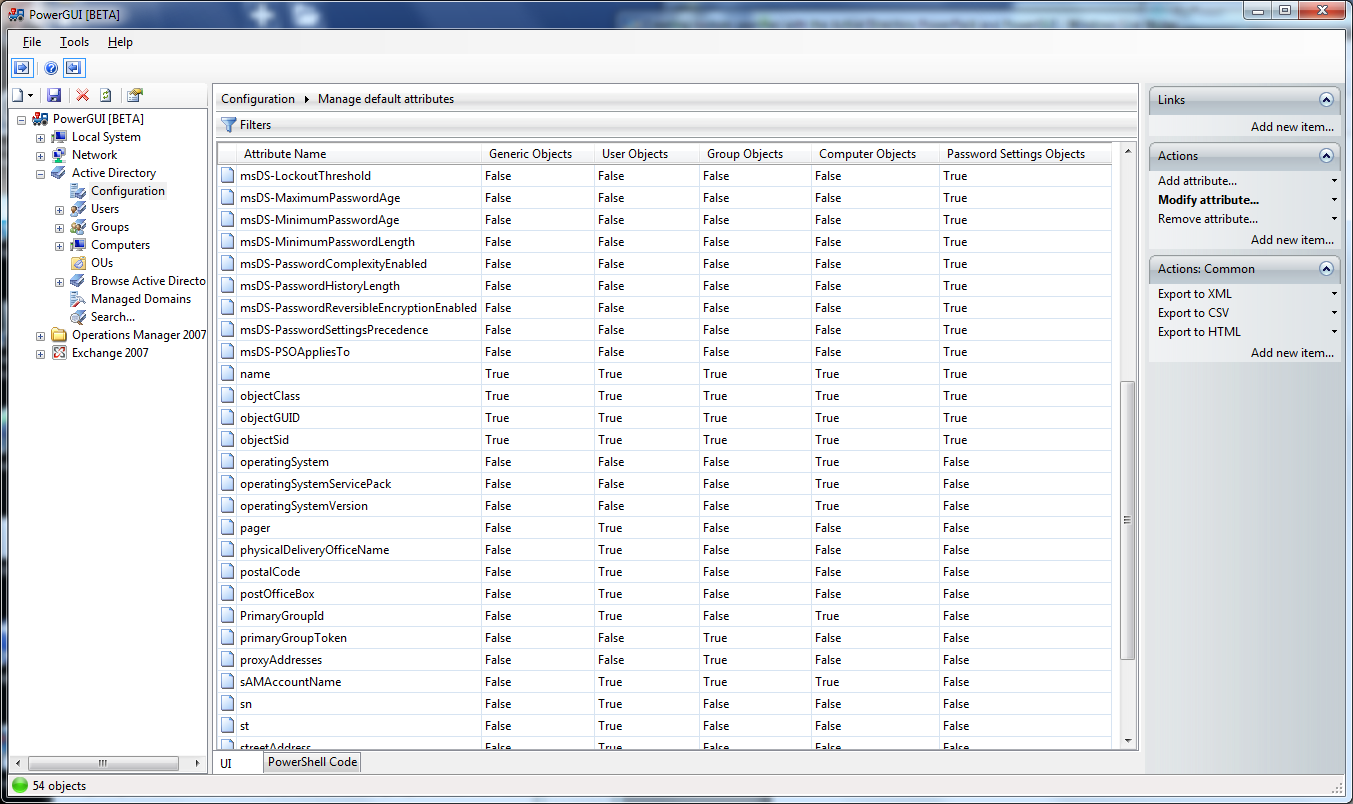
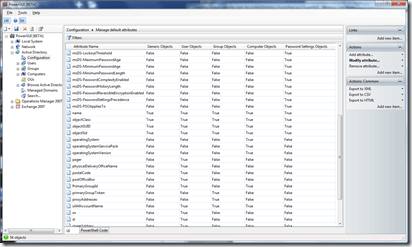
There are In the PowerGUI Admin Console, expand the “Active Directory” node and click on “Configuration”.  This will show you the current domain that PowerGUI will gather data from.  You can change this if you like, however you don’t need to unless you want to use alternate credentials or connect to another domain.  With the configuration showing in the grid, click on the “Manage default attributes” link.  That will present you with a view something like this:
image

This shows you the current list of attributes that are retrieved for each individual Active Directory object.  This will be initially configured with the default attributes as defined by the Quest AD cmdlets plus a few attributes that are required for the Active Directory PowerPack.  You can add whatever attributes you want to gather here for any of the object types.  To help solve our immediate problem and be able to get a list of computer accounts that have not had their machine account password reset for over three months, we need to add the pwdLastSet attribute for computer objects.  To do this, simply click on the “Add attribute…” action, provide the name of the pwdLastSet attribute in the “Attribute name” field and set the “Retrieve attribute for computer objects” value to True.  When you click on OK, that attribute configuration will be saved and any computer objects retrieved using the Quest AD cmdlets will have that attribute retrieved with them.

Step 2: Retrieve the objects you want from Active Directory and optionally show the attributes you want to filter on.

Once you have configured PowerGUI so that it will retrieve the pwdLastSet attribute for computer objects, you need to get your computers.  You can do this by simply clicking on the “Computers” child node under the “Active Directory” node.  This will present you with a list of computer accounts, showing their Name, Type and DN by default.

With the list of computer objects showing, you can optionally add the pwdLastSet attribute to the view by right-clicking in the column headers and selecting “More…” from the menu that appears.  With the list of all attributes that can be added showing, scroll down until you find the pwdLastSet attribute and check the checkbox beside it.  Then click on OK to save that change and your pwdLastSet attribute will be retrieved with your computer objects from the Computers node.

Step 3: Create a client-side filter to filter out the objects you don’t care about.

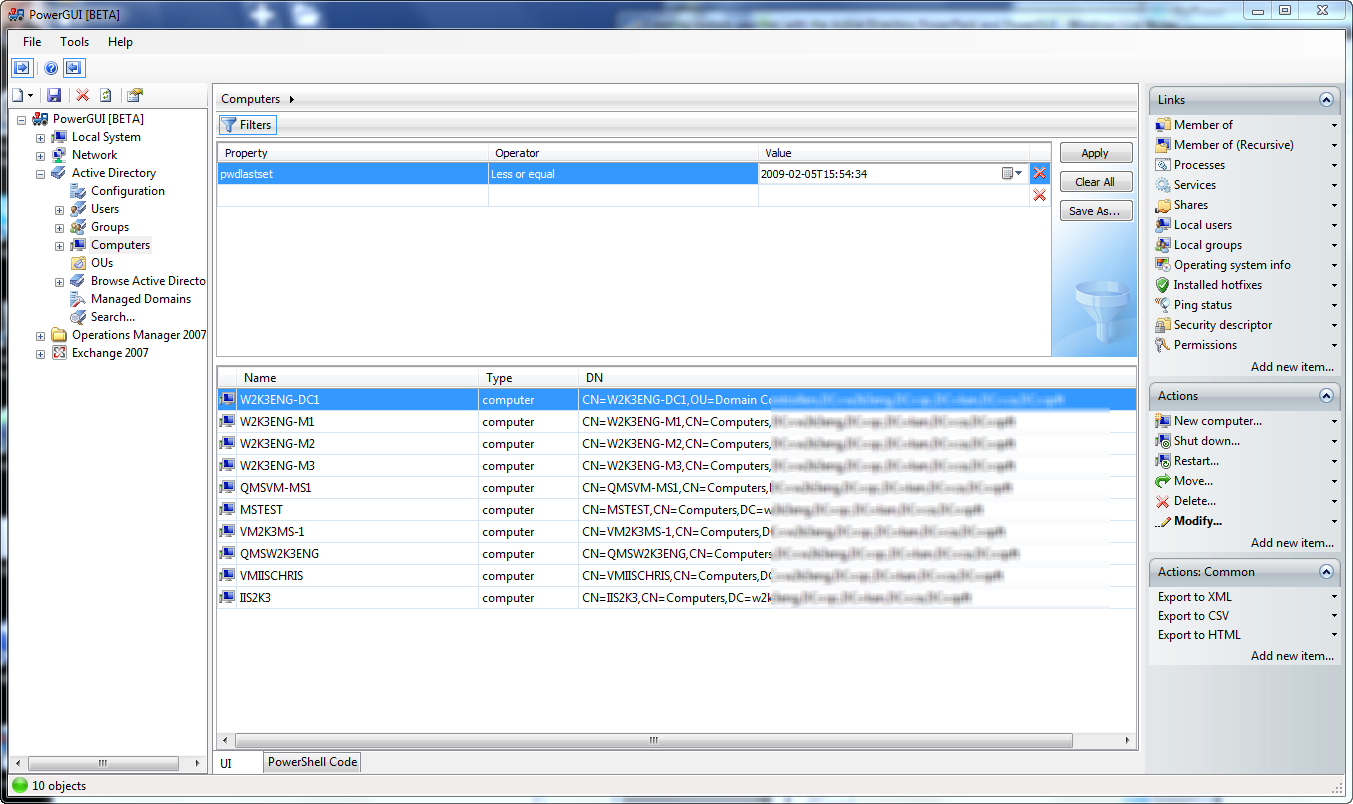
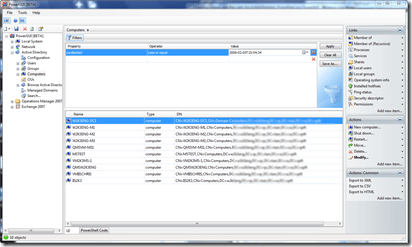
With the list of all of your computer objects showing, you can create a filter to reduce the number of objects to those that you need to see.  To do this, click on the Filters button above the column headers.  This will make the filter panel visible.
image

You can use this panel to filter any collection based on the properties of the objects in that collection.  For our particular problem, we want to see computer objects whose password has not been changed in the last 3 months.  We can get that by selecting “pwdLastSet” in the “Property” field, “Less or equal” in the “Operator” field, and selecting the calendar date three months ago in the “Value” field using the calendar control.  Once that is set, click on the “Apply” button to apply the filter and your list of computer objects will be filtered to only show those whose machine passwords haven’t changed in the last 3 months.

Step 4: Make the newly filtered data set available in its own node.

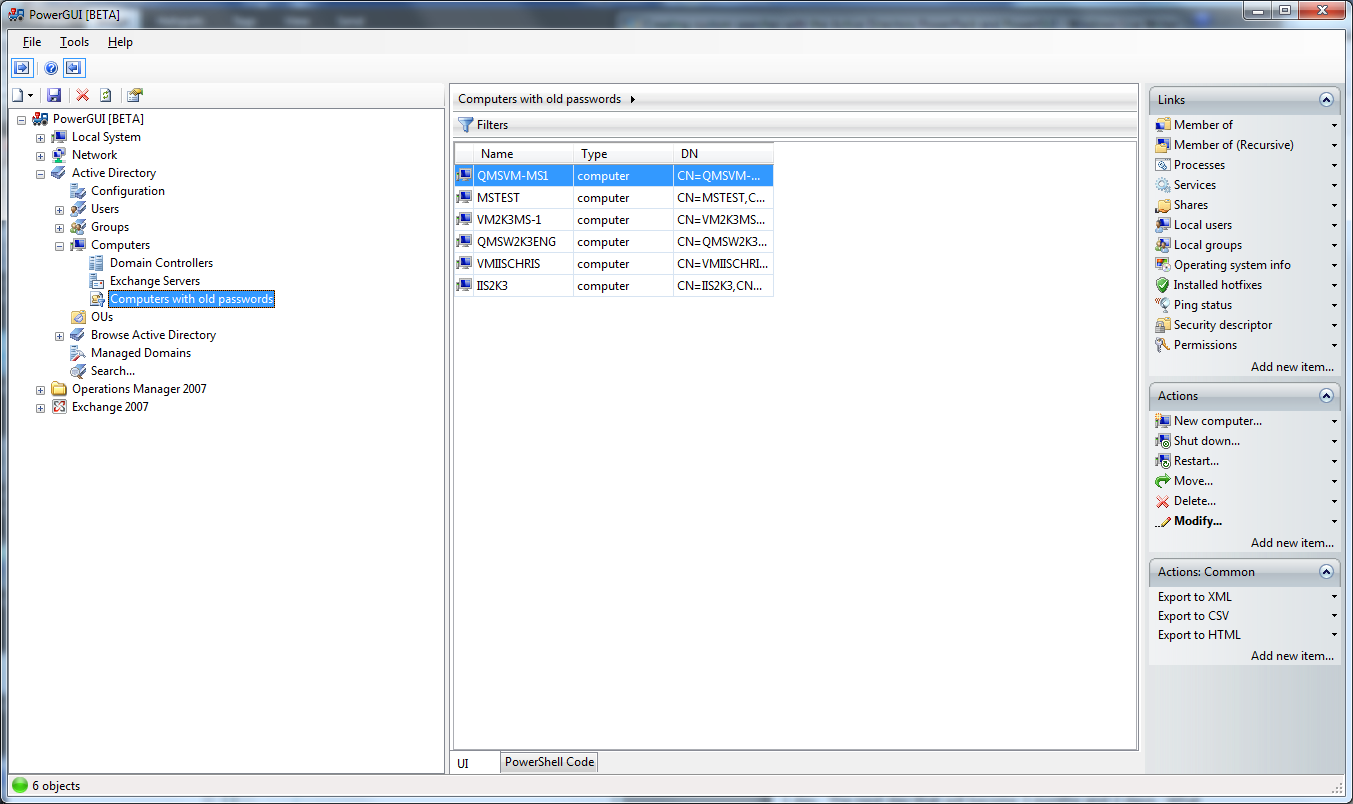
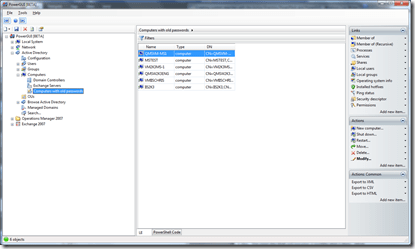
Now that you have the data you’re looking after, your “Computers” node is now configured to always show you the filtered list because PowerGUI remembers the filters you apply to nodes.  You might not like this configuration, preferring to have a separate node to view the data that you want.  Fortunately, PowerGUI lets you do create that easily too, and you still don’t have to do any scripting.  To create a separate node that lets you get the same data set, simply click on the “Save As…” button in the filter panel.  This will allow you to save the script from the Computers node with the filter you have created automatically applied as a client-side filter for that script.  Simply give the new script node a name (something intuitive like “Computers with old passwords” will do), and click on OK to save the new child node.  Then you can click on the “Clear All” button in the filter panel for your “Computers” node because that filter will no longer be needed.  Now click on your new node and you’ll get the list of computers you are after, and it will look something like the screenshot below.
image

Step 5: Make your work reusable at any time by taking it one step further.

At this point you have successfully created a new node that gets specifically the data you were looking for and you didn’t have to do any scripting to get it, which is great!  You can make it a little better still though.  For our specific problem that we’re trying to solve, we created a new node that reports any computer object with a machine account password that hasn’t been changed within 3 months from today.  But tomorrow that will be come 3 months and 1 day.  The next day that will become 3 months and 2 days.  What if you want to customize the node so that it reports computers whose machine accounts have not had their passwords changed in the last 3 months, no matter what day you click on it?  For that to work you will have to do a minor script modification.

Right-click on your new “Computers with old passwords” node and select properties.  This will show you the script used to retrieve your computers and filter the list.  At the very end of that script, you will see something like the following:

func_Computers | Where-Object {
    $_.'pwdlastset' -le [System.DateTime]"2009-02-08"
}

The Where-Object cmdlet contains the filter that is excluding any computers whose pwdLastSet attribute is greater than 3 months from the day we did this (for me that that’s February 8, 2009 since I created the node on May 8, 2009).  To change that filter so that it always works using a date 3 months earlier than now, you simply need to replace [System.DateTime]”2009-02-08” with (Get-Date).AddMonths(-3).  That changes the end of our script to this:

func_Computers | Where-Object {
    $_.'pwdlastset' -le (Get-Date).AddMonths(-3)
}

That’s it!  A simple replacement of the filter condition and you’re off and running with a brand new node designed to meet your specific needs with PowerGUI, the Quest AD cmdlets and the Active Directory PowerPack!

In a future article I’ll show you just how simple it is for you to take a collection of extensions to PowerPacks that you have created like this and package them up in a PowerPack so that you can share them with other users in the Community as well!

Enjoy!

Kirk out.


Share this post:

The Active Directory PowerPack, the Quest AD cmdlets, and what can happen when you change public object interfaces or cmdlet parameter attributes in PowerShell

This is about what can happen when things go wrong and what not to do so that things don’t go wrong.

In case you didn’t know, I work at Quest Software on the PowerGUI Team.  My position is rather unique because I work exclusively with Windows PowerShell, and I don’t think there are too many jobs out there that offer that experience.  The main focus of my job is to create and extend PowerPacks, which are collections of PowerShell scripts that are packaged together to define an extension to the customizable PowerGUI Admin Console.  The scripts in the PowerPacks I create range anywhere from the extremely simple (one cmdlet or function call) to the very complicated (a script that calls into one or more functions that span many thousands of lines of PowerShell script).

Among others, one of the PowerPacks that I manage is the Active Directory PowerPack.  The Active Directory PowerPack provides a management interface to Active Directory, and it uses the Quest AD cmdlets in its PowerShell scripts to do the actual management of Active Directory.  For quite a few reasons1,  I need to explicitly indicate which connection should be used when you use that PowerPack to do something with Active Directory, regardless of what it is you are doing.  This means I am absolutely dependent on being able to determine what connection should be used in any script that is included in the PowerPack.  For scripts that are used at the beginning of a pipeline I look for the appropriate connection information that is stored globally.  For other scripts that are used later in a pipeline with Quest AD cmdlets I look at the Connection property that is attached to the objects coming down the pipeline.  This model has worked very well until recently when something unexpected happened.

Almost two weeks ago, just after version 1.2 of the Quest AD cmdlets was released, it came to my attention that the Connection property that I am so dependent on was not included on objects in that release.  For those of you who are not developers, this type of change (changing a public interface in an SDK) is very bad news.  It is called a breaking change, and the name is very fitting – the Active Directory PowerPack started breaking all over the place for users who upgraded their Quest AD cmdlets to version 1.2!

Amid a flurry of email discussions between myself and the Quest AD cmdlets team I spent the next week and a bit putting together an update to the Active Directory PowerPack so that it would work despite these changes, basically putting the Connection property there myself if it isn’t there.  At the same time, the Quest AD cmdlets team quickly started work on a 1.2.1 patch release to put the Connection property back in so that scripts outside of PowerGUI that use that property wouldn’t be affected either.  The patch for the Quest AD cmdlets is not available yet, but the updated Active Directory PowerPack, and the updated Network PowerPack which also used the Quest AD cmdlets a fair amount and was therefore susceptible to this change, are now posted in the PowerPack library and available for download.  If you use these PowerPacks, I strongly recommend you download and import the most recent releases of each of these PowerPacks.  Their document page in the PowerPack library contains all of the information you need to upgrade your PowerPacks and get started using the new versions.

Now that I have finished dealing with the impact of a breaking change like this one and the unpleasant work that ensues,  I thought it would be worthwhile to share with others what exactly consititutes a breaking change in a PowerShell cmdlet or advanced function.  The following is a list of 13 rules that you should adhere to when updating your cmdlets or advanced functions if you want to avoid introducing breaking changes:

  1. Do not remove any published parameters that are included in your published cmdlets or advanced functions.
  2. Do not rename any published parameters that are included in your published cmdlets or advanced functions unless you add an alias to the parameter that is the old parameter name.
  3. Do not reduce or remove pipeline support for any published parameters in your published cmdlets or advanced functions that support pipeline input.
  4. Do not remove support for $null input for any published parameters in your published cmdlets or advanced functions that support $null input.
  5. Do not modify the default value for any published parameters in your published cmdlets or advanced functions unless that modification will not change how the command functions in existing scripts.
  6. Do not add a required flag to any parameter in published parameter sets in your published cmdlets or advanced functions.
  7. Do not modify the position of any published parameters in published parameter sets in your published cmdlets or advanced functions.
  8. Do not replace the associated object type with an incompatible type for any published parameters in your published cmdlets or advanced functions.
  9. Do not remove wildcard support for any published parameters in your published cmdlets or advanced functions that have wildcard support.
  10. Do not remove support for building the value from the remaining arguments in any published parameters in your published cmdlets or advanced functions that support building the value in this manner.
  11. Do not remove any of your published parameters from published parameter sets in your published cmdlets or advanced functions.
  12. Do not increase validation restrictions for any of your published parameters in your published cmdlets or advanced functions that have validation restrictions.
  13. Do not modify or remove aliases for any published parameters in your published cmdlets or advanced functions.

Additionally you need to pay attention to the objects that are returned by your cmdlets or advanced functions so that you don’t introduce breaking changes on those either.  The following rules should be adhered to in order to avoid breaking changes on objects returned by your cmdlets or advanced functions:

  1. Do not remove a public property or method.
  2. Do not replace the types associated with a public property or method with incompatible types.
  3. Do not modify the order of the parameters in a public method.
  4. Do not add required parameters in a public method.

Not following these rules means risking breaking production scripts, risking making your customers unhappy, and many other potential undesirable consequences.  Please, if you are seriously trying to add value to the PowerShell ecosystem by extending it with additional commands, pay attention to these rules and don’t introduce breaking changes when you update them!

Thanks for listening!

Kirk out.

1 Reasons why the connection must be explicitly indicated in the Active Directory PowerPack:
1. The Quest AD cmdlets allow you to connect to many different directory services.
2. Opening a connection to a directory service with the Quest AD cmdlets changes a global variable that is used automatically by other cmdlets in the same snapin when you don’t explicitly indicate what connection to use.
3. In PowerGUI you can create or import other PowerPacks that may open their own connections to different directory services using the Quest AD cmdlets, Active Directory or otherwise.
4. In PowerShell, whether you are using the Quest AD cmdlets interactively or invoking a script that uses them, you are likely only working with one set of data from one directory service at a time in a logical manner.  Working in a user interface that is built on top of PowerShell is less restrictive, allowing you to move more freely between multiple data sets from multiple sources (directory services in this case) in what would be considered an illogical manner as far as script creation goes.

Share this post:

VMware Infrastructure PowerPack 2.1.5 released

The PowerGUI VMware Infrastructure Management PowerPack seems to be really popular with people, so I’ve been spending a lot of time over the past four months significantly enhancing that PowerPack.  Some of the enhancements are things that we wanted to put in and others are things that community members had requested (note to the reader: if you like a particular PowerPack and would like to see it improved, speak up on the PowerGUI Forums…we really take your feedback very seriously! :)).  Today I just finished posting another release of the VMware Infrastructure Management PowerPack with a few more enhancements, and I’m particularly happy with this one.

This release greatly improves usability through the new icons that were added (and I mean *greatly* improves…the value the icons add is huge).  It’s also the first PowerPack release that takes advantage of some really cool Visio scripts that I’ve been working on.  The Visio scripts I’m referring to were largely inspired by Alan Renouf’s vDiagram script, although the Visio script I ended up with doesn’t look anything like the original.  I’m itching to talk more about those scripts, but I want to write a blog post specifically on that topic so watch for more on this soon.  For now I’ll simply point out that to use the Visio functionality, you have to download the additional VESI_Visio.zip file that was added to the VMware Infrastructure Management PowerPack document page and install it as per the instructions in that document (see the “How to enable vDiagram support” section).  Visio 2007 is required.

For those of you who were fortunate enough to attend VMworld Europe in Cannes at the end of February, this release contains the icons and Visio features that Scott Herold was showing off during that show.  You can see a live demo of the new features on Scott’s website, here.

If you want to learn more about this PowerPack, including version history and other details, you can go here.  You can download the PowerPack from that location as well.

Kirk out.

Share this post:

VMware Infrastructure PowerPack 2.1 released

Hot on the heels of the new release of the VMware VI Toolkit, I just finished uploading version 2.1 of the VMware Infrastructure Management PowerPack for PowerGUI.  This PowerPack facilitates management and automation of VMware Infrastructure servers using the VMware VI Toolkit with PowerGUI’s extendable administrative console.

Version 2.1 of the VMware Infrastructure Management PowerPack includes the following highlights:

  • Significant performance improvements when loading datacenters and clusters.
  • New top-level container nodes to facilitate viewing objects without having to browse into the Managed Hosts node.
  • Links allowing you to browse into log files from hosts.
  • Support for the VMware VI Toolkit 1.5 release.
  • VMotion support for virtual machines.

In addition to these changes, several links have been added and quite a few defects have been fixed.

You can learn more about this PowerPack, including version history and other details here.  You can download it from that location as well.

As always, feedback on this PowerPack and all others is welcome and appreciated.  If you want to see something in the PowerPack, just ask!  You can either contact me directly (see my about page), or you can post your request using the PowerGUI forums.  We’re listening!

Kirk out.

Share this post:

VMware Infrastructure PowerPack 2.0 is now available

Were you  curious what was hiding inside that gold box in theimage  PowerGUI train?  Keeping with the spirit of giving, I just finished publishing version 2.0 of the VMware Infrastructure Management PowerPack.  A lot of effort went into this PowerPack, which ended up including a complete restructuring of the elements in the tree, as well as the addition of a lot of new functionality that was not available in previous versions, all for free just like the many other PowerPacks that are available for PowerGUI.

A few highlights in this version include:

  • Easy management of multiple VMware Virtual Center, ESX, ESXi or Virtual Server hosts from within one console.
  • Single sign-on to multiple hosts that use the same credentials.
  • Support for browsing through any of the inventory hierarchical views that are available in Virtual Center.
  • Management of virtualization elements within one host or across many hosts through the same set of links and actions.
  • Reporting and management of sessions, datacenters, clusters, resource pools, hosts, folders, virtual machines, templates, snapshots, networks, datastores, files, tasks and log files.

You can learn more about this PowerPack, including version history and other details here.  You can download it from that location as well.

Still not convinced you should give the VMware Infrastructure Management PowerPack a look?  Below you can click on a few screenshots to get a taste of what you’ll find if you do.

Browsing the Virtual Center hierarchy while managing snapshot files

Managing host sessions

Managing virtual machines

Looking into log files

If you manage VMware hosts or if you are interested in writing scripts against VMware hosts using PowerShell, I strongly encourage you to give this PowerPack a look.

As always, feedback on this PowerPack and all others is welcome and appreciated.  If you want to see something in the PowerPack, just ask!  You can either contact me directly (see my about page), or you can post your request using the PowerGUI forums.  We’re listening!

Happy Holidays everyone!

Kirk out.

Share this post:

Introduction to the Hyper-V PowerPack Screencast

I recently published a new screencast on the PowerGUI Documentation page called “Introduction to the Hyper-V PowerPack“.  If you want to learn a little bit about what this PowerPack can offer you and how you can get started using it, take a few minutes and watch the screencast today!

In case you haven’t had a chance to see some of the functionality that this PowerPack provides you with, I’m including a few screenshots below to give you a quick preview.  Or, if you want to see the list of custom functions that drive the functionality in this PowerPack, read my blog post titled, “Use PowerPacks to Learn PowerShell“.

Managing VMs using the Hyper-V PowerPack:

Managing Snapshots using the Hyper-V PowerPack:

Kirk out.

Share this post:

Use PowerPacks to Learn PowerShell

The Hyper-V PowerPack for PowerGUI that I published last month is one of my favorite PowerPacks so far.  It’s a great example of how you can take a task that is pretty complicated for someone who doesn’t program for a living (like using PowerShell to manage Hyper-V via WMI), simplify it with rich PowerShell functions that look and feel like cmdlets, and then build a user interface on top those functions to perform management and automation tasks.  Since all of the PowerShell script behind the PowerPack is freely available through the PowerGUI Admin Console, using a PowerPack like the Hyper-V PowerPack is a great way to learn PowerShell because it allows you to get familiar with how specific administrative tasks translate into PowerShell scripts that you can then use for automation, provisioning, scheduled tasks, etc.

The scripts powering the Hyper-V PowerPack are particularly interesting because there are no cmdlets available yet to manage Hyper-V unless you use Microsoft System Center Virtual Machine Manager 2008.  The prescribed way to manage Hyper-V via script with the release of Windows Server 2008 is WMI.  Since working with WMI directly is not much fun after you have become spoiled with the ease-of-use you get with PowerShell cmdlets, not to mention quite difficult, I have included a lot of useful functions (over 30 of them so far) that wrap the WMI management code inside of a cmdlet-like experience complete with support for pipelining so that you can write scripts to work with your Hyper-V servers much more easily.  Here’s a complete list of the functions that are included in the current revision of the Hyper-V PowerPack:

Job Management

Get-HyperVJob
Wait-HyperVJob

Server Configuration

Get-HyperVServerSettings
Set-HyperVServerSettings

Service Management

Get-HyperVService

Physical Network Adapter Management

Get-HyperVPhysicalNIC
Set-HyperVPhysicalNIC

Virtual Network Management

Get-HyperVVirtualNetwork
New-HyperVVirtualNetwork
Remove-HyperVVirtualNetwork
Rename-HyperVVirtualNetwork
Set-HyperVVirtualNetwork

Virtual Machine Management

Checkpoint-HyperVVirtualMachine
Export-HyperVVirtualMachine
Get-HyperVVirtualMachine
Import-HyperVVirtualMachine
New-HyperVVirtualMachine
Remove-HyperVVirtualMachine
Rename-HyperVVirtualMachine
Restore-HyperVVirtualMachine
Set-HyperVVirtualMachine

Virtual Network Adapter Management

Add-HyperVVirtualNIC
Get-HyperVVirtualNIC
Remove-HyperVVirtualNIC
Set-HyperVVirtualNIC

Virtual Ide Drive Management

Add-HyperVVirtualIdeDrive

Virtual Scsi Drive Management

Add-HyperVVirtualScsiDrive

Snapshot Management

Get-HyperVSnapshot
Set-HyperVSnapshot
Remove-HyperVSnapshot
Rename-HyperVSnapshot
Update-HyperVSnapshot

Virtual Hard Disk Management

Get-HyperVVirtualHardDisk
New-HyperVVirtualHardDisk

These functions do not provide comprehensive coverage of all Hyper-V features and there are many more that I plan to add in a future update, but it’s well on it’s way to becoming a comprehensive set of functions.  If you are looking for specific functionality that doesn’t appear to be available through these functions, I encourage you to take a look at the methods on the rich objects that are output by these functions.  There is a whole lot more functionality available than you might think!  I just haven’t had time to expose all of the method-based functionality as cmdlet-like functions yet.

To use these functions in your own scripts you simply have to copy them out of the Hyper-V PowerPack.  Be sure to keep an eye on dependencies and make sure you get all the functions you need.  Most of the PowerPacks I’ve been working on lately come with useful functions like this, for the explicit reason that I want people to be able to use them inside and outside of PowerGUI.  I’ll blog about them as time permits, but until I make time for that I wanted to at least make you aware that they are there as a resource and as a learning tool.

If you want to write PowerShell scripts to manage your Hyper-V servers, doing yourself a favor to take a look at the Hyper-V PowerPack and the functions that it contains.  They might go a long way to helping you get your work done faster and more easily, either by using the functions themselves in your scripts or by looking at the PowerShell code behind the functions and learning how to get WMI to do what you want to do.

Kirk out.

Share this post:

Hyper-V PowerPack Updated

Since the Hyper-V PowerPack for PowerGUI was published several weeks ago, I have found and fixed several defects, particularly in the area of adding and removing managed Hyper-V servers.  I have also enhanced the search functionality so that it is easier to use when you work with one domain in particular.  To see the complete list of changes, see the revision history section on the Hyper-V PowerPack page.

If you downloaded the Hyper-V PowerPack before Friday, November 14, 2008, I recommend that you visit the Hyper-V PowerPack site and upgrade your PowerPack to the most recent version.  Upgrading the Hyper-V PowerPack can be done in a few easy steps, as follows:

  1. Download the new version of the PowerPack.
  2. Open the PowerGUI Admin Console if you haven’t already.
  3. Right-click the Hyper-V folder at the root of the Hyper-V PowerPack in PowerGUI and click on Delete.
  4. Right-click the root node in the PowerGUI tree, click on Import, and select the updated HyperV.powerpack file that you downloaded.

Once you have done these steps, you will be using the most recent version of this PowerPack.  If you have any feedback or questions you would like to raise for this PowerPack or any others, please feel free to contact me directly (see my about page for details) or leave me a note on the PowerGUI Forums.

Enjoy!

Kirk out.

Share this post:

PowerGUI: Now with 100% more Hyper-V!

About three months ago I decided to go on a deep technology dive, exploring a facet of some technology with PowerShell and seeing what made it tick.  Typically these sorts of things take anywhere from a few days to a few weeks to work out the details and the end result is some useful scripts that I then blog about and try to leverage with a PowerPack or two.  Well this time I ended up going a little deeper than I have in the past, and I decided to go silent on my blog while I worked out the PowerShell scripts behind this huge project.  Today I’m happy to end that silence by sharing with you the largest PowerPack that has been published to date!

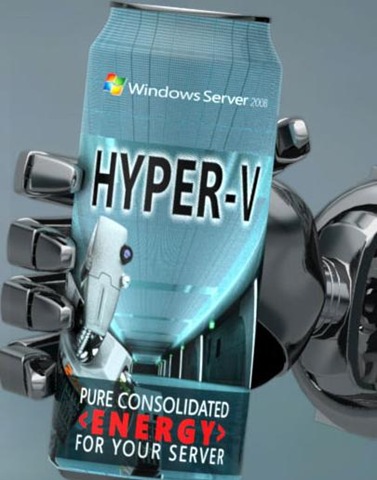
Hyper-V DrinkAs of today, PowerGUI users can download a free Hyper-V PowerPack for PowerGUI!  This PowerPack has been a huge undertaking, to put it mildly, and I’m absolutely thrilled with the end result (and so happy that I’ve finally finished the first version…whew)!  Here’s a list of some of the key features that this PowerPack provides:

  1. Bulk management of multiple VMs, Virtual Networks, Virtual Hard Drives, Snapshots, etc. within one Hyper-V servers and across multiple Hyper-V servers.
  2. Support for remote management of Hyper-V servers using alternate credentials.
  3. Integrated management of standard Windows features like Processes, Services, Event Logs, etc.
  4. Automatic credential caching (in memory, not to disk) allowing you to enter a password for a Hyper-V server you are managing only once per PowerGUI session.
  5. Discovery of Hyper-V servers through Active Directory.
  6. Over 30 rich user-defined functions that wrap the Hyper-V WMI interfaces and provide a cmdlet-like experience when scripting with Hyper-V while outputting rich, custom objects complete with properties and methods to script to your heart’s content.  Many of these functions support CSV input through Import-Csv, so there are a lot of opportunities for provisioning already available.
  7. 101 links and actions allowing you to manage just about everything you would want to manage in Hyper-V, including configuration of security via AzMan Scopes, Snapshot refresh, and many, many more.

In terms of Hyper-V functionality, the PowerPack is pretty comprehensive at this point.  There are some features that I have support for in functions that I just didn’t have time to put into the PowerPack at the end of this cycle.  There are also quite a few features in the PowerPack that aren’t available in the Hyper-V Manager.  But that just means there are opportunities for new features to be added in later versions of this PowerPack.  Let me know what features are the most important to you so that I can help you meet your Hyper-V management/scripting needs.

To give you an idea of what it took to make this PowerPack, the main script that contains the function library I’m using in this PowerPack is over 9500 lines long (if you’re new to PowerShell, that’s a heck of a lot of code in a language that lets you do so much with very, very short scripts)!  This huge script, and the scripts powering the links and actions, plus the rest of the PowerShell script behind the PowerGUI PowerPacks are all visible to the end user.  If you’re trying to figure out how to do something with Hyper-V via WMI and you can’t find the answer, take a look at the functions I have and see if they are already doing what you want to do.  Then you can use the functions or try to copy out the code that you need and go from there!

Just a quick note to get you started, once you download and import the PowerPack into PowerGUI, expand the Hyper-V node and then click on Managed Hyper-V Servers.  That will expose the Add Connection functionality you need to use to add your first connection to a Hyper-V server.  Once you’ve done that, you’ll be able to use the rest of the functionality against that server.

If you have any feedback for this PowerPack (or any others), feel free to leave a note on my blog or on the PowerGUI discussion forums.  We’ll be sure to try and help you meet your needs any way that we can!

So what are you waiting for?  Go to the Hyper-V PowerPack site and download the PowerPack today!

Kirk out.

Share this: