PowerGUI® reaches 1,000,000 downloads!

Today is a major milestone in the history of PowerGUI.  PowerGUI has been downloaded 1,000,000 times since the release of the first public version of PowerGUI freeware that went beta on March 28, 2007!  This couldn’t have happened without the strong community that has grown around PowerGUI and PowerGUI.org.  PowerGUI would simply not be the great product that it is today without you, so thank you for your continued support!

Here is the download count history since March 2007:

Note that this does not represent the actual number of users of PowerGUI.  This represents the number of times that PowerGUI has been manually downloaded from the PowerGUI.org site by a user who left-clicks on the download link.  Right-clicks are not counted, so these numbers are not 100% accurate but they give an impression of the growth of the community, and that growth is pretty amazing.  Even without perfectly accurate numbers, I’m thrilled with the success that PowerGUI has achieved and I am very proud to be a part of it!

I think this calls for some fireworks, don’t you?  With the release of PowerGUI Pro and PowerGUI 2.3 that I published last week, I also uploaded the Christmas 2010 wallpaper to our download site, complete with fireworks coming from the smoke stack on the train.

thumbnail

If you’d like to have this wallpaper on your computer desktop to celebrate the holiday season, click on the image above to open the PowerGUI downloads page where you can pick the size (there are 8 to choose from) and flavour (we have freeware and Pro editions of the wallpaper) that you want.

Thanks again to everyone who uses PowerGUI for your support!  I look forward to continuing to work with you while taking PowerGUI Pro and PowerGUI to new heights in 2011!

Cheers!

Kirk out.

PowerGUI® Pro and PowerGUI® 2.3 are now available!

Today I am happy to announce that PowerGUI Pro  and PowerGUI 2.3 are now available.  This is a really exciting release for all PowerGUI users because there are a lot of cool new features in this release.

For PowerGUI Pro customers, we’ve spent quite a bit of time on MobileShell and made the following enhancements:

  • More mobile device support!
    MobileShell now supports iPhone 3G, 3GS, and 4G, iPad, BlackBerry OS 5.0 and 6.0, Android OS 2.1 and 2.2, and even Windows Phone 7 OS devices!
  • Improved user experience for MobileShell on smartphones!
    Since smartphones have limited real estate for apps, we have redesigned MobileShell to better fit your smartphone device.  Now when you log in you will see your favourite scripts first, front and center, and optionally you can go to another tab if you want to do some ad hoc scripting.  If you are using an iPhone and prefer the old UI, you can specifically use that UI but the new UI is highly recommended for smartphone devices.  Larger devices such as desktop browsers and the iPad still use the old UI since they have more real estate to work with.
  • Improved favourite script management for MobileShell admins!
    Now admins can preconfigure the default favourites that are assigned to users when they first log on to MobileShell.  This makes it easier for you to set up the default commands you want available for your team once and then when they log in for the first time they will get assigned those commands automatically.
  • Role-based assignment of MobileShell commands!
    Admins can now associate modules with Active Directory users and groups so that when a user logs on to MobileShell, all public commands in any module associated with their user account or with a group they are a member of are automatically made available to them as favourites.  This allows you to manage your MobileShell commands in modules using the PowerGUI Script Editor, and whenever you publish a new version your MobileShell users will automatically have the commands from that version available on their handheld device when they log on!

We didn’t forget the freeware community either!  This release also includes the following features for both PowerGUI Pro and PowerGUI (freeware):

  • Virtualization support in PowerGUI!
    With version 2.3, the VMware PowerPack is now available as a core PowerPack included in the PowerGUI Admin Console.  This PowerPack is a fantastic way to manage your virtualization infrastructure.  If you want an example of how this might make a difference for you, have a quick look at this blog post.
  • HTML Reporting support in PowerGUI!
    We have had an Advanced Reporting PowerPack available for download from PowerGUI.org for a while now.  That PowerPack has recently been renamed the HTML Reporting PowerPack, and it now comes with PowerGUI.  This PowerPack allows you to generate HTML reports with features such as indenting, grouping, collapsible sections, and support for list or tabular format for any data you have in front of you in the PowerGUI Admin Console grid.  Just click on the “Create report…” action, configure the report you want to generate, and it will handle the rest for you!
  • Enter-PSSession and Exit-PSSession support!
    You asked, we answered.  Now you can use Enter-PSSession and Exit-PSSession from within the PowerGUI Script Editor to manage remote machines as if you were working on them locally.
  • Greatly improved snippet support!
    This one is a personal favourite of mine.  Snippets are a great way to create a lot of useful PowerShell functionality really quickly.  You just insert the snippet you want, fill in the input fields, and you’re done!  We have had this for a while, and now we have added more features to this support including:

    a) Support for user defined snippets!  If you have snippets you want to use in PowerGUI, you no longer have to have admin access to put them in the snippets subdirectory under the PowerGUI installation folder.  Instead, you can put them into your Documents\WindowsPowerShell\snippets folder and they will automatically be picked up by the PowerGUI Script Editor.  Even better still, if you have a snippet that comes with PowerGUI that you want to override, you simply use the same relative path in the snippets folder in your profile and your snippet will be used in place of the one that comes with PowerGUI!

    b) Support for snippets in modules!  If you import a module, and if that module has a snippets subfolder, then PowerGUI will recognize those snippets and they will be available in the Script Editor automatically.  This allows module authors to include snippets as part of their offering so that users can learn how to use the module commands much more easily!  If you author a module and share it with others, I strongly encourage that you add snippets to that module.  Your module users will thank you for it!

    c) Support for using snippets from any path on your system!  PowerGUI now uses a PGSnippetPath environment variable to decide where to look for snippets, allowing you to reference snippets from any path you include as part of that environment variable!

    Can you tell I love the snippet features? Smile

Of course we also included some bug fixes as usual.  One worth highlighting is that the PowerGUI Script Editor can now be used to debug files that are in a path containing paired square brackets.  We have had several customers let us know that they use these types of paths and that our new debugger wouldn’t stop on breakpoints for them, and this issue is now fixed.

This is a totally awesome release, and I’m really happy that I can finally share it with you!  If you are already a PowerGUI Pro or PowerGUI user, you’ll probably notice the auto-update notify you of the new release when you start it up very soon.  If you don’t want to wait though, you can always force PowerGUI to check for updates using the “Check for Updates” menu item in the help menu, or you can update it manually by downloading it from Quest SupportLink if you use PowerGUI Pro or from the PowerGUI.org download page if you use the freeware version.

I will be recording screencasts for some of these specific features very soon so that you can see how they work first hand, but don’t hesitate to try them out in the meantime and ask questions if you have any.  Also please share any feedback you have for this release, I’d love to hear what you think of it and what you would like to see in future releases!

As always, thanks for your continued support, PowerGUI would not be what it is if we didn’t have such a great community!

Happy scripting!

Kirk out.

PowerGUI® Challenge 2010 Winners!

Several weeks ago on November 15, the 2010 PowerGUI Challenge contest came to a close.  The challenge was great this year and we received a lot of fantastic contest entries, with many in the Script Editor Add-on category that was new to this year’s contest.  Since the close of the contest, myself and the many esteemed judges who had volunteered their time this year for the contest have been busy reviewing contest entries, trying them out to see how they work, looking at the scripts they contain, and assigning scores to each entry.  It has taken a while, but today the last results for the contest came in and I have added up the judges scores and calculated the participation (activity) scores so now I can share the results with you.  Without further ado, here are the winners of the Quest Software’s PowerGUI Challenge 2010:

Most Active Participant James Brundage from Start-Automating who contributed 6 add-ons during the contest including the WMI Spy Add-on and the Demo PowerShell Add-on (1st and 2nd runner-up in the Best Add-on category)!
Second Most Active Participant Phillip Sullivan from MVP Systems Software who published a great JAMS PowerPack, and also threw in JAMS Job Scheduler snippets just for fun!
Best PowerPack Adam Murray for his fantastic
HP Virtual Connect Management Pack!
Best Add-on Denniver Reining for his awesome
Snippet Manager Add-on!

Congratulations to all of the winners!

Most of the winners are new to our PowerGUI contests, but there is one seasoned veteran in this list.  A special kudos goes out to Adam Murray for his hat trick: Adam has taken home prizes in our contest for three years in a row!  In 2009 he won the Best PowerPack award with his IIS 7 PowerPack and in 2008 he won two awards, one for Most Active Participant in the first sprint in 2008 with his SQL Server 2005 Reporting Services PowerPack and another for Second Most Active Participant in the second sprint in 2008 with his WebSphere MQ PowerPack.  Way to go Adam!

If you’re one of the winners, we’ll be contacting you shortly about your prize.

I also have to thank everyone who participated in the contest.  Honorable mentions go to DJ Grijalva for the SharePoint 2010 PowerPack and Gyorgy Nemesmagaci for the Help Browser Add-on.  These were both great entries that made the competition very close.

Whether you participated in the contest or not, I strongly encourage you to check out these entries as well as others by visiting the PowerGUI Challenge 2010 contest folder or by visiting the PowerGUI Library on PowerGUI.org.  The PowerGUI Library contains dozens of Script Editor Add-ons, Admin Console PowerPacks, snippets, other fun items such as desktop wallpaper, and much more.  There’s a lot of really great value waiting for you in that library to make your PowerShell experience even better!

Happy scripting!

Kirk out.

PowerShell Quick Tip: Creating wide tables with PowerShell

A few weeks back I took a trip to Columbus, Ohio where I had the opportunity to meet with the members of the Central Ohio PowerShell Users Group and talk about PowerShell and PowerGUI®.  During that event, one of the attendees highlighted a problem they were having.  The problem he highlighted is a fairly common one, so I wanted to share the problem and solution here.

When using PowerShell to generate tabular output, the table that is generated is limited by the width of the buffer.  This is intentional so that the tables always fit in your console window so that they can be easily understood, and for the most part this doesn’t get in the way too much because you can control which columns are shown in the table so that you get the data that is most important to you or you can use Format-List to generate list output when you really want a lot of data.  It can get in the way though if you want to share data from a large table with someone else, store data in a text file for archival purposes, etc.  In these cases you are faced with a challenge because Format-Table does not appear to allow you to create large tables like this due to a few issues that get in your way.

Issue #1: PowerShell truncates table output by default

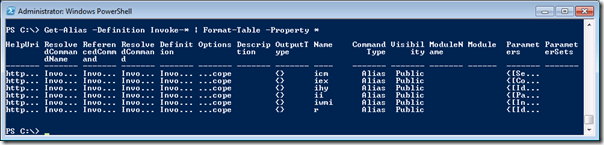
Let’s say you want to create a table showing a list of aliases for Invoke commands and you want to view all properties for those aliases.  The command to do this seems pretty straightforward, simply calling Get-Alias -Definition Invoke-* and passing the results to Format-Table -Property * to show all of the columns.  Here are the results of that command, showing a table with column names that span multiple lines and rows with data that is not useful:
image

As you can see, the content of the table is truncated so you can’t really tell what the data is in the table, and if you output the results of that command to a file where the lines can be longer you still get the same results.

Issue #2: Auto-sized tables are limited to the width of your screen buffer

If you try to solve this problem by looking at the help for Format-Table, you may come across the AutoSize parameter.  The AutoSize parameter allows you to tell PowerShell that you want the formatter to automatically size the table columns, showing as much data as possible.  Here is what happens if you add the AutoSize parameter to the same command you just ran:

image

This is on the right track for what you are after, but notice the warning text that is output at the top of the resulting table.  It indicates that 10 columns do not fit into the display and were removed.  If you pipe the results of this command to Out-File, PowerShell will simply pass what you see on the screen to the file you are writing to, which is not sufficient for your needs.

Solution: Strings are not subject to the limitations of other objects in PowerShell

When you pass the results of Get-Alias to Format-Table, the Alias data is converted into objects that describe how the table should look.  These objects are then passed implicitly to the Out-Default cmdlet which renders the objects according to their format configuration as well as the current console configuration.  In fact, every PowerShell command you run ends with the results being implicitly passed to Out-Default.  Even if you pass the results of our Format-Table call to Out-File instead, Out-File will render the objects according to their format configuration and the current console configuration.  This is the limitation that is making this seemingly simple task so difficult.  What we need to do then is to make sure that the data that is sent to Out-File or Out-Default is pre-formatted so that it is not limited by the size of the screen buffer.  How do you do that you ask?  The answer is simple: use Out-String.

Out-String is a cmdlet that allows you to convert any output to string format, and you can specify the width of that string using the Width parameter which allows you to exceed the limitations of the PowerShell console buffer size.  When strings are passed into Out-Default and Out-File they are simply written as is without any truncation or automatic text wrapping.  With that additional piece of knowledge you can pass the results of your Format-Table cmdlet call to Out-String using a width that is large enough for the table output, which successfully forces the objects to be rendered with the width that you want without having to change the buffer size.

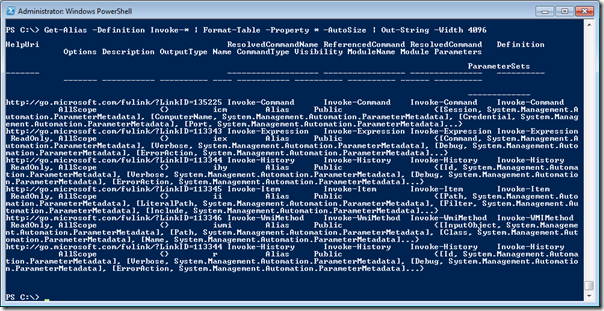
Here is a screenshot showing what happens when you pass your Format-Table output to Out-String, specifying a width of 4096 characters:
image

That might not look very useful either, but look what happens when you take this one step further and pass the results to Out-File.  Here is the command to do this:

Get-Alias -Definition Invoke-* `
| Format-Table -Property * -AutoSize `
| Out-String -Width 4096 `
| Out-File C:\aliases.txt

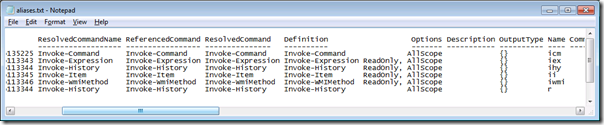
Opening the resulting aliases.txt file shows the following contents:
image

This is only showing part of the results, but did you notice the horizontal scroll bar at the bottom of the window?  It illustrates that you have achieved your goal, creating a table wide enough to show all data in the table inside of a text file that can then be sent to others, stored for archival logging purposes, etc.

Sidebar: If you have a specific property that contains a collection of items, that property may still show an ellipsis in the file produced here if the number of items in that collection exceeds the number assigned to the built-in $FormatEnumerationLimit variable.  In this case, if you want to see the entire collection of items, you should temporarily change the value in $FormatEnumerationLimit to something large enough to show your collection (-1 if you want to see all items) and then run a command similar to what I have shown you above.  The default value of $FormatEnumerationLimit is 4, which can be limiting when generating a file like this.  Increasing this value will give you a full report of what you have in the data you are processing.

With that knowledge in hand, the takeaway for you here is to make sure that you autosize your Format-Table results and that you pass them to Out-String with an appropriate width before you write it to a file if you want to output large tables in text format.

Thanks for listening!

Kirk out.

PowerShell Quick Tip: Process your errors more efficiently with Group-Object

Instead of going through your errors one at a time, since there are often cases where the same error is repeated multiple times, use Group-Object with $error to filter out the duplicates so that you can see what the real errors are that you need to deal with.  For example, right now I have 256 errors stored in my $error variable.  To figure out what I need to really look at, I can invoke this command:When working with large script files or modules, you may encounter situations where you have a large number of errors that you need to deal with.  This can be overwhelming, especially when you have looping constructs in your scripts that cause the errors to be raised over and over again.  When you are facing hundreds of errors output from a script, how do you process them all?  Fortunately there is a quick an easy way to make sense of your errors and identify what really needs to be fixed.

All errors are recorded by default in the $error variable.  This variable allows you to access any errors you have received in PowerShell, to a maximum count as identified by the $MaximumErrorCount variable.  By default this is set to 256, and dealing with 256 errors can be impossible without the proper divide and conquer strategy.  Also, the $error variable even includes errors that were hidden by trap, catch, or error action preferences, so this variable is very useful when troubleshooting all errors you have in your scripts.  As mentioned though, this can be a lot of information to digest, so it is important to know how to process it efficiently.

Instead of going through your errors one at a time, since there are often cases where the same error is repeated multiple times, use Group-Object with $error to filter out the duplicates so that you can see what the real errors are that you need to deal with.  For example, right now I have 256 errors stored in my $error variable.  To figure out what I need to really look at, I can invoke this command:

$error | Group-Object | Format-Table Count,Name -AutoSize

That gives me the following results:

Count Name
----- ----
1 Exception calling "ShowDialog" with "0" argument(s): "Property 'PS...
2 Property 'PSiscontainer' cannot be found on this object. Make sure...
240 Property 'Extension' cannot be found on this object. Make sure tha...
13 Property 'Name' cannot be found on this object. Make sure that it ...

This short list of four errors is much less intimidating than a huge list of 250 errors.  Once you have the short list, it becomes much easier to figure out where to get started.  You can also go further by expanding on these details like this:

$Error | Group-Object | Format-List Count,@{Name='Error';Expression={$_.Name}},@{Name='Location';Expression={$_.Group[0].InvocationInfo.PositionMessage}}

A command like that will yield results that look something like the following:

Count    : 1
Error    : Exception calling "ShowDialog" with "0" argument(s): "Property '
PSiscontainer' cannot be found on this object. Make sure that it
exists."
Location :
At C:\Users\kmunro\Documents\WindowsPowerShell\Modules\Add-on.Te
st\Add-on.Test.psm1:860 char:20
+         $Form1.ShowDialog <<<< ()
Count    : 2
Error    : Property 'PSiscontainer' cannot be found on this object. Make su
re that it exists.
Location :
At C:\Users\kmunro\Documents\WindowsPowerShell\Modules\Add-on.Te
st\Add-on.Test.psm1:1236 char:16
+                         if ($obj. <<<< PSiscontainer) {
Count    : 240
Error    : Property 'Extension' cannot be found on this object. Make sure t
hat it exists.
Location :
At line:1 char:11
+ if ($this. <<<< Extension.Length -gt 0){$this.Name.Remove($thi
s.Name.Length - $this.Extension.Length)}else{$this.Name}
Count    : 13
Error    : Property 'Name' cannot be found on this object. Make sure that i
t exists.
Location :
At line:1 char:7
+ $this. <<<< Name

That’s much better.  Now I can see which errors are happening most frequently and concentrate my efforts on them while knowing I only have a few unique errors to deal with.

I hope this helps you work out errors in your own scripts and modules.

Kirk out.

P.S. Wouldn’t it be cool if there was a PowerGUI Script Editor Add-on that showed you the contents of the $error variable, grouped like this, with the ability to double-click and go to the appropriate position in the appropriate file…could make a great entry for the PowerGUI Challenge contest that is going on right now!

PowerGUI® Challenge: Have you taken the challenge yet?

In 10 days on November 15, the 2010 PowerGUI Challenge comes to a close.  The PowerGUI Challenge is a contest that gives you a chance to win some money while having fun with PowerShell and PowerGUI.  The rules are pretty simple: create a PowerPack or an Add-on for PowerGUI and post it in the contest folder for a chance to win one of the prizes.  The best part is that it is possible to create a contest entry in 10 minutes once you do a little research and watch a few videos.  That’s only 1 minute a day for the next 10 days, or a fun 10 minute break from doing something else that you really don’t want to be doing.  If you want to learn more, here is what you need to do:

1. Review the contest details on the contest page (http://www.powergui.org/contest.jspa).  That should answer a lot of the up front questions you might have and it will highlight a few useful resources (but I’m going to highlight some of the most important ones here as well).

2. Take a moment and watch this screencast that demonstrates how easy it can be to create a really useful Add-on for the PowerGUI Script Editor:

3. Now that you know what an Add-on is and how easy it can be to create one, take a few more minutes and watch this screen cast that demonstrates how easy it can be to create a really useful PowerPack for the PowerGUI Admin Console:

4. Create your Add-ons and PowerPacks and post them to the contest folder once you have them working.  The earlier you post your entries, the more time you will have to collect valuable feedback so that you can polish them up before the contest ends on November 15th, and the more you participate the more chances you have to win (some of the prizes are based on level of participation, others are based on best PowerPack or Add-on).

What a great way to spend time having fun with PowerShell and PowerGUI on those dull, Fall days!

Good luck with your entries, and don’t hesitate to ask questions to myself or any of the other judges!

Kirk out.

PowerGUI®, Lego edition

My children made me really happy this morning.  It’s my birthday today, and every birthday I’m greeted by my son and daughter who are very anxious for me to come downstairs so that they can shower me with all sorts of gifts (cards they made, drawings, crafts, etc.).  It’s always a wonderful experience, but this time it came with something a little more unexpected.

This morning I was present with this wonderful gift:

PowerGUI Lego

How cool is that?  My son is a Lego fanatic and he and my daughter asked for a PowerGUI sticker a few weeks ago, which I happily gave to them.  The sticker looked something like this, minus the blue in the background:

Original PowerGUI Logo 

It turns out that this Lego project is the reason they wanted the sticker.  Quite a nice resemblance, don’t you think?  This wouldn’t have been possible if we didn’t have such a cool Logo for our product (thanks Dmitry!).  Sure, you could make a Lego mosaic version of the PowerShell Logo, but this is just so much more fun! Smile

Color me a happy camper today!

Kirk out.

P.S. This totally reminded me of a blog post I published over 3 years ago about Lego PowerShell.  PowerShell isn’t just about IT automation…it’s about fun toys for kids too! Smile

Come learn more about PowerGUI® on tonight’s PowerScripting Podcast

Over three and a half years ago, Jonathan Walz posted the very first recording of the PowerScripting Podcast, a podcast that is dedicated to PowerShell.  What started out as a small, solo effort that produced episodes on a not-so-regular basis matured into the best PowerShell podcast around, with two co-hosts (Jonathan Walz and Hal Rottenberg) that continually produce anywhere between 2 and 4 episodes every month!  To date there are 127 episodes available, full of PowerShell news, tips and tricks, and interesting interviews with people who are heavily invested in PowerShell.  It’s really a great resource for anyone looking to learn more about PowerShell during their daily commute, and I highly recommend checking it out.

As the PowerScripting Podcast evolved, so did the way in which it was recorded.  All recent episodes of the podcast are recorded live using UStream, which is great because it gives you a chance to hang out in the chat room and ask questions to the guest being interviewed.  All you need to do is visit the PowerScripting Podcast channel on UStream during the recording, which you can usually learn about by checking out the PowerScripting Podcast blog.  Recordings are typically done between 9 and 11PM EST on Thursday nights.

This time Hal and Jonathan are a little behind on putting out the announcement about the next podcast, but I have the inside scoop so I wanted to share the news to give you a chance to check it out.  Tonight I’ll be hanging out with Hal and Jonathan on the PowerScripting Podcast channel, and I welcome you to come and join me in the chat room and ask questions about PowerShell, PowerGUI, PowerGUI Pro, the PowerGUI Challenge contest, what it’s like being a Poshoholic, or anything else you feel like asking.

Hope to see you there!

Kirk out.

How to create PowerGUI® Script Editor Add-ons the easy way

In case you haven’t heard, there is a contest coming up that gives you the opportunity to win some money while having fun with PowerShell and PowerGUI.  In order to win something in the contest you have to enter, and in order to enter you have to create either a PowerPack for the PowerGUI Admin Console or an Add-on for the PowerGUI Script Editor.  I have spent a lot of time creating Script Editor Add-ons over the past few months, and when you work on things like Add-ons it can be very helpful to have the right tools at your side.

One of my favorite tools that I like to use for any repetitive PowerShell scripting is PowerShell snippets.  A PowerShell snippet is an xml document (.snippet file) that defines a short piece of PowerShell script with a few fields that can be customized when the snippet is inserted into a script.  Think of a snippet as a little user interface for injecting small pieces of PowerShell script into larger scripts that you are work on.  Snippets are incredibly useful and easy to create and customize, allowing you to arm yourself with tons of useful pieces of PowerShell script and save yourself a lot of typing.

While working on the Add-ons I have been publishing I decided I should build up a collection of snippets so that I could focus my efforts on the core logic inside the Add-on that makes it do wonderful things like sign scripts, create modules, and build other Add-ons, and less on the trivial details like adding and removing menus, menu items, toolbars, toolbar buttons and dockable windows.  This effort has resulted in a collection of 31 snippets that make creating a PowerGUI Script Editor Add-on much easier and today I have published that collection so that anyone can use them when creating their own Add-ons!

If you want to see an example of how easy it is to insert one of these snippets, here is a screenshot showing the snippet menu that appears after I press Ctrl+I (or Edit | Insert Snippet), along with some of the nested folders and their contents showing some of the snippets that are available:

image

If you want to build Add-ons, these snippets make it much easier to get started.  All you need to do is the following:

1. Download the Authoring Toolkit Add-on version 1.0.2 or later.  In version 1.0.2 I updated the Add-ons that are generated such that they use a $pgse variable for the root of the Add-on SDK.  Most of the snippets are dependent on this variable, so you should either download this version of the Add-on or make sure you are using a $pgse variable as the root of the Add-on SDK in Add-ons you have already started building.

2. Download the Script Editor Add-on snippets.  The download page describes how to install the snippets.  Note that since they must be copied into a Program Files folder, you must have the proper permissions to put them there.

3. Create a new Add-on or open an Add-on you are already working on and start using the Edit | Insert Snippet menu item to build more extensions to the PowerGUI Script Editor UI.

Between the Authoring Toolkit, the tutorial, the SDK documentation, and now these snippets, you should now have plenty of tools available to make it easier for you to create snippets for the contest that starts on October 15th.  I’m looking forward to seeing your entries!

Kirk out.

P.S. As I was publishing this I thought of a bunch more snippets that could be useful, but this is a good first set to get you started. If you like snippets and there are other snippets you would like to see, related to Add-ons or anything else you do with PowerShell, let me know so that I can know where you would like to see more effort in the future.  Thanks!

PowerGUI® Online

With the PowerGUI Challenge contest only a few weeks away, you may be wondering where you can go to learn more about PowerGUI in preparation for the contest.  Or maybe you’re looking for inspiration for the kinds of things you can do by using PowerShell with PowerGUI so that you can plan an entry for the contest.  To help provide some assistance with this, a few minutes ago I just published the first release of the new PowerGUI Online Add-on.  This Add-on adds a new PowerGUI Online menu to your Script Editor that provides you with fast access to dozens of useful resources for PowerGUI.  It includes links to many online resources, including:

  • Contest resources
  • Discussion forums
  • Learning center
  • PowerPack categories
  • Script Editor Add-ons
  • PowerGUI Team members on Twitter
  • Developer resources (PowerGUI VSX)
  • The PowerGUI channel on YouTube
  • Request a script
  • and more!

There are a lot of online resources available to help you get the most out of PowerShell and PowerGUI, and this Add-on pulls them all together into one organized menu.

One thing I really like about this Add-on is that when you click on any of the items in this menu, if you are running the PowerGUI Script Editor in STA mode (which is the default) the associated web page will be loaded right in the Script Editor!  Here’s a screenshot showing the Add-on in action with the embedded web browser appearing as another tab in the Script Editor:

PowerGUIOnline.Menu

If you are not running in STA mode (which means you are running in MTA mode), then the web pages associated with the PowerGUI Online menu items will load in your default web browser when clicked on.

This is the first release of this Add-on, so please let us know what you think.  It’s really easy.  Just click on the Feedback menu item in the new PowerGUI Online menu and leave us a note on our forums.

Kirk out.

P.S. Keep watching this blog for more useful content related to the PowerGUI Challenge contest that is coming soon.